

Real Self Lead Form Integration Using Zapier
1) Create a Zapier account.
2) Log in to the Zapier Email Parser: https://parser.zapier.com/
(Use your Zapier account credentials.)
3) Create a new Mailbox.

RealSelf Setup
4) Log in to RealSelf: https://www.realself.com/user/login
5) Navigate to Edit Profile → Contact, then add the generated Zapier Email Parser address as your contact email.
If needed, contact RealSelf Support at expert@realself.com for assistance.
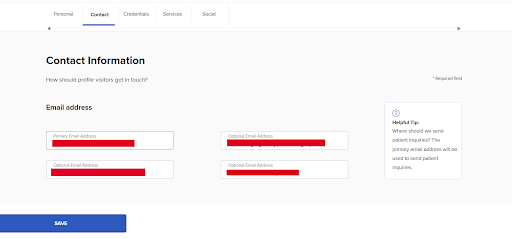
6) Send a test lead using the form on your RealSelf landing page.
Zapier Email Parser Configuration
7) After the test email arrives in your Zapier Parser Mailbox, click the gear icon on the right and set up your template.

8) Map the data fields you want to send to the RSI CRM through Zapier.
-
A list of mappable RSI fields is available here:
https://www.redspotinteractive.com/portal-education/zapier-integration/
9) To map data, highlight the desired text in the email body and assign a variable name.

10) Save the template when finished.
Creating the Zap
12) Return to Zapier and create a new Zap: https://zapier.com/app/assets/zaps
13) For the Trigger, select Email Parser.
14) Set the Trigger Event to New Email.
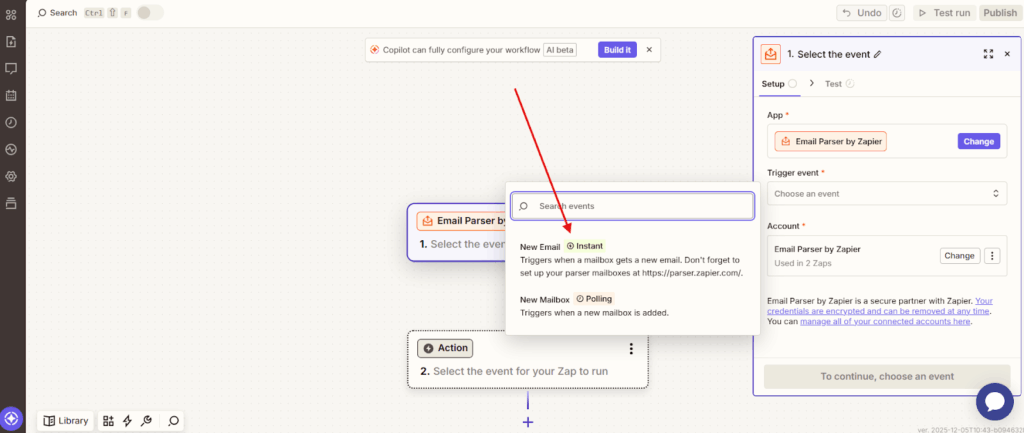
15) Choose the Mailbox you created earlier.
16) Continue to Test the trigger.
17) After the Trigger is set up, proceed to configure the Action.
18) For the Action, select the Red Spot Interactive app.
- More details available here:
https://www.redspotinteractive.com/portal-education/zapier-integration/
19) Use the mapped variable names from your Email Parser template to populate the appropriate RSI fields.
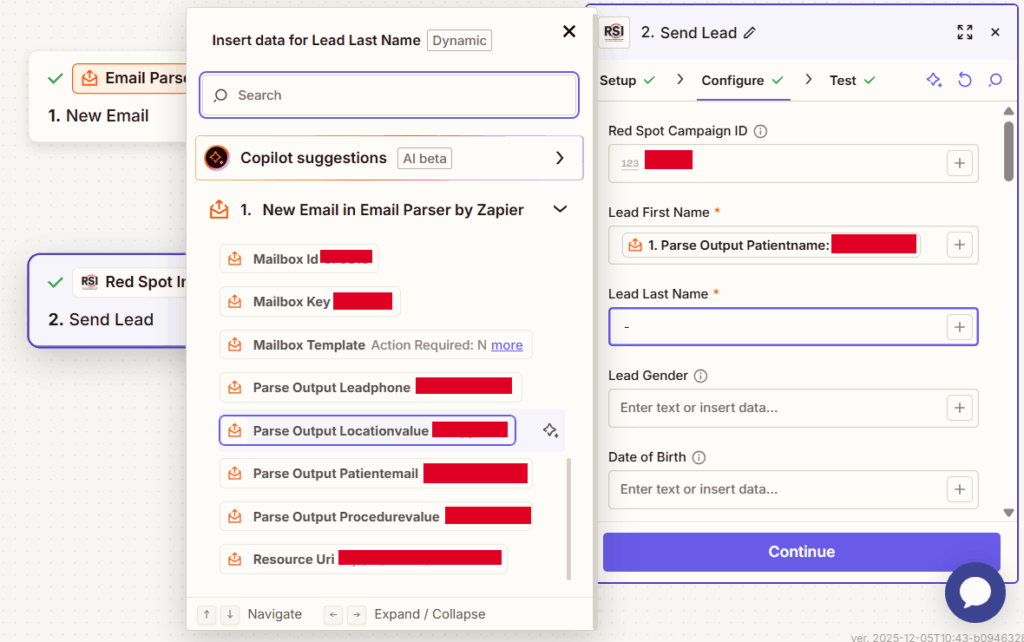
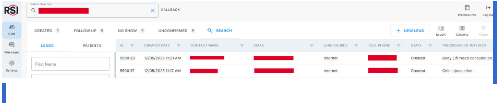
20) Publish your Zap and test your form. The submitted form entry should appear on the RSI CRM
Please note:
1) To confirm that your RealSelf form submission was successful, you can check the “Inquiries” section on your RealSelf account.
-
Go to your RealSelf dashboard, then on the navigation go to Performance -> Inquiries

2) Because the RealSelf Consultation form collects “Full Name” in a single field, you will only be able to capture one combined name value in the Zapier Email Parser.
- When mapping this to the Red Spot Interactive fields:
- First Name: Populate with the Full Name captured from RealSelf
- Last Name: Enter a dash ( – ) as a placeholder














