

Education Library
Mod Med Create a Calendar Template
A step-by-step guide to setting up appointment templates in your practice management systemOverview
This guide will walk you through creating calendar templates for your practice. You’ll learn how to verify appointment types and create templates that can be repeated weekly or in multi-week rotations.Key Points:
- You can template multiple days at once if they use the same template
- Templates can repeat weekly or in cycles up to 12 weeks
- Each day with different requirements must be templated individually
Step 1: Verify Appointment Types Setup
Access Practice Settings
- Log in to Practice Settings
- Navigate to: Practice Management Settings → Appointment & Calendar → Appointment Types
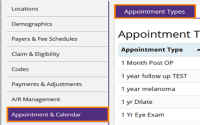
Review Appointment Types
- Verify that all appointment types your office will use are properly entered
- Proceed to creating templates only after verification is complete
Step 2: Create Appointment Templates
Access Calendar Templates
Select Calendar from the Appointment & Calendar menu option.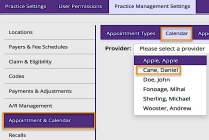
Configure Provider and Location Settings
- Select the appropriate provider and location
- Set end date to a future date
Create Time Slot Templates
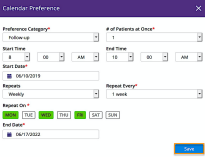
Double-click anywhere on the calendar to open the templating window. Enter information for the time slot you are creating.
Complete Template Setup
- Complete templating for all days and time slots for the Provider
- Turn the Provider’s Calendar ON

Important Considerations
Patient Self Scheduling Integration
If you’re using Patient Self Scheduling, ensure that:- Information in Appointment Types matches
- Information in Appointment & Calendar matches
- Information in Patient Self Scheduling Settings matches
Template Flexibility Options
- Multiple identical days: Template several days at once if they share the same schedule
- Different daily schedules: Template each unique day individually
- Repeat patterns: Set up weekly repeats or cycles (2 weeks, 3 weeks, up to 12 weeks)
Quick Reference Checklist
- Logged into Practice Settings
- Verified all appointment types are set up
- Selected correct provider and location
- Set consistent end dates for templates
- Created time slot templates by double-clicking calendar
- Completed templating for all required days/times
- Turned Provider Calendar ON
- Verified Patient Self Scheduling alignment (if applicable)














