

Education Library
Insurance
Guide to Updating Insurance Information in Red Spot Interactive’s CRM
1. Introduction to the CRM Training Series 0:00
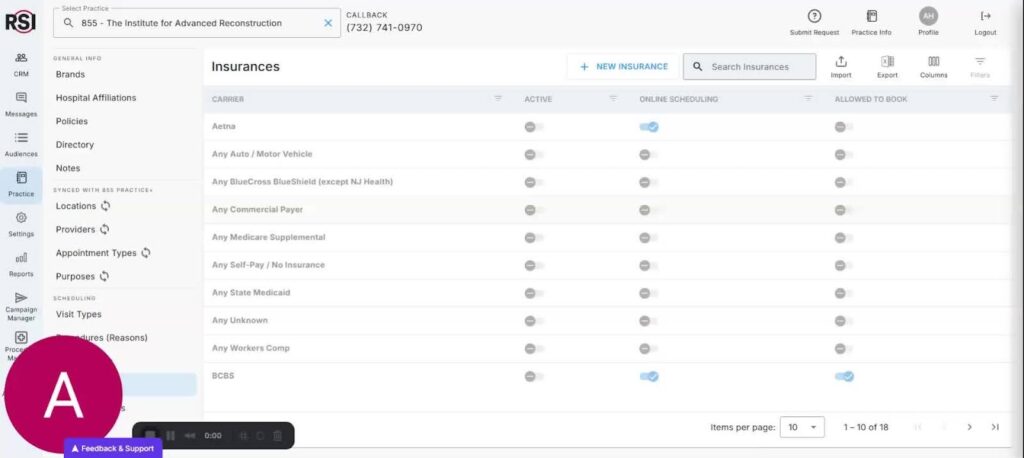
- Welcome to Red Spot Interactive’s CRM training series.
- Presenter: Amy.
- Purpose: Walkthrough on adding and editing insurance information in the updated CRM.
2. Overview of the New User Interface 0:14
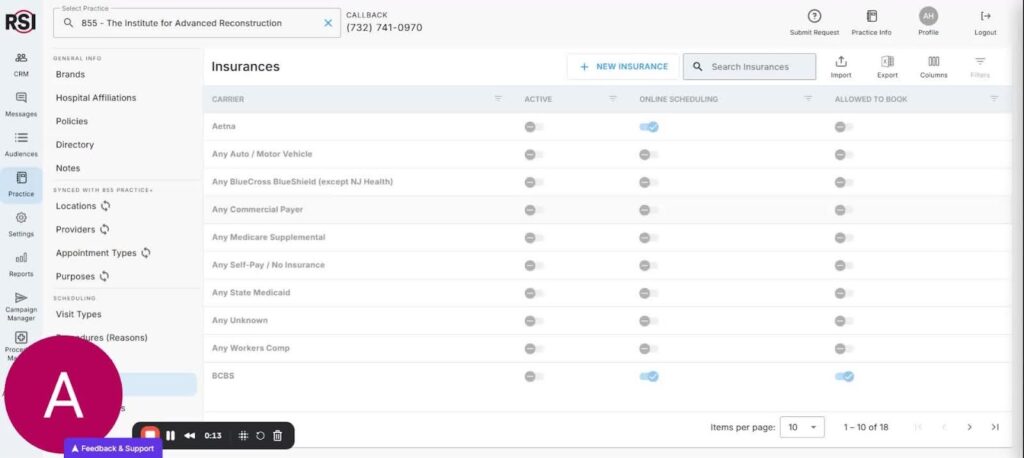
- The updated CRM features a sleek new user interface.
- Features are streamlined for faster workflow.
3. Understanding the Insurance List 0:25
- Insurance information is accessible in the practice info section of the CRM.
- Designed for CRM teams, call centers, and lead management teams.
-
Users can:
- Search for specific insurance.
- Scroll through the insurance list.
- Expand to view detailed notes on plans and other details.
4. Editing Insurance Information 1:12
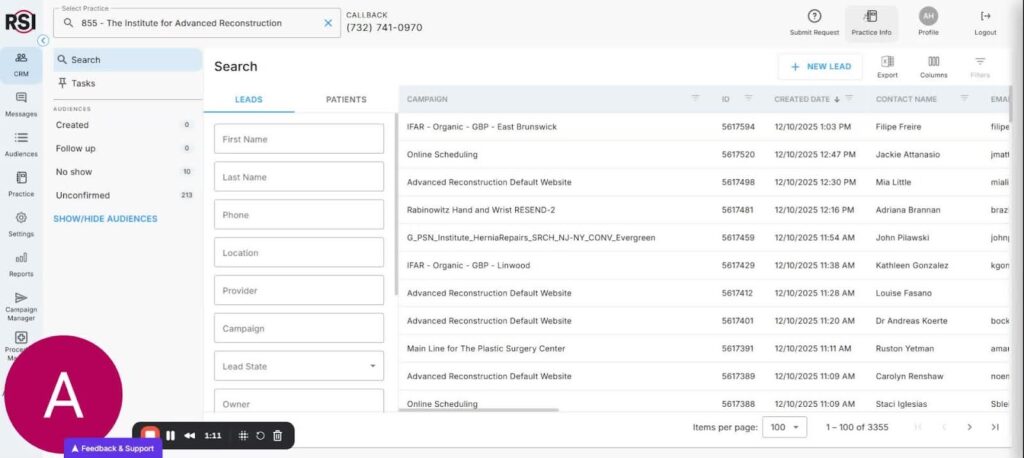
- Navigate to practice settings to edit the insurance list.
- Scroll to the insurances section to view the list.
5. Adding and Editing Insurance Plans 1:28
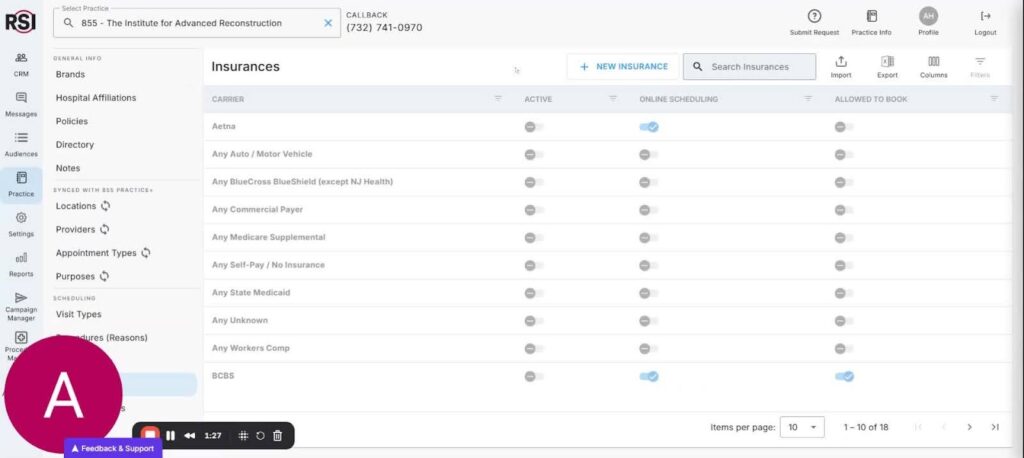
- Click to open an insurance entry to edit.
- Carrier name and options to add plans are available.
-
Options include:
- Active plans.
- Online scheduling settings.
6. Marking Insurance as Active 1:52
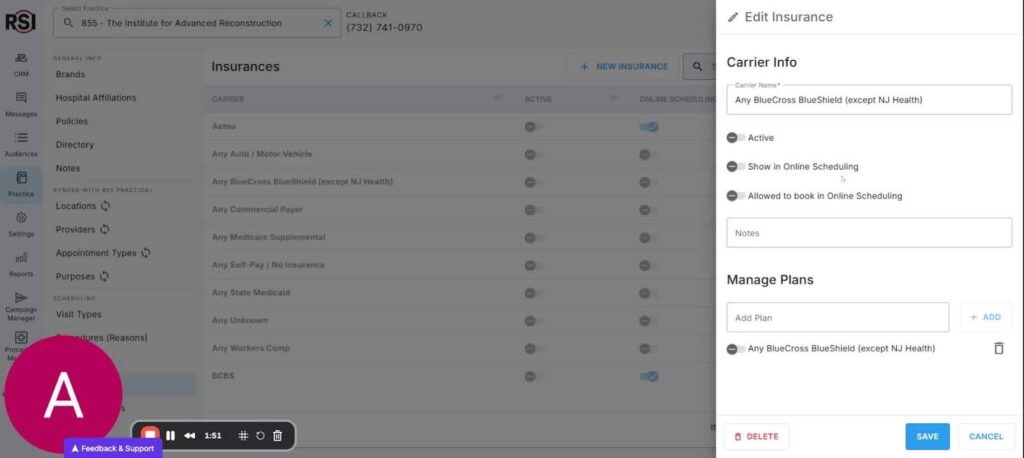
- Active insurance indicates that the practice currently accepts this insurance.
- Toggle the active status on or off to show/hide in the CRM view.
7. Configuring Online Scheduling 2:21
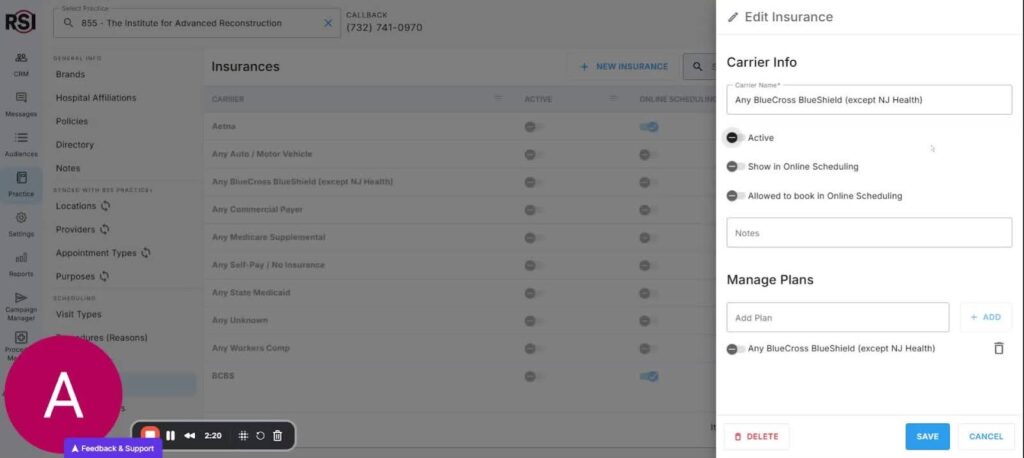
- Team members can configure appointment offerings based on insurance.
- Decide for each appointment type whether the insurance should be included in the list.
8. Allowing Online Booking 2:36
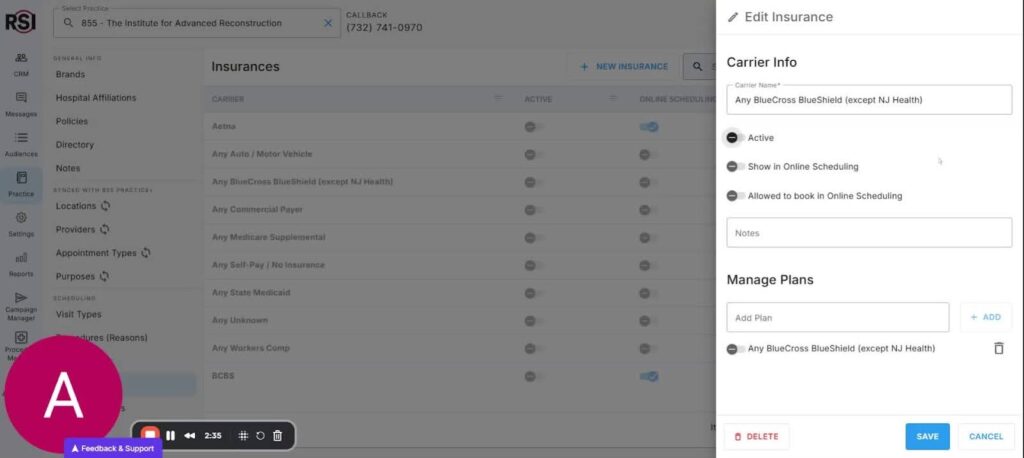
- Option to allow or prevent appointments based on patient-selected insurance.
- Flexibility in scheduling based on insurance selection.
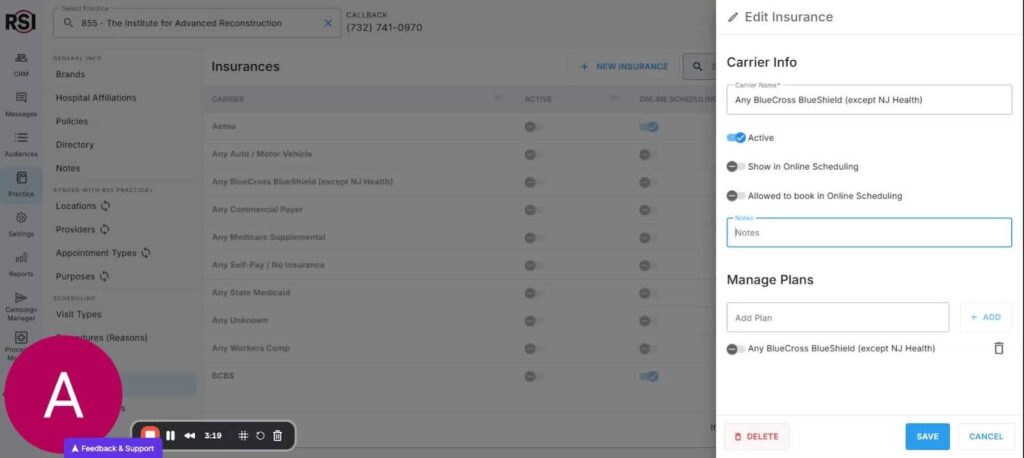
9. Adding General Notes and Deleting Insurance 3:08
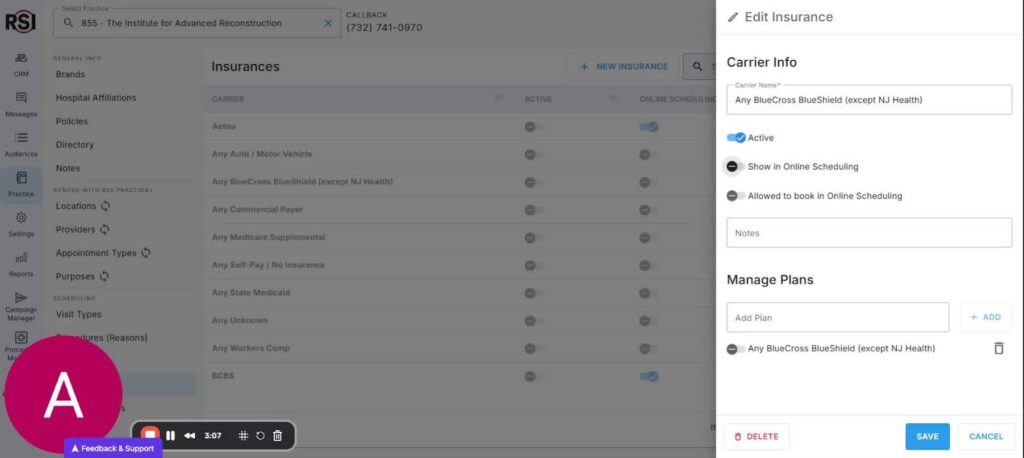
- Add general notes for team reference.
- To remove an insurance no longer offered, use the delete option.
10. Conclusion 3:20
- Thank you for participating in the tutorial.
- Encouragement to utilize the updated CRM features.














