

Enabling Auto- Payment Applications in ModMed
Configuring Payment Settings in ModMed
Once RSI notifies you that the integration is complete, you’ll need to configure two settings in ModMed to enable automatic payment application to patient ledgers.
✅ Step 1: Configure the Auto Batch
ModMed requires an Auto Batch to be set up before payments can be applied automatically. Without this configuration, payments will remain in a pending state.
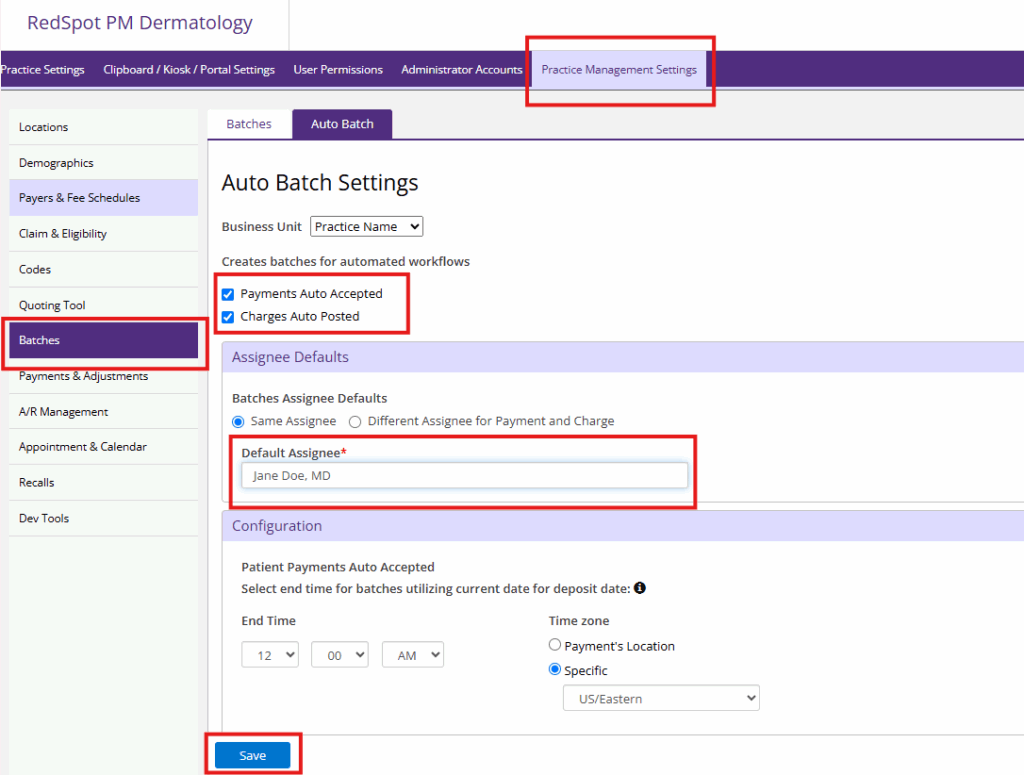
Navigation Path:Firm Admin → Practice Management Settings → Batches → Auto Batch Instructions:
- Click into Auto Batch
-
Check the two checkboxes:
- Payments Auto Accepted
- Charges Auto Posted
- Set a Default Assignee (default provider)
- Click Save
✅ Step 2: Enable Auto Accept for External Payments
After configuring the Auto Batch, enable the Auto Accept setting so external patient payments are automatically posted to patient ledgers.
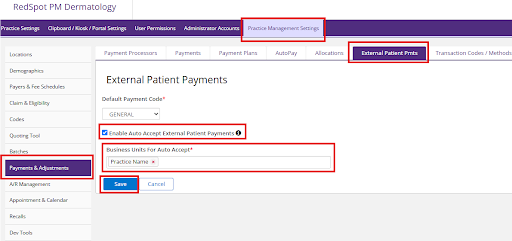
Navigation Path:Firm Admin → Practice Management Settings → Payments & Adjustments → External Patient Pmts Instructions:
- Locate the setting “Enable Auto Accept External Patient Payments”
- Check the box to enable it
- Select the appropriate Business Unit(s)
- Click Save
⚠️ Important Note About Pending Payments
Enabling Auto Accept only affects payments received after the setting is enabled. Any payments received before you enable this setting will remain in “Pending” status and must be manually accepted.
How to Accept Pending Payments Manually
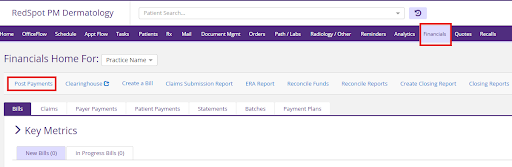
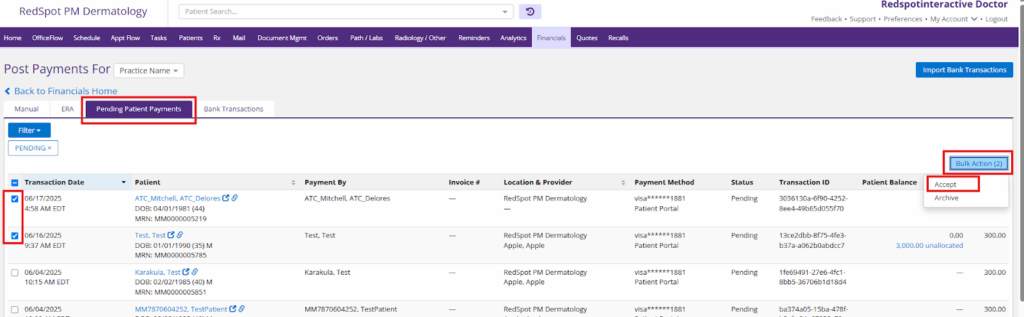
Navigation Path:Financials → Post Payments → Pending Patient Payments Instructions:
- Navigate to Pending Patient Payments under the Post Payments section
- Review the list of pending payments
- Select the appropriate payment(s)
- Choose the Accept action from the Bulk Action button
- Once accepted, the payment(s) will appear in the patient’s ledger
Training Resources
For a video walkthrough of the ModMed configuration steps, please view:
ModMed Payment Configuration Video Tutorial
Need Help?
If you have questions or need assistance at any point during the integration process, please contact your RSI account manager or our support team. We’re here to ensure a smooth integration experience for your practice.














