

Education Library
Email & Text Templates
- Introduction to CRM Training 0:00
- Welcome to Red Spot Interactive’s CRM training series.
- Purpose: To guide users on adding and editing quick templates for SMS and email messaging in the CRM.
- Overview of the New User Interface 0:18
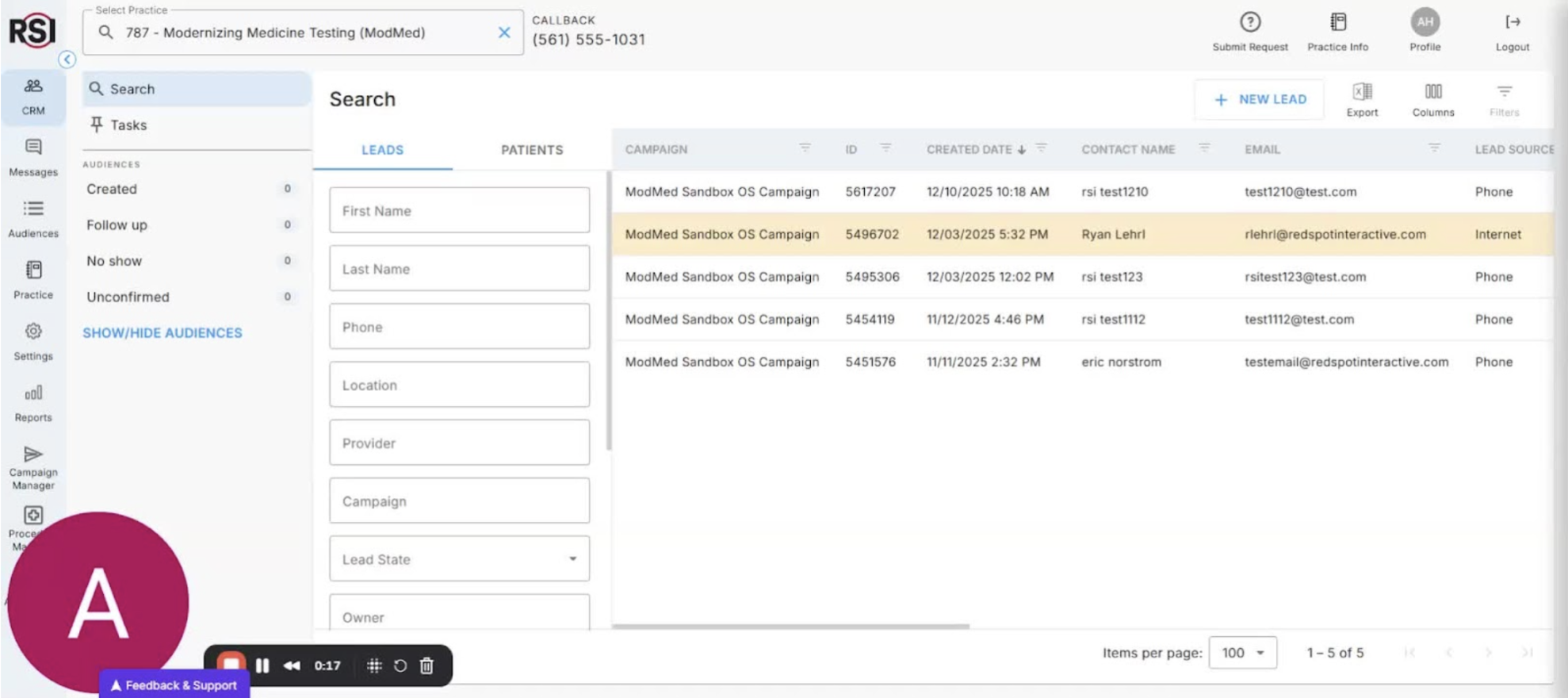
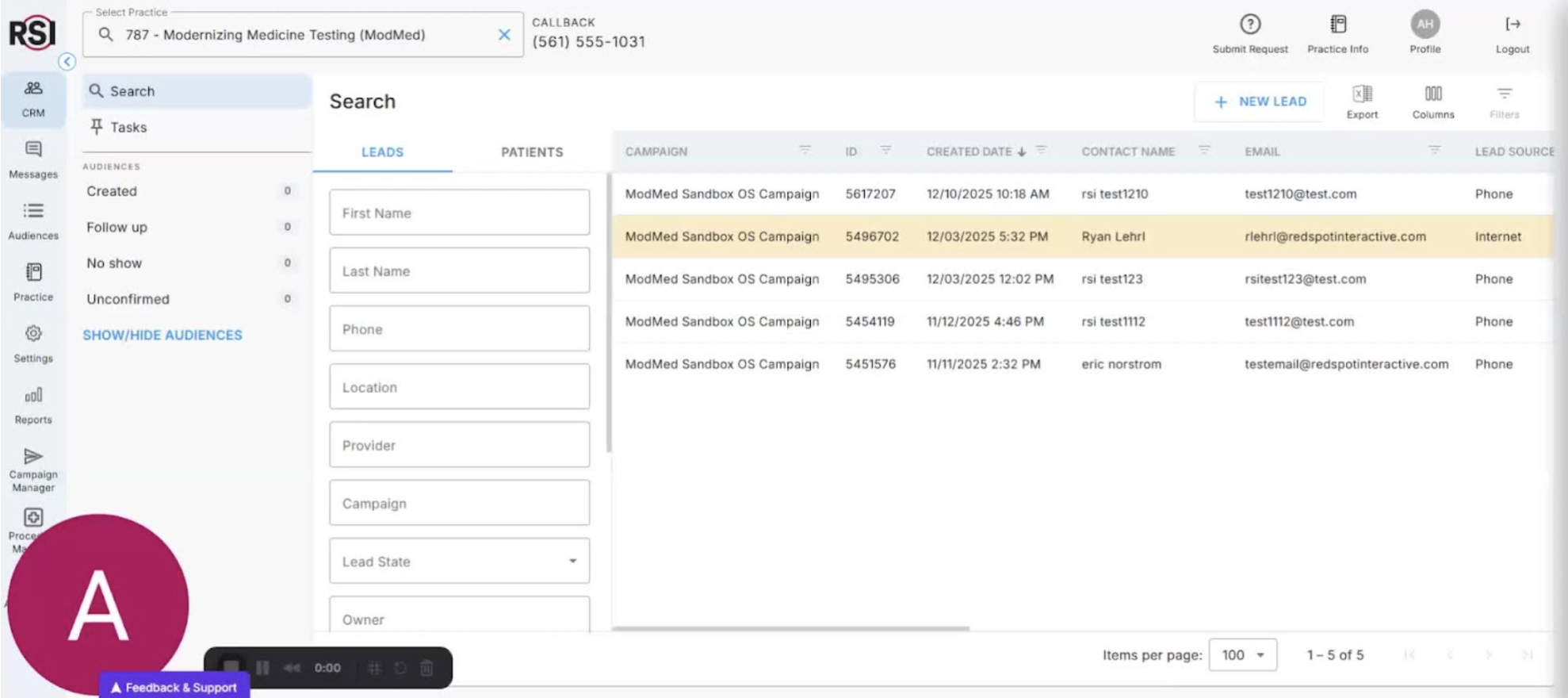
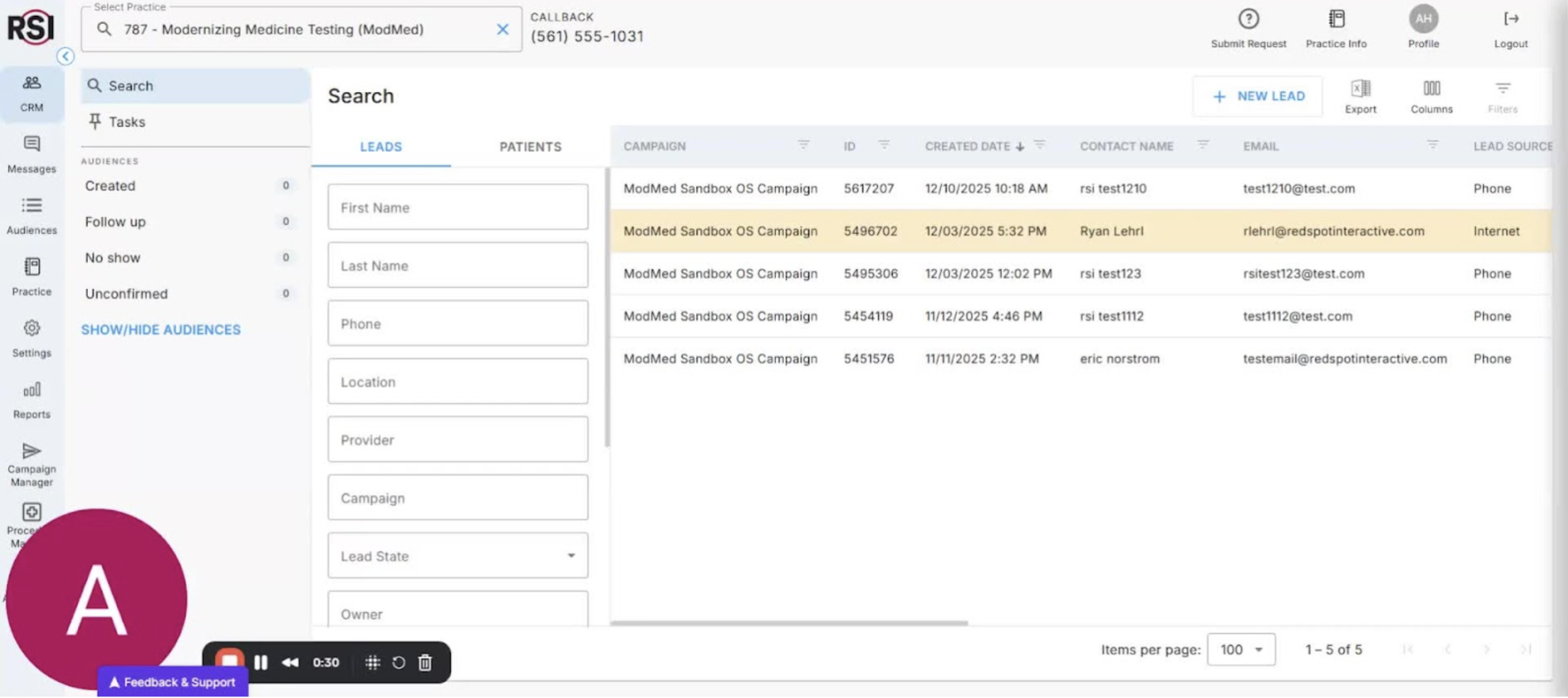
- The new CRM version features a streamlined user interface.
- Designed for faster and more intuitive workflow.
- Accessing Contact Messaging Options 0:31
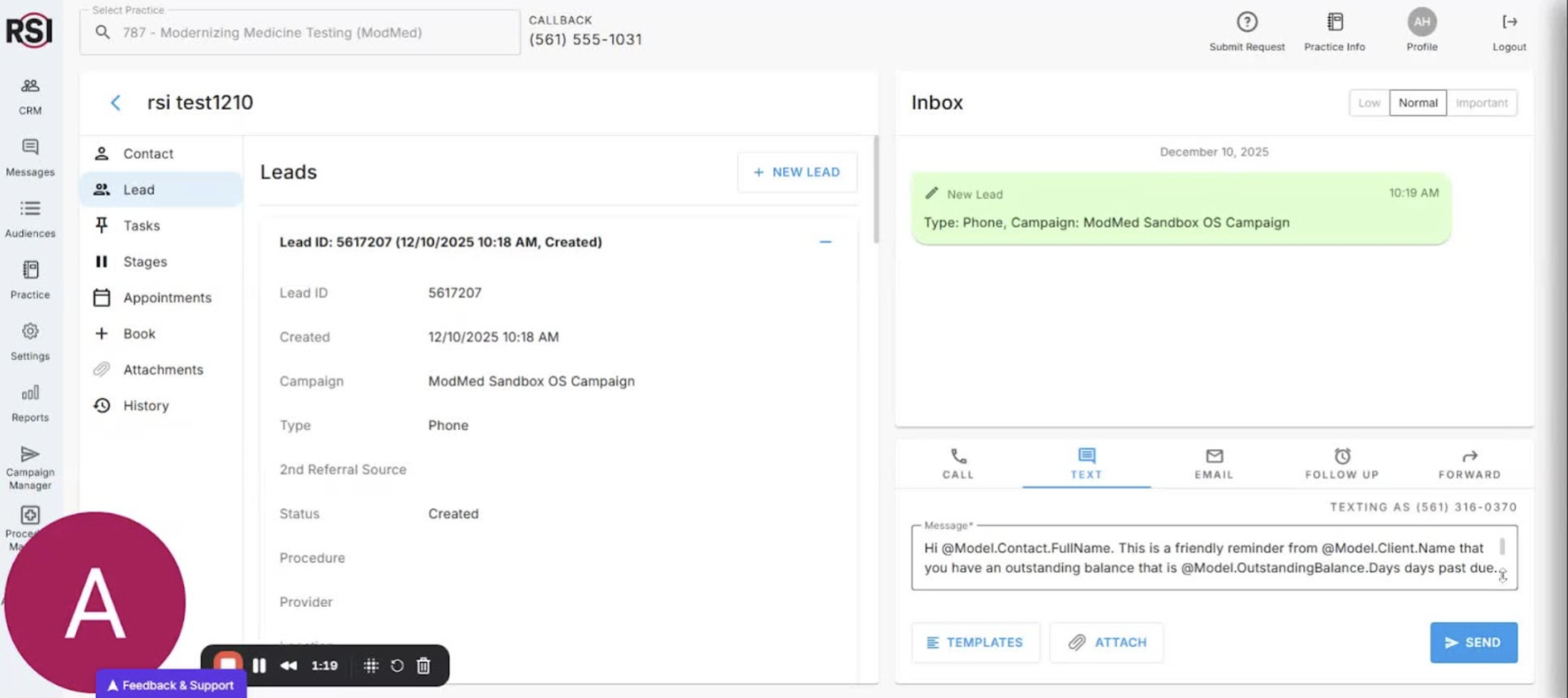
- While viewing a contact or lead, locate the messaging options on the right side.
- Options include:
- Text
- Templates for quick messaging are available for both SMS and email.
- Building and Accessing Templates 1:20
- To build templates, navigate to the left side under ‘Settings’.
- Under ‘System Information’, find ‘Email and SMS Templates’.
- Click to view all current templates by name.
- Editing Existing Templates 1:46
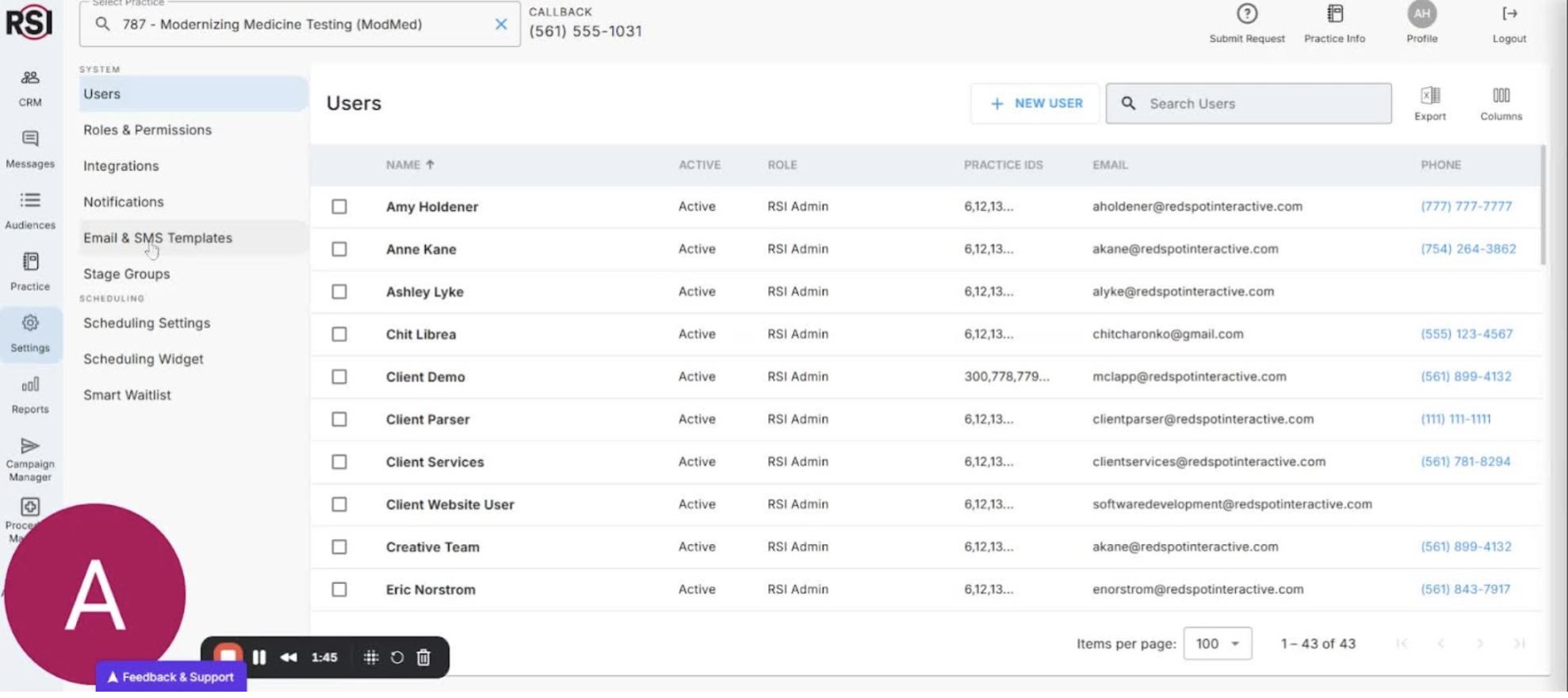
- Click on a template to view its current message.
- Edit or delete as needed:
- Make changes in the text box.
- Hit ‘Save’ to apply changes.
- Using Merge Fields in Templates 2:06
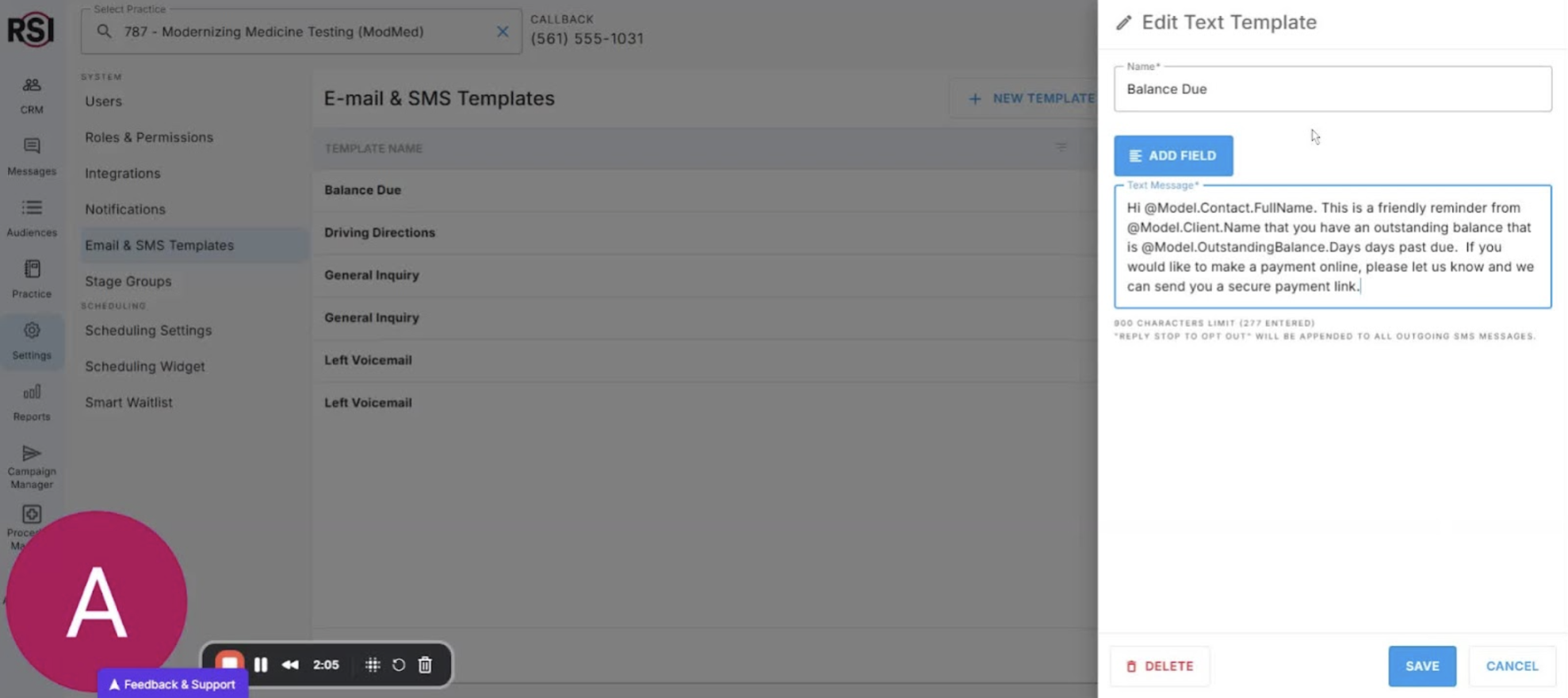
- Use the ‘Add Field’ button to insert merge fields.
- Merge fields automatically populate relevant information:
- Example: ‘@model.contact.full_name’ inserts the contact’s full name.
- View available merge fields such as:
- Client name
- Phone number
- Email address
- Outstanding balance.
- Customizing Email Templates 3:39
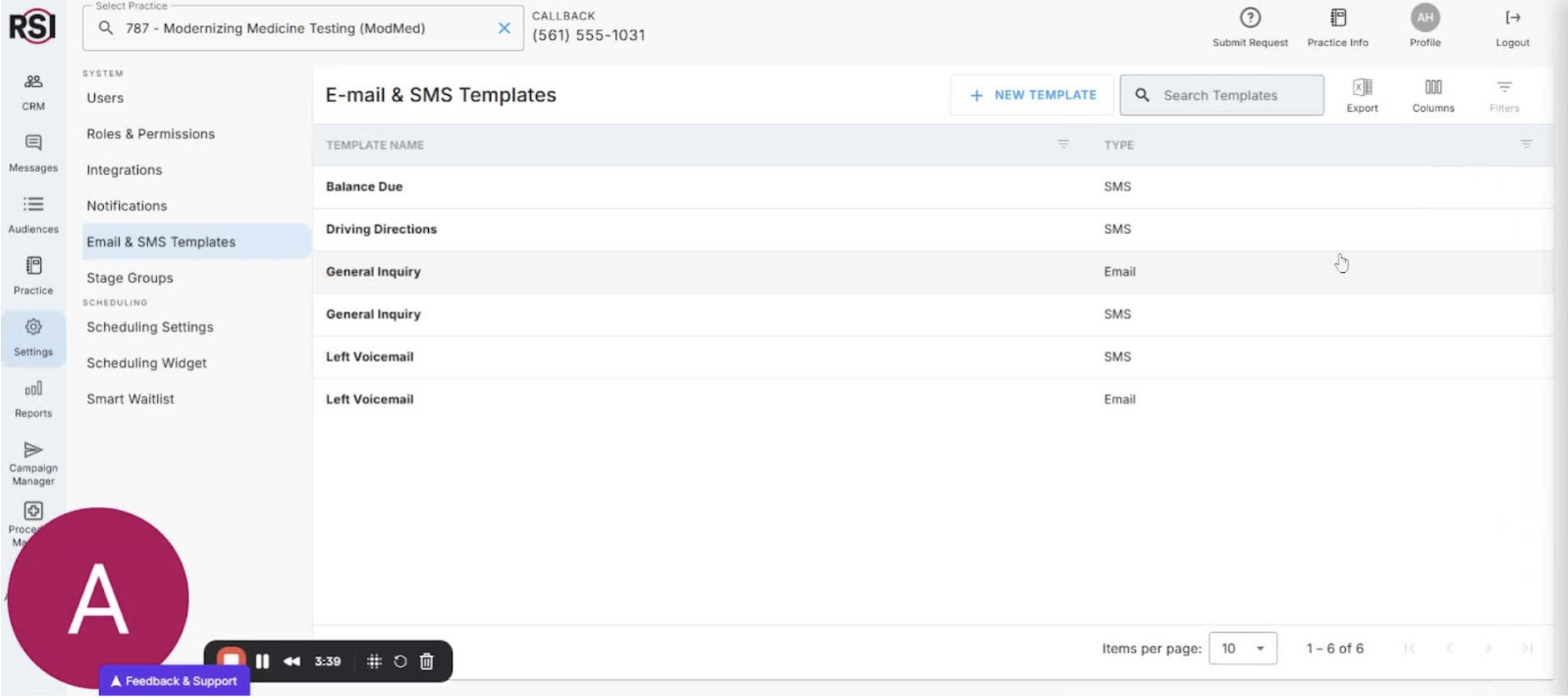
- Email templates offer a full editor for customization.
- Option to upload HTML sourcing code for branding.
- Sending Messages Using Templates 4:08
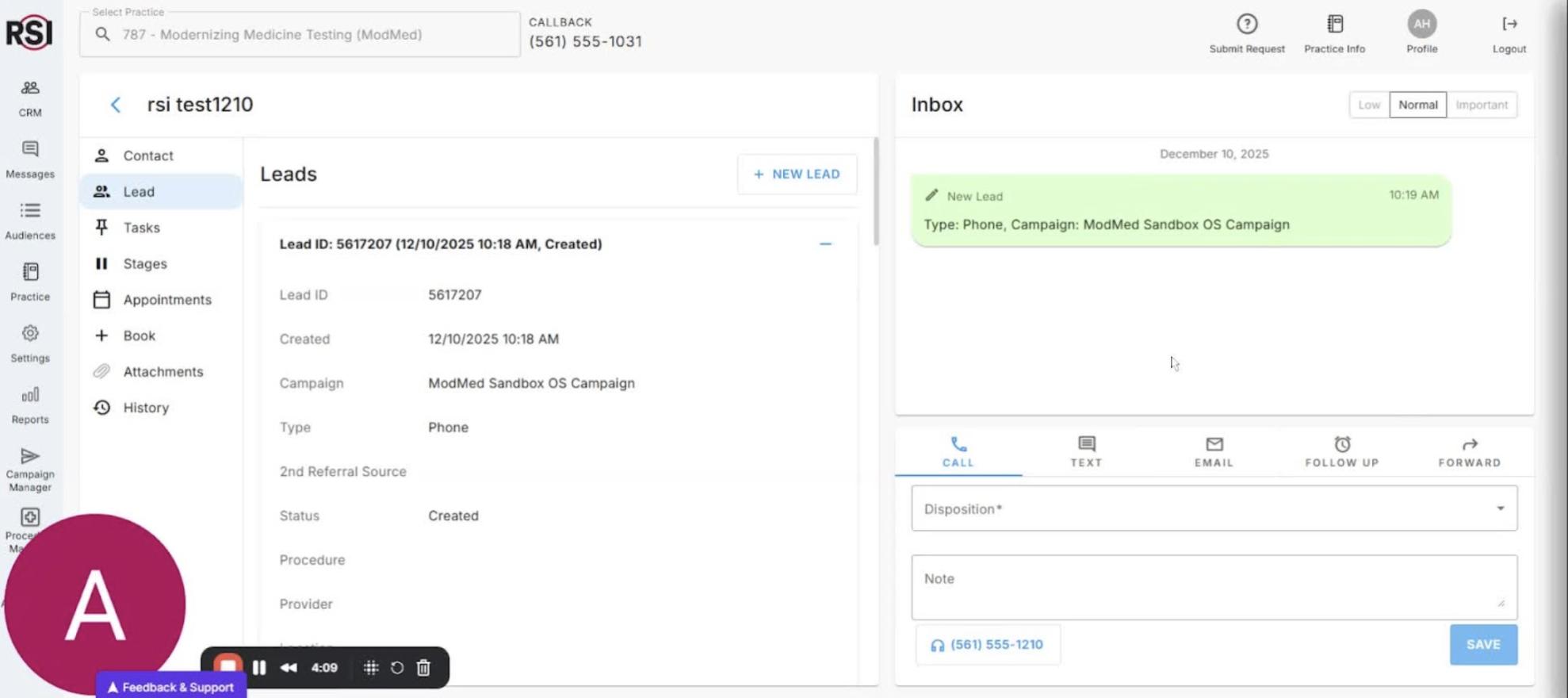
- While viewing a lead, use the messaging options on the right to:
- Call
- Text
- Follow-up
- Forward
- Select a quick text template to send a message.
- Logging Sent Messages 4:16
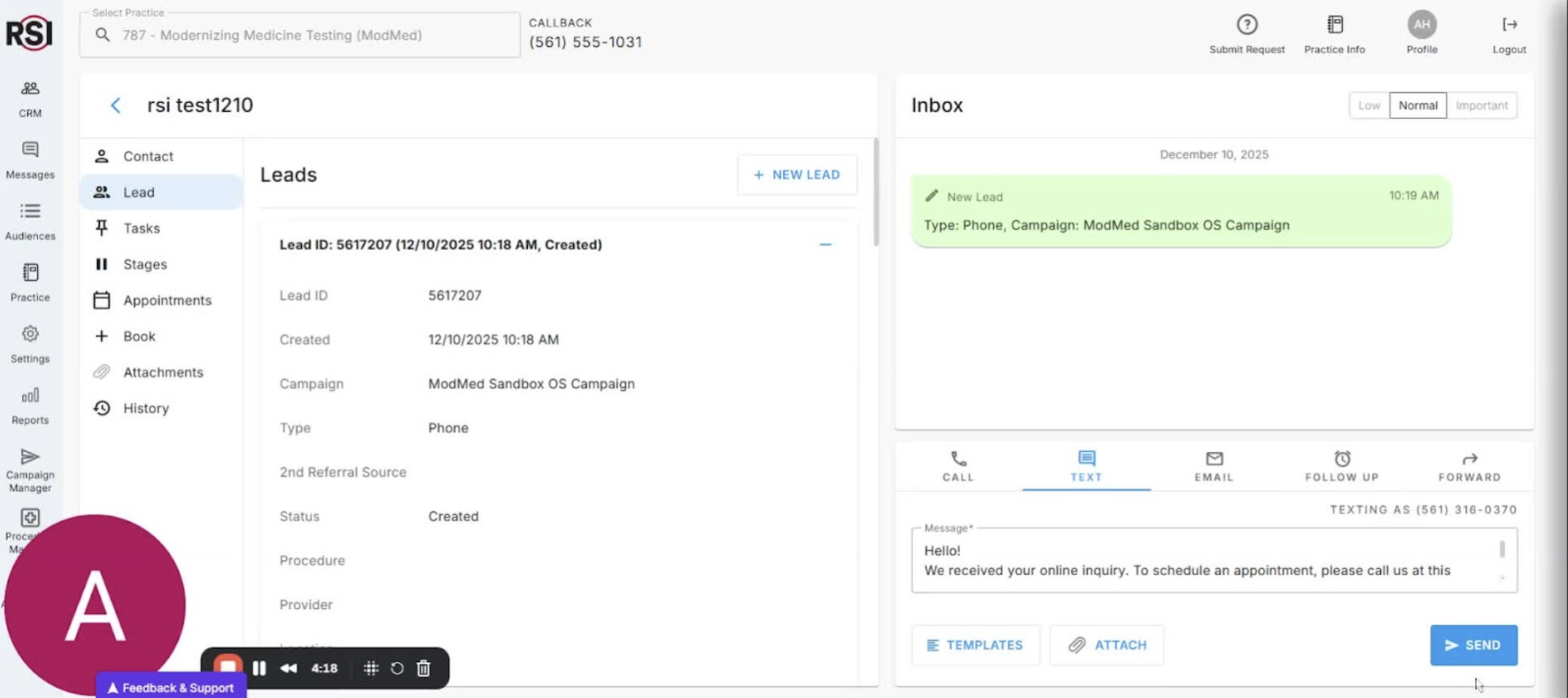
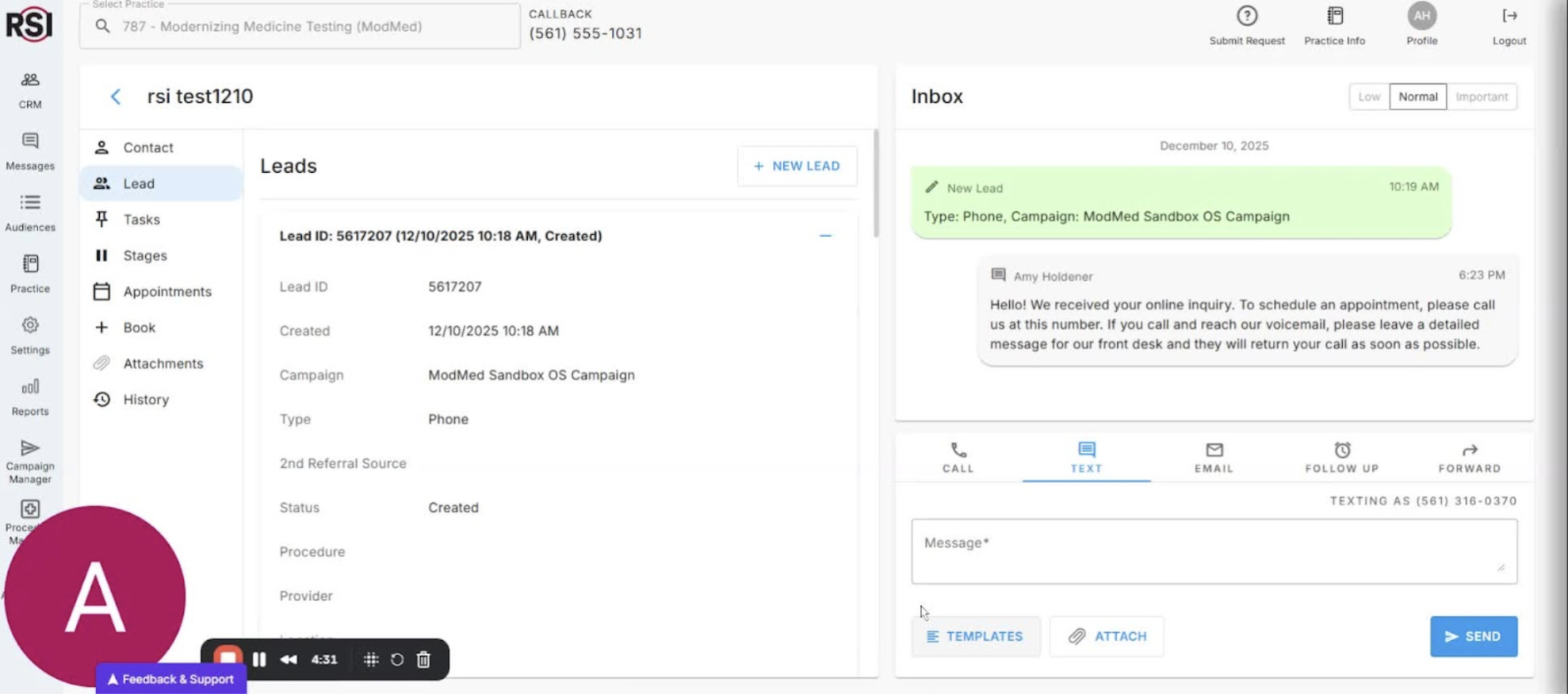
- All sent messages are logged in real-time in the inbox.
- Easily view messages sent to a particular contact by your team.
- Conclusion 4:28
- Thank you for watching the training video.
- Encouragement to utilize the CRM features effectively.














