

Nextech Pay Integration Guide for RSI Clients
Benefits of Integration
Integrating Nextech Pay with your RSI system creates a seamless payment experience for both your practice and your patients:
- Streamlined Online Booking: Securely collect payments or store credit cards on file when patients book appointments online
- Automated Payment Reminders: Utilize RSI’s Outstanding Balance tool to automatically send payment due reminders via email and text, providing patients with a secure link to your payment portal
- Convenient Payment Management: Your team can take payments, store credit cards on file, and send invoices directly from the RSI CRM to patients as needed
- Improved Cash Flow: Reduce outstanding balances with automated follow-up and easy payment options for your patients
- Seamless Synchronization: Payments processed through RSI automatically sync with your Nextech Practice Management system
Getting Started
To initiate the Nextech Pay integration with RSI, you’ll need to provide RSI with your Merchant ID information from your Nextech system.
Step 1: Locate Your Merchant ID(s)
- Log into Nextech Practice Management System
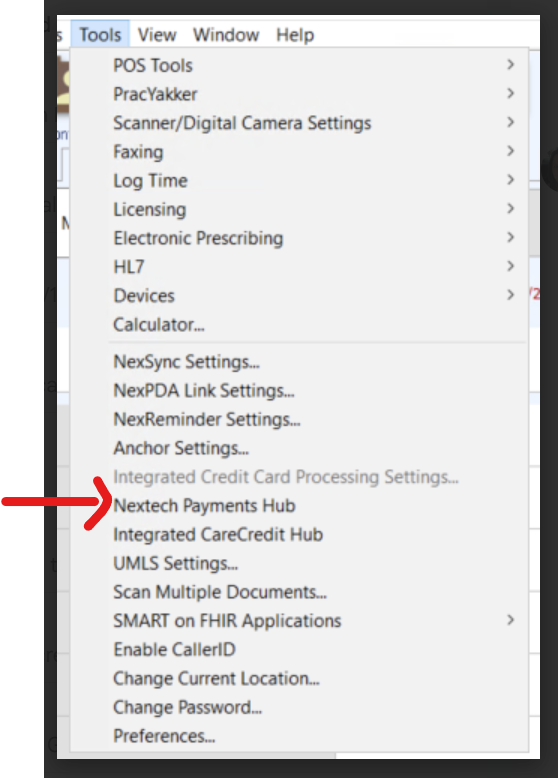
- Navigate to: Tools > Nextech Payments Hub > Setup
-
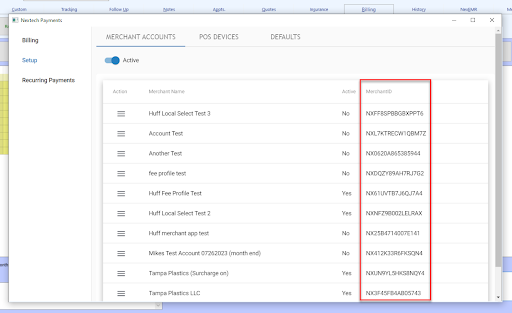
Locate your Merchant ID(s):
- Found to the right of each merchant account
- If you have multiple locations, document which Merchant ID corresponds to each location
- Provide all Merchant ID(s) to your RSI project manager
Important: If your practice has multiple locations, each location may have its own Merchant ID. Please provide all IDs along with their corresponding location names to ensure proper setup.
What Happens Next
After you provide your Merchant ID information, the RSI team will:
- Request API access permissions from Nextech on your behalf
- Configure the integration settings in your RSI portal
- Map each of your practice locations to the appropriate Merchant ID
- Notify you when the integration is ready for the final configuration step
Timeline: The integration process typically takes 5-7 business days after we receive your Merchant ID information.
Final Configuration: Nextech Payment Hub Setup
Once RSI notifies you that the integration is complete, you’ll need to complete one final configuration step in your Nextech Payments Hub to enable the connection.
Configure Partner Integration Settings
Navigation Path:
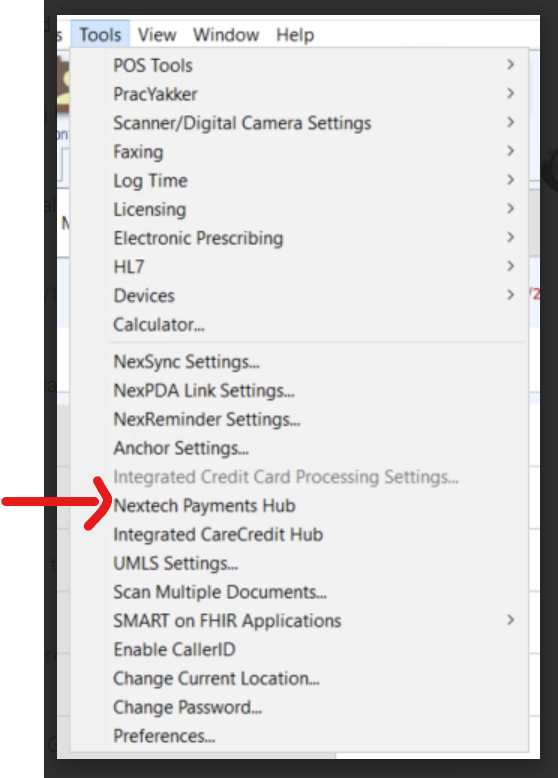
Nextech > Tools > Nextech Payments Hub
Instructions:
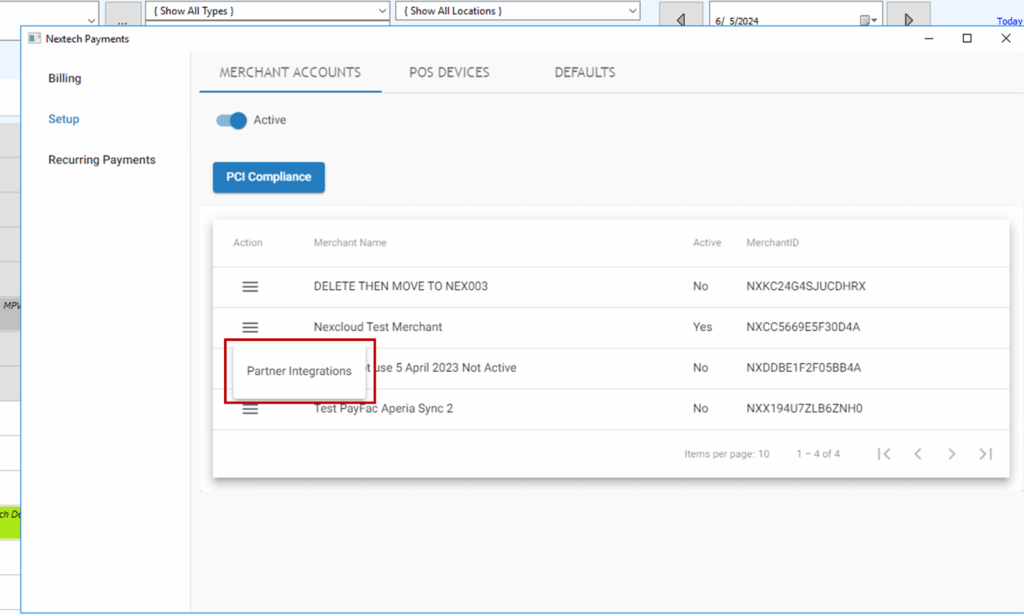
- Locate your Merchant Account in the Nextech Payments Hub
- Click the Actions icon (⋮) next to the appropriate Merchant Account
- Select “Partner Integrations”
- Expand the Red Spot Interactive (RSI) dropdown
Set Default Values
You’ll need to configure three default values. These serve as backup values in case a payment is processed without specific information, though RSI automatically provides the correct location and provider details for each transaction.
Required Default Settings:
- Select Location: Choose your default location
- Choose Provider: Select your default provider
- Set Payment Category: Select an existing category or create a new one specifically for RSI payments (e.g., “RSI Online Payments”)
Click “Save” to complete the configuration
Understanding Default Values
The default values you set in Nextech serve as a safety net. In normal operation:
- RSI automatically sends the specific location where the appointment or service occurred
- RSI automatically sends the specific provider associated with the payment
- RSI uses the payment category you’ve configured
These defaults are only used in rare cases where this information isn’t available, ensuring every payment is properly recorded in your system.
Multiple Locations
If your practice has multiple locations, each with its own Merchant ID:
- Provide all Merchant IDs to RSI with their corresponding location names
- RSI will configure each location appropriately in the system
- You’ll need to repeat the Partner Integration setup for each Merchant Account in Nextech Payments Hub
This ensures payments are properly attributed to the correct location in your practice management system.
Need Help?
If you have questions or need assistance at any point during the integration process, please contact your RSI project manager or our support team. We’re here to ensure a smooth integration experience for your practice.
Quick Reference Checklist
- Log into Nextech and navigate to Nextech Payments Hub > Setup
- Document all Merchant ID(s) and corresponding locations
- Provide Merchant ID information to RSI project manager
- Wait for RSI confirmation that integration is complete (3-5 business days)
- Complete Partner Integration setup in Nextech Payments Hub
- Set default Location, Provider, and Payment Category
- Save configuration
- Test integration with a sample transaction (RSI will assist)














