

Education Library
Call Tracking and Dynamic Number Insertion (DNI)
Dynamic Number Insertion
Dynamic Number Insertion (DNI) automatically swaps phone numbers on your website based on the visitor’s traffic source, allowing you to accurately track calls from different campaigns and sources.Features Overview
- Dynamic Number Insertion (DNI): Swap phone numbers based on traffic source.
- Tracking Number Pool: Use a pool of numbers for advanced tracking (e.g., Google Ads).
- Patient Conversion Uploading: Send conversion data back to Google Ads.
How DNI Works
DNI uses a JavaScript plugin to detect how a visitor arrived at your site (e.g., Google, Facebook, or via a specific campaign) and displays a unique phone number accordingly. This helps you attribute calls to the correct marketing source.
Integration Steps
Add the DNI Script
Add the following script tag to your website’s<head> section:
<script type="text/javascript" src="https://cdn.redspotinteractive.com/call-tracking/bundle.js" defer></script>
Configure DNI Settings
You’ll need to configure the DNI plugin for your website. Add this configuration script after the script tag above, replacing the appropriate information with your own:<script>
// configuration as a javascript object
var dni = {
clientId: 000, // id of Client in RSI
// phone number to be replaced (please keep formatting with dashes)
replacePhone: '802-216-0008',
// organic traffic configuration
organic: [
{ campaignId: 55092, source: ['google', 'bing', 'yahoo'] },
{ campaignId: 51543, source: ['tiktok', 'facebook', 'twitter'] },
{ campaignId: 54433, source: 'all' }
],
// utm traffic configuration (optional)
utm: [{
campaignId: 32112,
tags: { campaign: 'test', source: 'google', medium: 'cpc' }
}, {
campaignId: 32113,
tags: { campaign: 'test2' }
}, {
campaignId: 32114,
tags: { source: 'google' }
}, {
campaignId: 32115,
tags: { medium: 'cpc' }
}],
// default campaign id which is used when no rsi campaign id provided
// as well as no UTM or organic mapping applied
defaultCampaignId: 9866
}
// expose as RSI_DNI variable to be available in RSI plugin
window.RSI_DNI = dni;
</script>
Configuration above allows you to map traffic sources to campaigns where phone numbers should be used for a specific source.
You can configure the plugin to replace either one or multiple phone number on the page.
Example (single phone number):
<script>
		// configuration as a javascript object
		var dni = {
		  clientId: 300, // id of Client in RSI
      // phone number to be replaced (please keep formatting with dashes)
			replacePhone: '802-216-0008',

			// other configuration goes here
		 }

		 // expose as RSI_DNI variable to be available in RSI plugin
		window.RSI_DNI = dni;
	</script>
Example (multiple phone numbers):
<script>
		// configuration as a javascript object
		var dni = {
		  clientId: 300, // id of Client in RSI
      // phone numbers to be replaced (please keep formatting with dashes)
			replacePhone: ['802-216-0008', '802-216-0007'],

			// other configuration goes here
		 }

		 // expose as RSI_DNI variable to be available in RSI plugin
		window.RSI_DNI = dni;
	</script>
Mapping traffic Sources
The rest of the configuration contains two collections:
- organic – here you can map specific sources to organic traffic campaign(s).For example, to swap your default website phone number when a visitor arrives from an organic Google search to the number associated with the RSI CampaignId 55092, it would appear as:
organic: [
	{ campaignId: 55092, source: 'google' }
}
To have multiple settings, simply add a new row:organic: [ { campaignId: 55092, source: 'google' } { campaignId: 55093, source: 'bing' } }To use the same phone number for multiple sources, pass them as a collection for the source property:organic: [ { campaignId: 55092, source: ['google', 'bing', 'yahoo'] }, }IMPORTANT – sources should have domains only, but not the full address. So, you should use ‘google’ instead of ‘https://google.com’ or ‘google.com’ Common Configuration It is also possible to use a common configuration for all organic traffic sources:organic: [ { campaignId: 55094, source: 'all' } ]By specifying “all” in the example above, the phone number associated with RSI campaign 55094 would be used for all organic sources. In other words, when a user comes to your website by a link from any other website the default phone number will be swapped out for the one associated with RSI campaign 55094. - utm – assign numbers based on individual or combined UTM tags in your URLs:For example, to display the phone number associated with RSI Campaign 55095 for the following UTM parmaeters:
- utm_campaign=test
- utm_source=google
- utm_medium=cpc
utm: [{
	campaignId: 55095,
	tags: { campaign: 'test', source: 'google', medium: 'cpc' }
}]
utm: [{
	campaignId: 55095,
	tags: { campaign: 'test', source: 'google', medium: 'cpc' }
},{
	campaignId: 55096,
	tags: { campaign: 'test', source: 'facebook', medium: 'cpc' }
}]
You can add as many UTM mappings as you like.
NOTE – You can use any combination of campaign, source, and medium tags:
E.g. campaign + source
utm: [{
	campaignId: 55097,
	tags: { campaign: 'test', source: 'google' }
}]
OR source + medium:
utm: [{
	campaignId: 55098,
	tags: { source: 'google', medium: 'cpc' }
}]
OR campaign only:
utm: [{
	campaignId: 55098,
	tags: { campaign: 'test' }
}]
OR source only:
utm: [{
	campaignId: 55099',
	tags: { source: 'google' }
}]
OR medium only:
utm: [{
	campaignId: 55060,
	tags: { medium: 'cpc' }
}]
IMPORTANT – Only these three UTM tags are supported: utm_campaign, utm_source, and utm_medium (the script does not check utm_content or utm_term.)
The script will update ALL phone numbers on a page which match with phone number in configuration.
RsiCampaignId URL parameter
The UTM configuration above is for the cases when the rsiCampaignId parameter is not passed. Otherwise, the rsiCampaignId paramaeter will override these UTM configuration, and the number swap will be performed based on the rsiCampaignId parameter. If you only use rsiCampaignId for your campaigns – you will not need the UTM section. It is best practice to use the rsiCampaignId parameter for all GoogleAds campaigns in order to properly track ROI. The DNI logic is the same as described above – when rsiCampaignId is passed, the call tracking script will display the phone number for that campaign in RSI.Default Campaigns
Default Campaign
If no criteria are able to be matched within the DNI script, the number associated with the “default campaign” in RSI will be usedDefault PPC Campaign
Similarly, if no criteria are able to be matched within the DNI script, a gclid is detected in the URL, and there is a default PPC campaign specified in RSI, the number associated with this default PPC campaign will be used. NOTE – only one default PPC campaign and one default organic campaign may be specified in RSI’s campaign manager.Tracking Number Pool
While individual campaigns within RSI may be assigned their own dedicated phone number to be shown to all users, this may not always be the case. For example, in order to send custom offline conversions back up to Google Ads you will need to capture the user’s gclid and match it up with the phone number being called. In this case, a tracking number pool will need to be created within RSI, and then applied to desired campaign. NOTE – Google click ids (gclid) are used by GoogleAds. A unique gclid is generated for every click from a google ad, and is passed via URL parameters. This ID is then captured by RSI and used to upload conversion data back up to google. The tracking number pool contains a set of phone numbers which could be shared for any RSI Campaign tagged to use them. Each time a lead clicks through from a google ad tagged with an RSI Campaign configured to use the tracking pool, that lead will be shown one of the phone numbers from the pool (which will remain associated with that lead’s gclid for the following 60 minutes. After 60 minutes, the number will be released back into the tracking pool.)The amount of tracking numbers to be used will depend on the volume of traffic clicking through from all campaigns using the tracking pool over any 60 minute window. Tracking pools are setup by clicking on the “Tracking Number Pool” link under “Campaign Manager” and then clicking on “Add Numbers” and entering all numbers, one per line.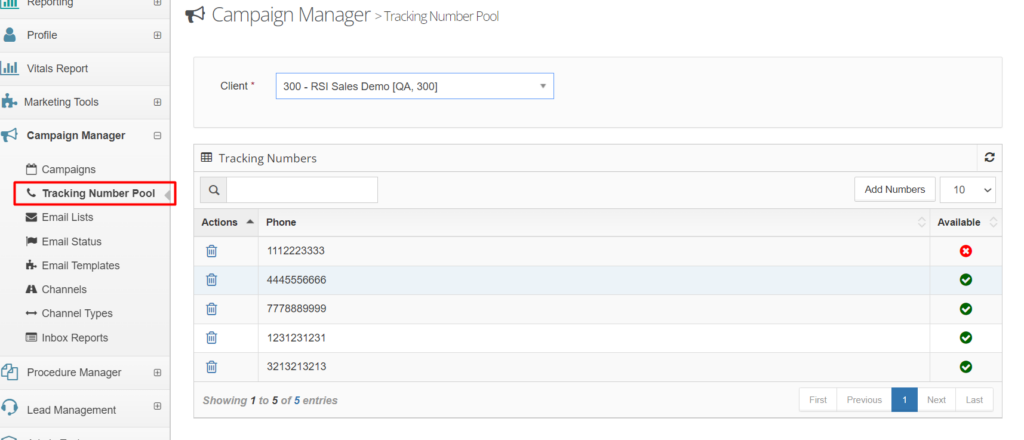
Configuring a campaign to use Tracking Pool Numbers
A campaign can be configured to use a phone number from the pool by checking the “Use Tracking Pool Number” checkbox in the campaign creation/edit screen. If desired, you can also enter a “default” phone number in the Campaign Phone text box, which will displayed in the event that an RSI Campaign ID is not present in the UTM parameters of the URL.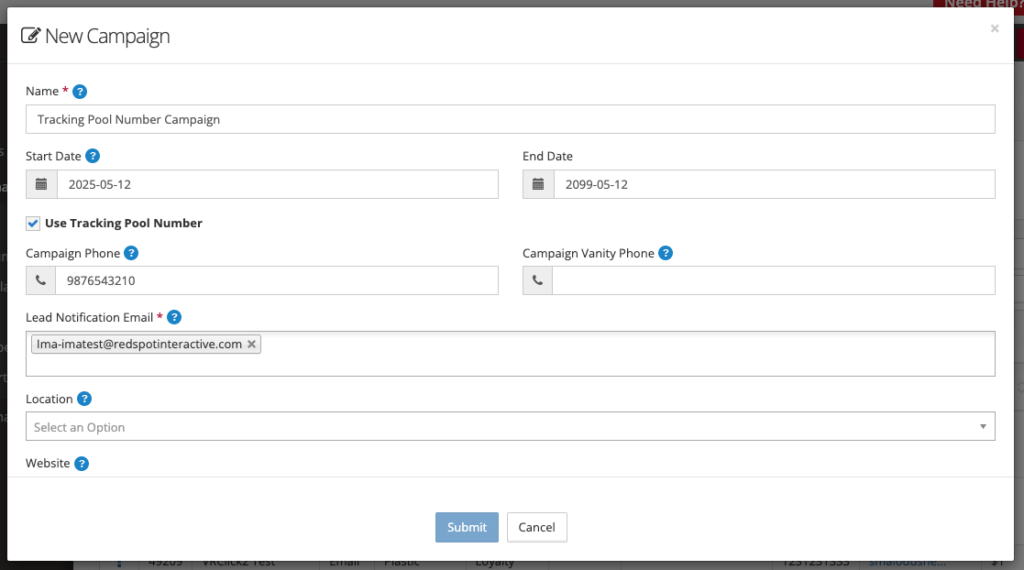 With above configured, the call tracking plugin will allocate a unique phone number for every website user, and will reserve it for 1hr before releasing it back into the tracking number pool for reallocation to another user.
Conversion Goals
Associating the users’s gclid to a specific phone number in the tracking pool allows us to track and report on custom conversions back up to Google Ads when leads reach specific offline statuses, including:- Scheduled
- Attended
- Purchased
Validation and Logs
To know if the script works correctly you can take a look at console log: If there are any config validation errors you will see ones there.
Also, you will be able to see details around the replacement:
If there are any config validation errors you will see ones there.
Also, you will be able to see details around the replacement:















