

Online Library | Message Tagging
What is Message Tagging?
Message Tags (also called Labels) let you organize your patient conversations in the Messages inbox — similar to folders, but more flexible. A single conversation can have multiple tags at the same time, making it easy to filter and find messages by topic or workflow.
Common tag examples your team might use:
- Billing
- Appointment
- Leads
- Follow-Up
- Insurance
Getting Started: Where to Find Tags
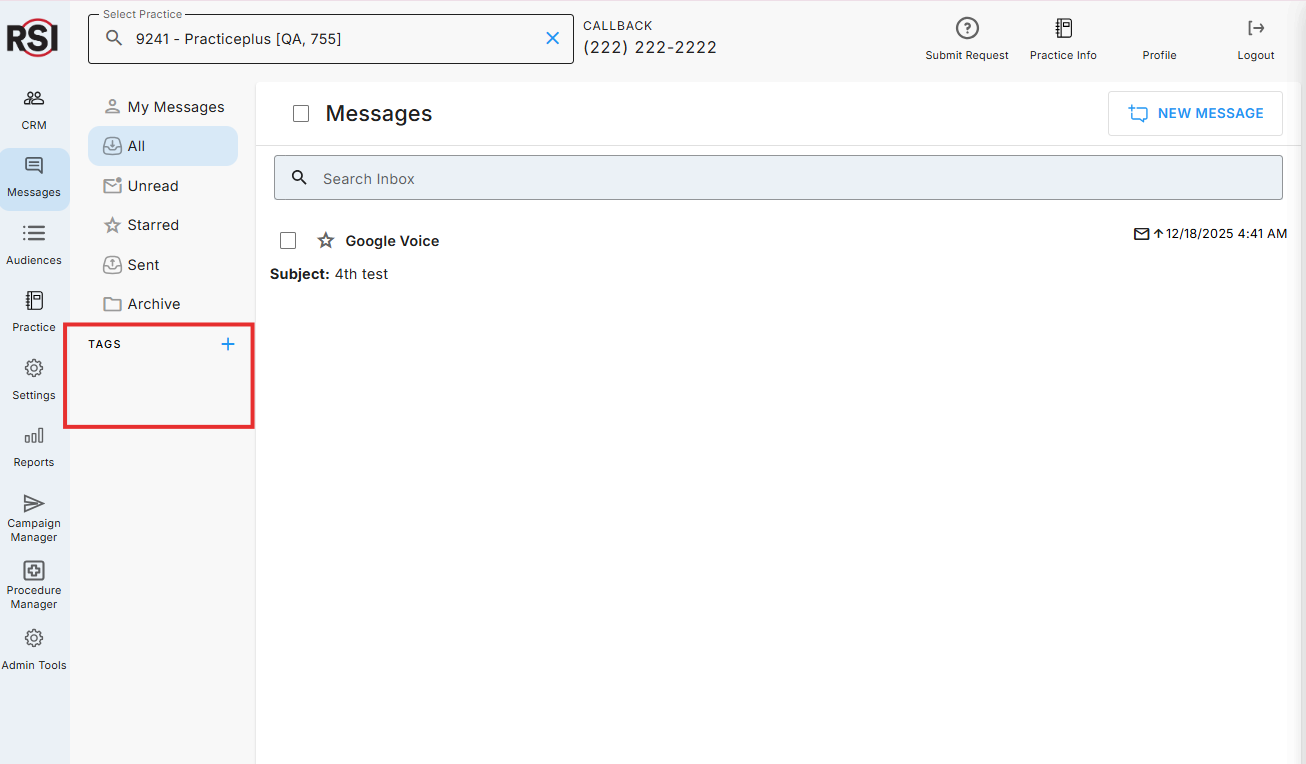
Tags live in the left sidebar of the Messages module, just below the Archive folder.
⚠️ Important: You must have a client selected before the Tags section will appear in the sidebar.
To navigate there:
- Go to the Messages module in your CRM
- Look at the left sidebar
- Scroll below Archive — you’ll see the Tags section
How to Create a Tag
- In the Tags section of the sidebar, click the + (Plus) icon
- A New Label modal will appear
- Type your tag name in the Label Name field
- Click Save
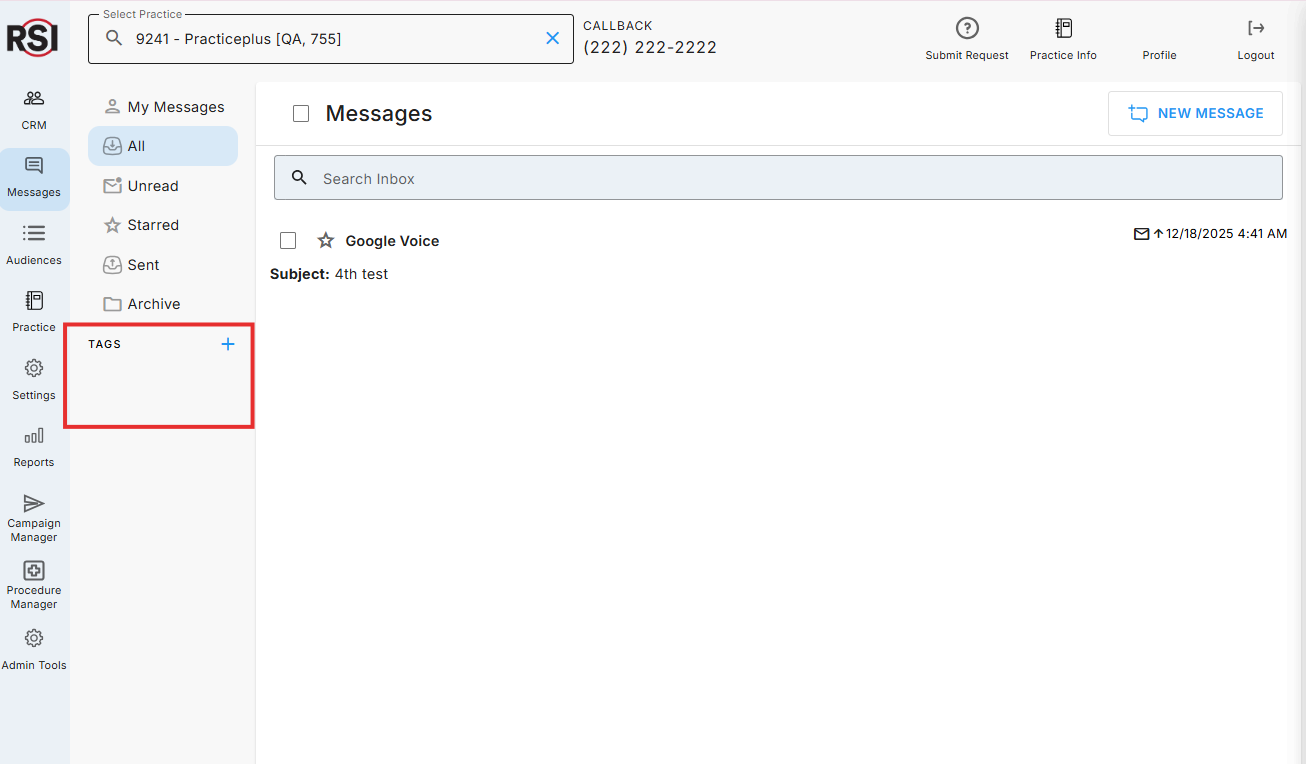
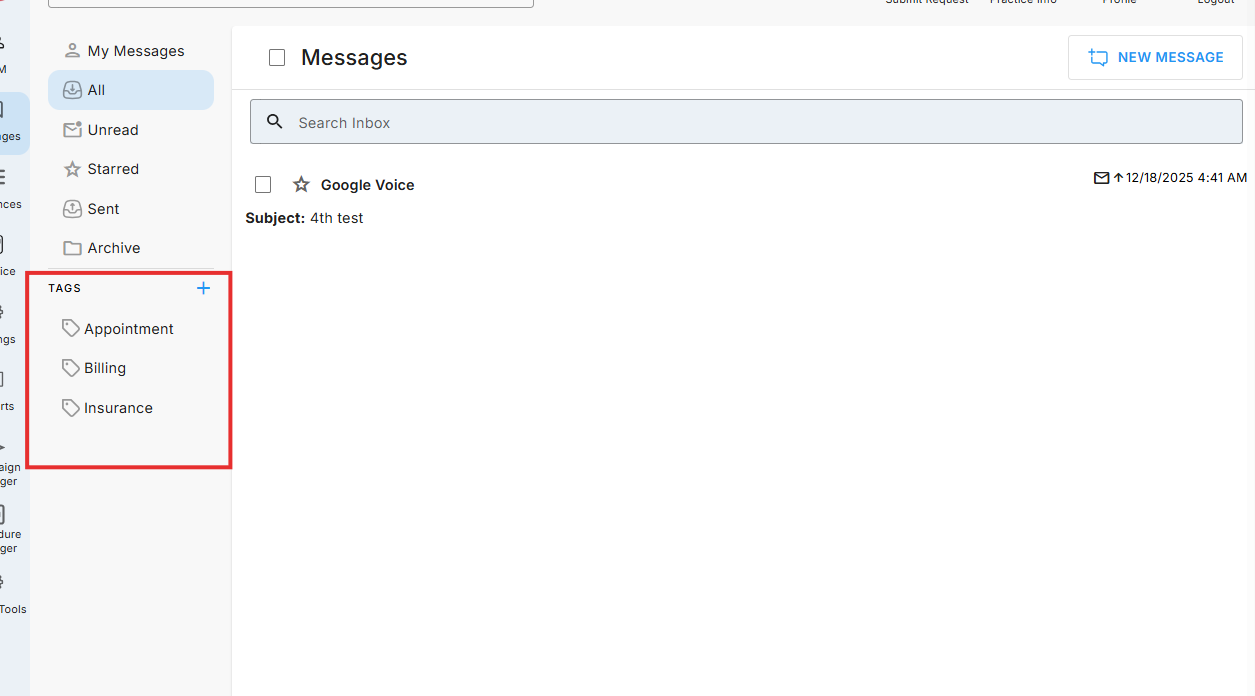
Your new tag will appear alphabetically in the Tags list right away.
💡 Tip: Keep tag names short and consistent — your whole team will use them!
How to Rename or Delete a Tag
- Hover over the tag name in the Tags sidebar
- Click the ⋮ (ellipsis) icon that appears on the right
- Choose Rename Label or Delete Label
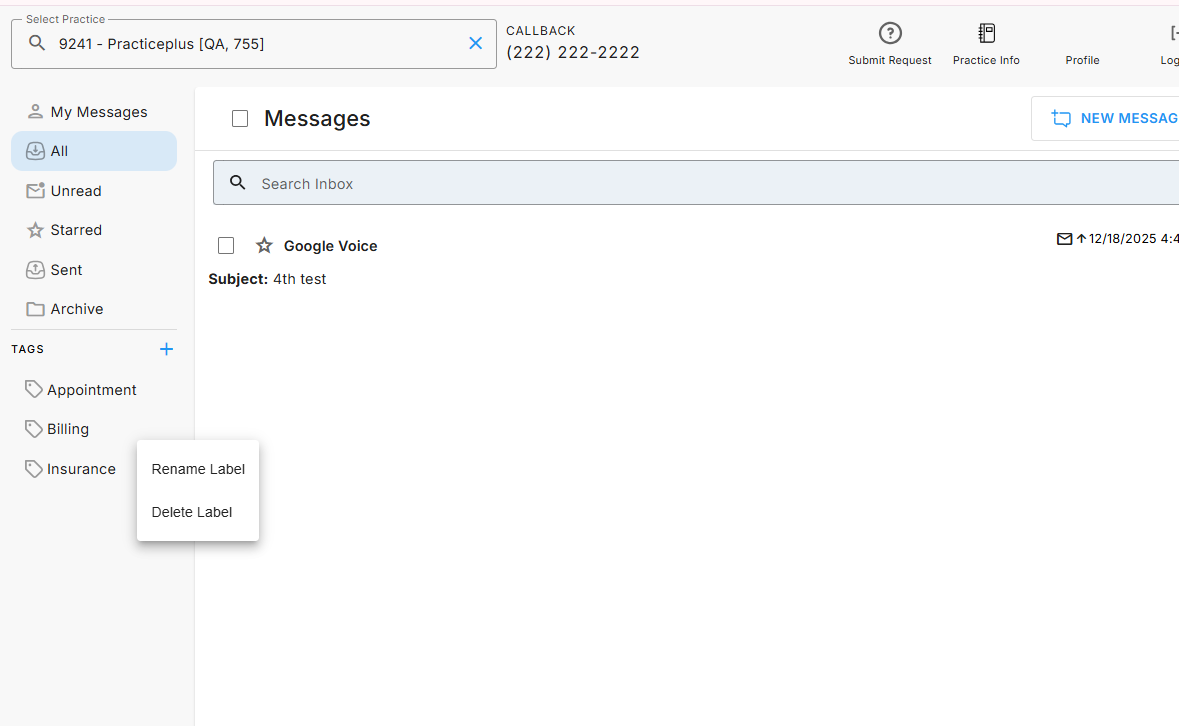
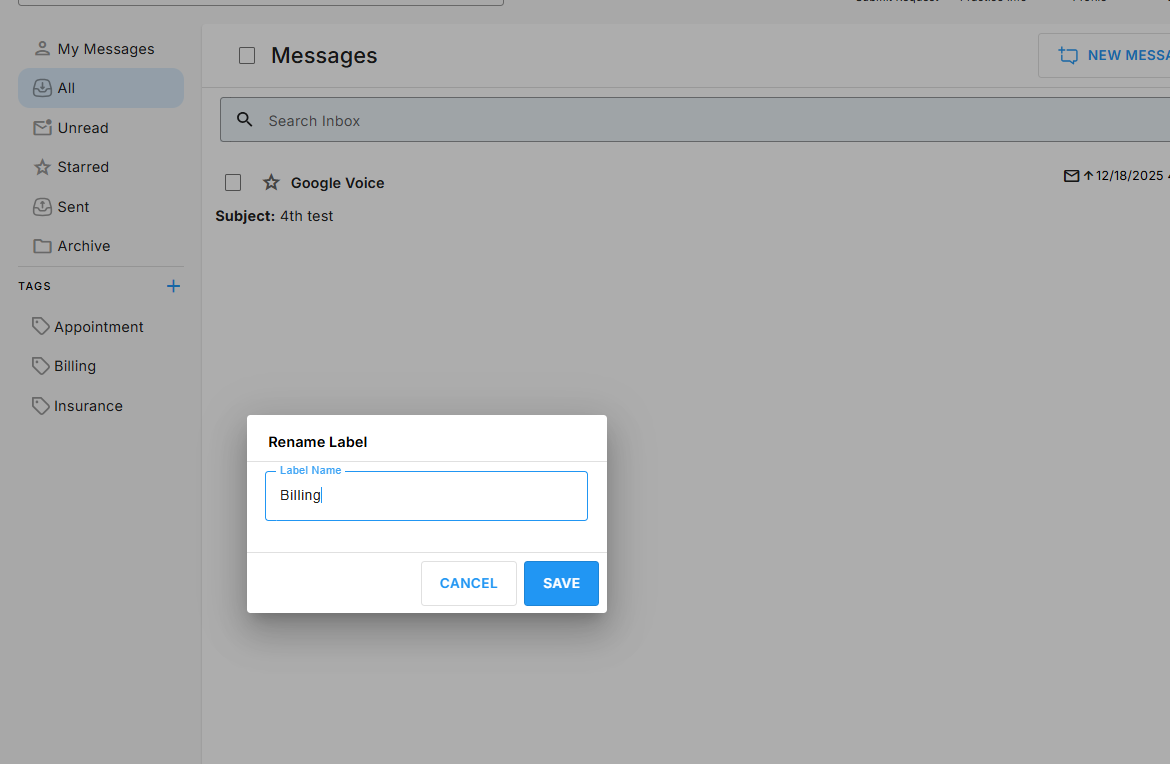
Renaming: The same modal appears with the current name pre-filled. Update the name and click Save.
Deleting: The label is removed from the Tags list and automatically removed from any conversations it was applied to.
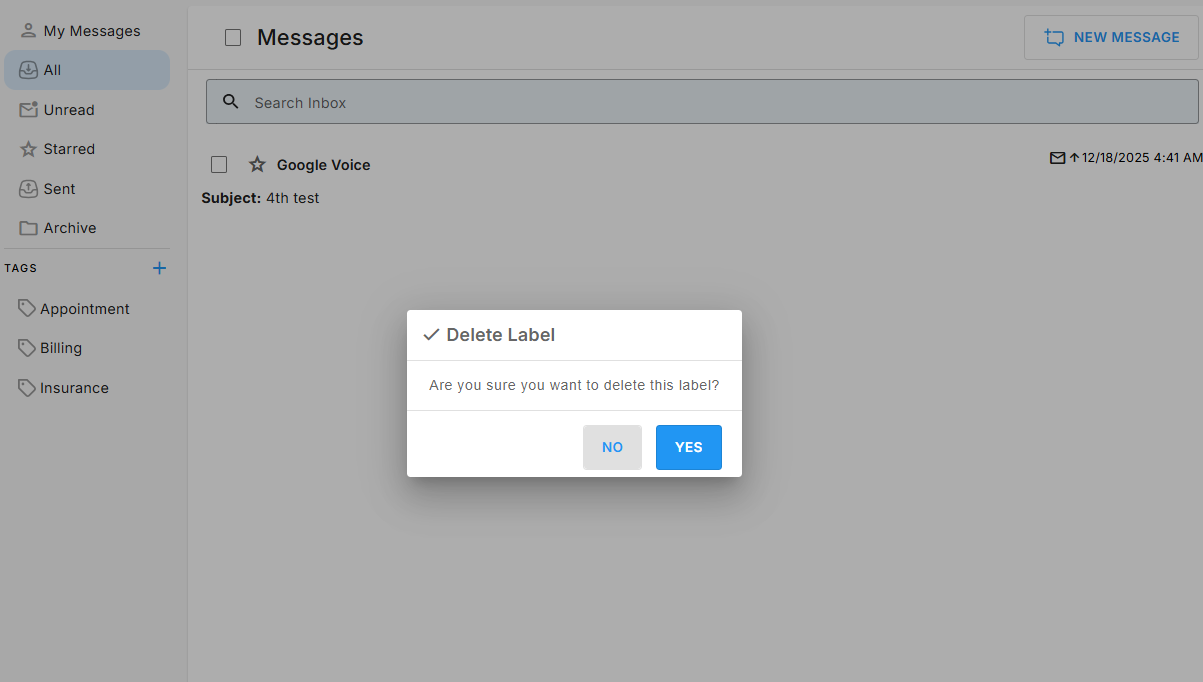
⚠️ Heads up: Deleting a tag removes it from all conversations for all users. This cannot be undone.
How to Add a Tag to a Message
- In your Messages inbox, hover over a conversation
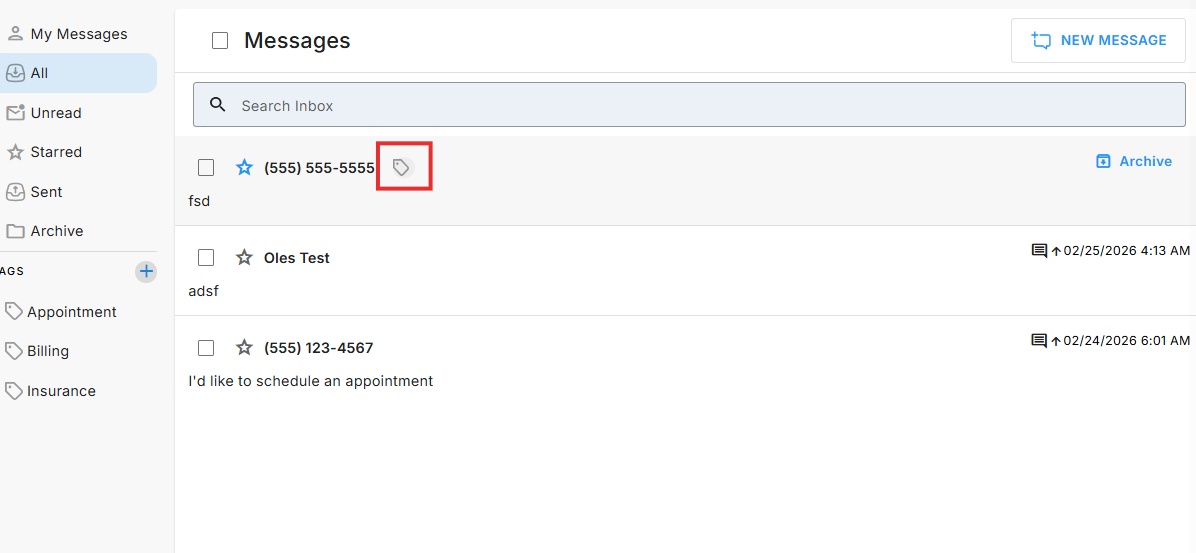
- A tag icon will appear on the right side of the message
- Click the tag icon to open the Select Labels modal
- Check the box(es) next to the tag(s) you want to apply
- Click Save
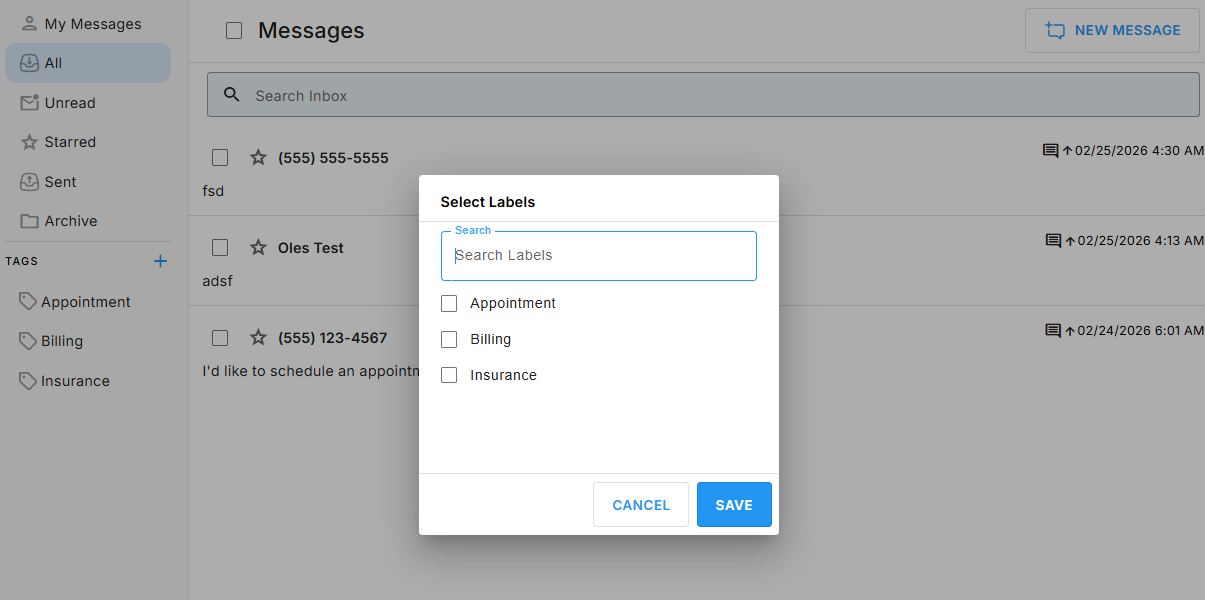
💡 You can apply multiple tags to a single conversation at the same time.
How to View Tags on a Message
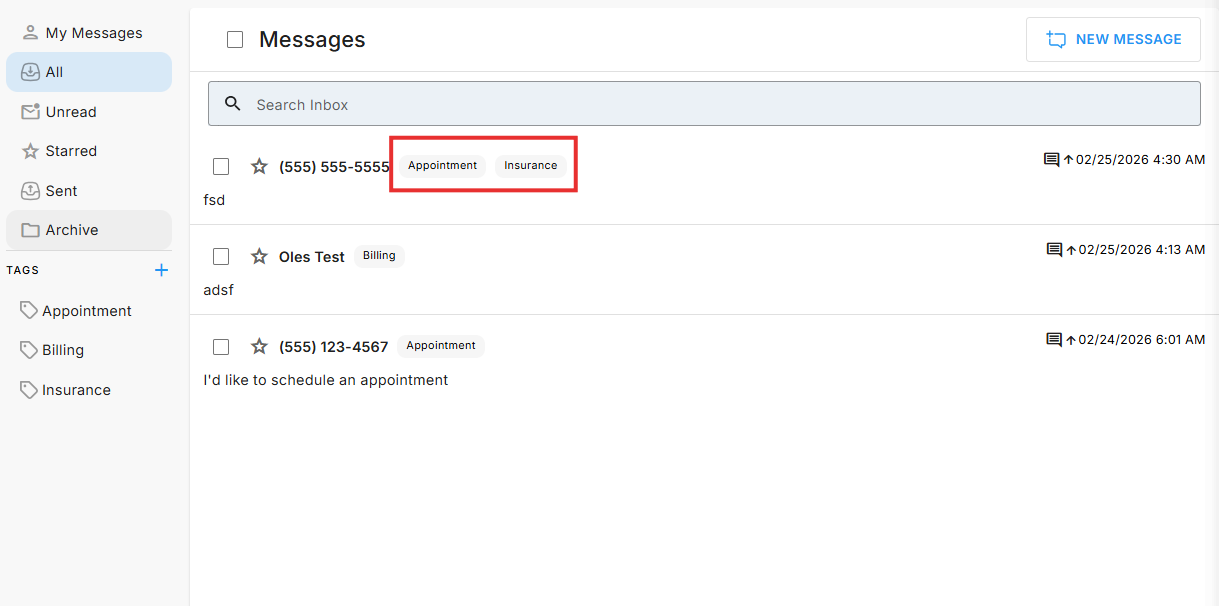
After saving, your selected tags appear next to the contact name or phone number in the message thread preview — making it easy to see how a conversation is categorized at a glance.
How to Remove a Tag from a Message
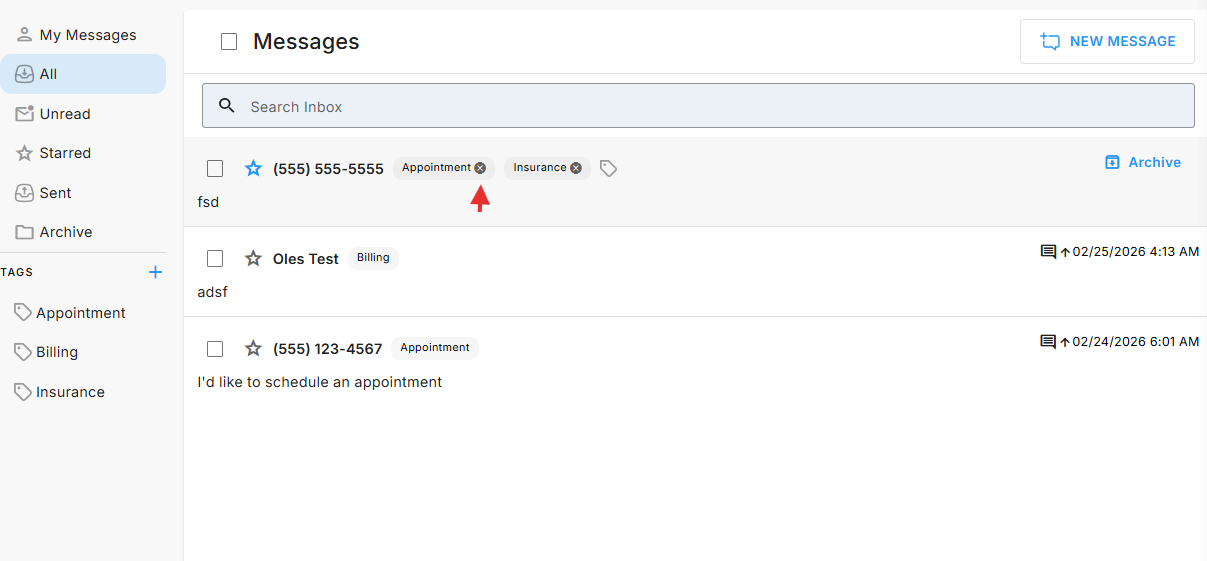
- Hover over a message that has a tag applied
- An X will appear on the tag label
- Click the X to remove the tag
⚠️ Important: Tags are shared across your team. Removing a tag removes it from the conversation for everyone, not just you.
How to Filter Messages by Tag
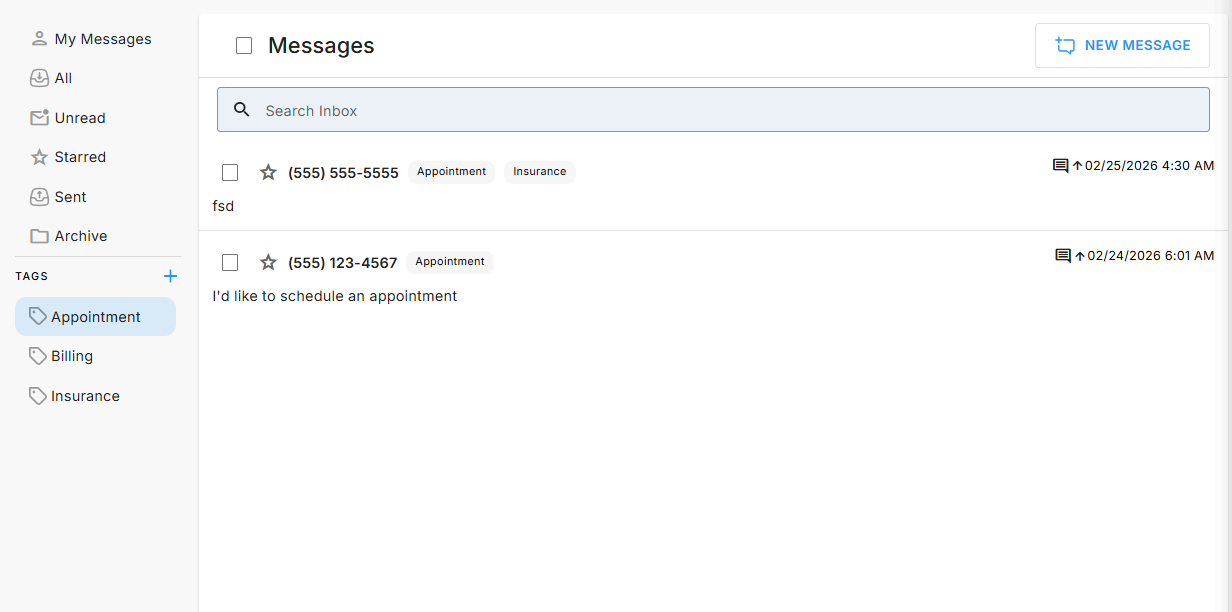
- In the Tags section of the sidebar, click on any tag name
- The Messages list updates to show only conversations with that tag
- This works even if those messages are archived
This is a great way to quickly surface all messages of a certain type — for example, pulling up every Billing conversation without scrolling or searching.
Tag Permissions
Not all users can create or delete tags — this depends on their role in the system. The Add and Delete Tags permission is available to the following roles:
- Client Super Administrator
- Contact Center Administrator
- Practice Administrator
- RSI Admin
If you don’t see the + icon in the Tags section, your account may not have tag management permissions. Contact your administrator for assistance.
Best Practices
Keep tag names short and clear
Use simple, recognizable labels your whole team will understand — like Billing, Appointment, Follow-Up, Leads, or Insurance.
Aim for 5–15 core tags
Too many tags makes filtering harder. Avoid near-duplicates like “Billing” and “Bill Issue” — pick one and stick with it.
Tag messages right away
Apply tags when you first review a message so nothing slips through the cracks.
Align tags with your team’s workflow
| Workflow | Suggested Tag |
|---|---|
| New patient inquiries | New Lead |
| Scheduling requests | Appointment |
| Financial questions | Billing |
| Patients needing follow-up | Follow-Up |
Use tags for team coordination
Since tags apply to the whole conversation, your team can use them to hand off work. For example, the front desk tags a message as Billing and the billing team filters by that tag to find it quickly.
Frequently Asked Questions
- Why don’t I see the Tags section in my sidebar?
You need to have a client selected first. Once a client is active, the Tags section will appear below Archive in the left sidebar. - Why can’t I create or delete tags?
Tag management requires specific role permissions. If you don’t see the + icon or the delete option, contact your administrator to review your user role. - I created a tag but it’s not showing in the list — what happened?
Make sure you clicked Save in the New Label modal. If the modal was closed with Cancel, the tag will not be created. Try again and confirm it appears alphabetically in the list. - A tag I applied to a message has disappeared — why?
The tag may have been deleted by another user with tag management permissions. Since tags are shared, any administrator-level user can remove them. - I removed a tag and it disappeared for my whole team — is that normal?
Yes! Tags are conversation-level, not user-specific. Any change — adding, removing, or deleting — affects all users who can see that conversation. - I’m searching for a tag in the Select Labels modal but can’t find it.
Double-check the spelling. Tags are also listed alphabetically, so you can scroll through manually to find it. If it’s truly missing, it may have been deleted.














