Education Library
Mastering the Audience Builder: Customizing Your CRM for Efficient Workflow Management
Welcome to one of the most powerful tools in your system – the Audience Builder. Every department in your practice has different needs when it comes to viewing and managing patient data. Your call center needs to see leads waiting for follow-up. Your clinical team needs to track patients through treatment phases. Your billing team needs visibility into outstanding balances by stage. The Audience Builder gives you the ability to create custom views of your contact and patient data that are tailored specifically to how your team works. You can segment your data however you need it, create custom stages that reflect your actual processes, and move contacts through those stages as they progress through their journey with your practice. This isn’t just a reporting tool – it’s a workflow management system that adapts to the way each department operates. Let us show you how it works.-
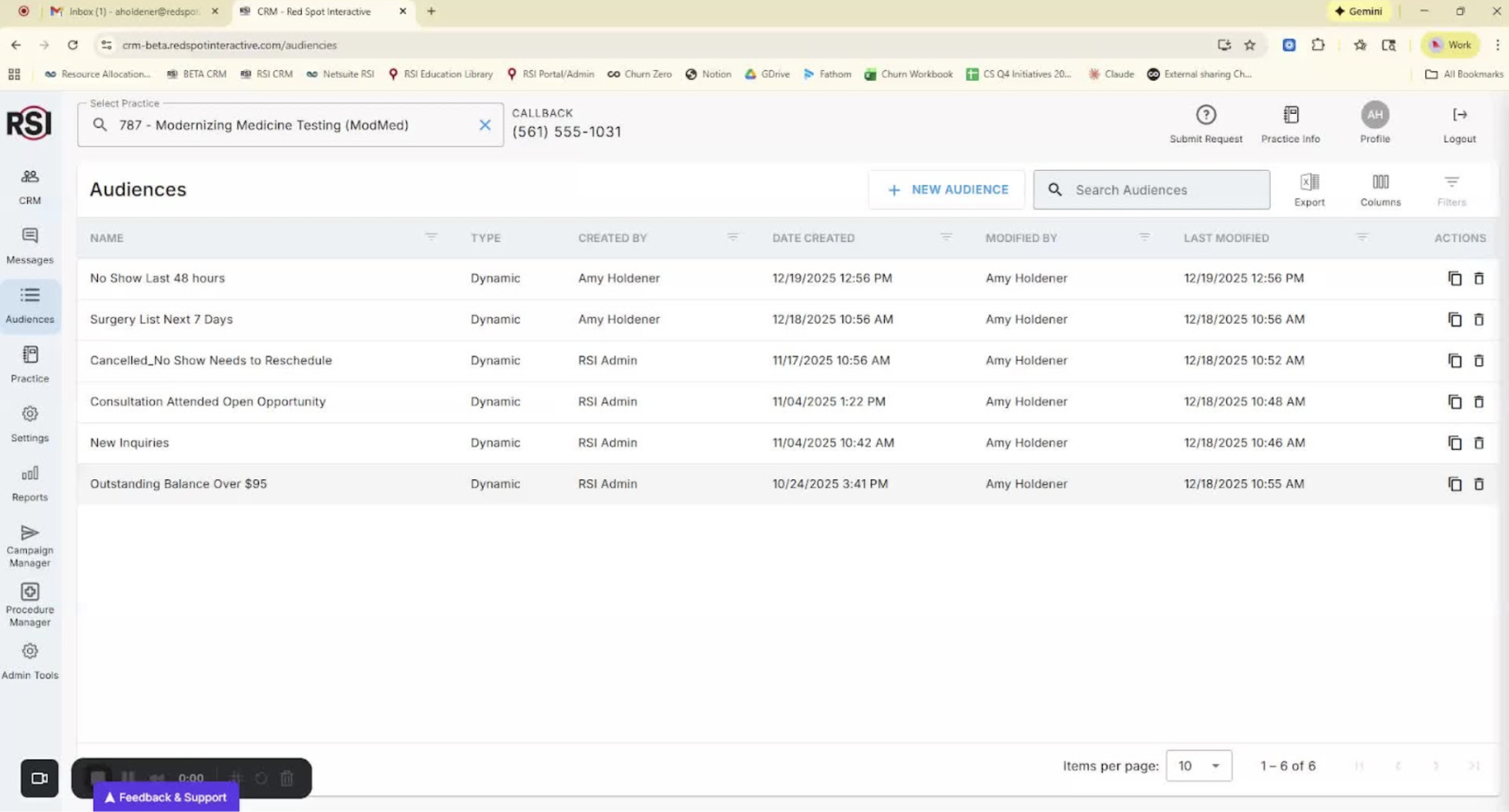
Introduction to Audience Builder 0:00
- Welcome to RSI training.
- Overview of the Audience Builder tool.
- Importance of custom views for different departments (call center, clinical team, billing team).
-
Purpose of Audience Builder 0:30
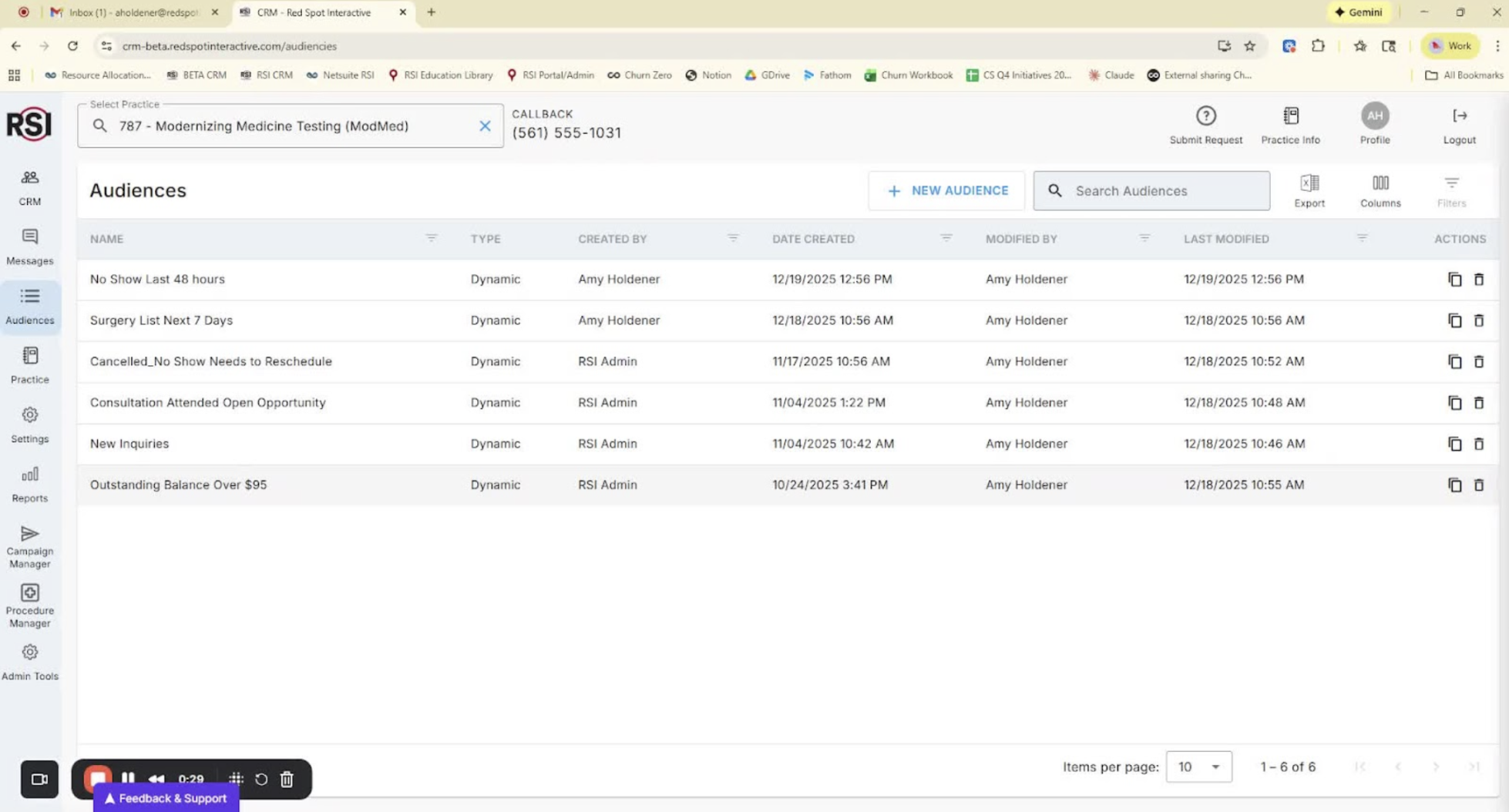
- Create custom views of contact data.
- Segment data to reflect actual processes.
- Manage workflows across departments.
-
Accessing the Audience Builder 1:00
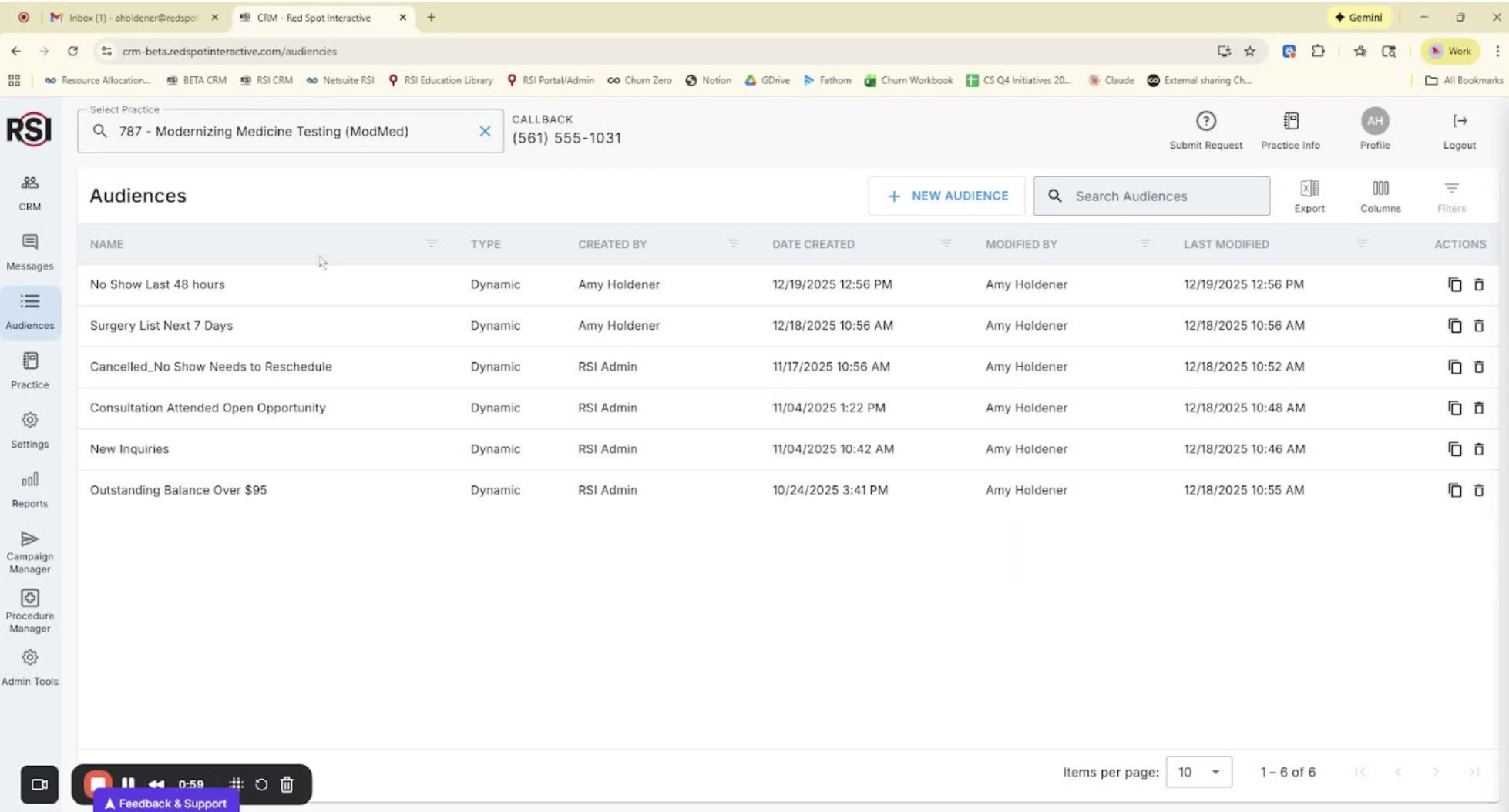
- Navigate to the CRM.
- Click on the ‘Audiences’ tool on the left sidebar.
-
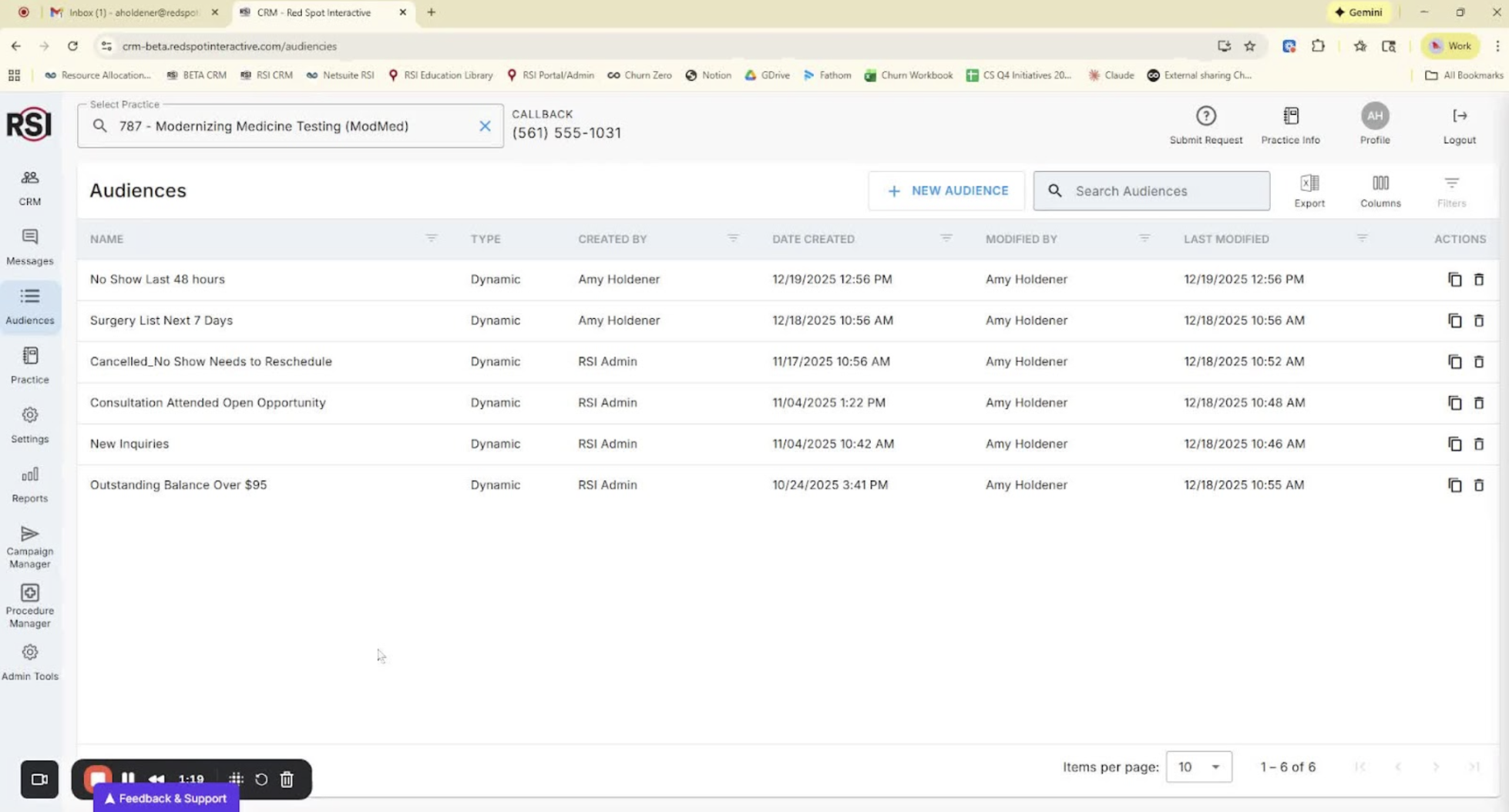
Creating a New Audience 1:20
- Click ‘New’ to create a new audience.
- Review previously built audiences for reference.
-
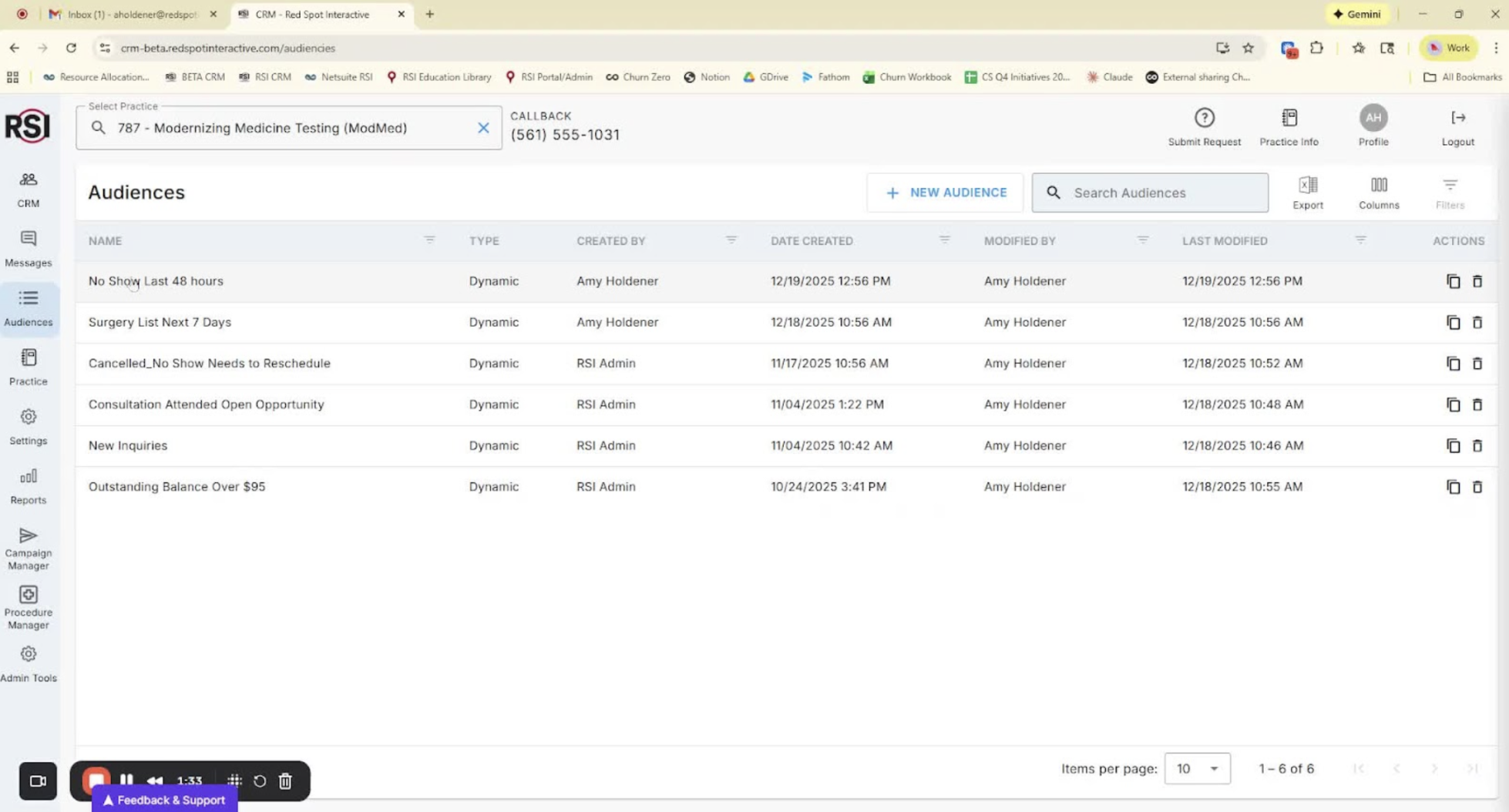
Setting Up Audience Stages 1:34
- Name your audience (e.g., ‘No-Show List’).
- Create a stage group for workflow management (e.g., ‘No Show Recall Steps’).
- Define steps in the stage group (e.g., call after 1 day, call after 3 days, send SMS).
-
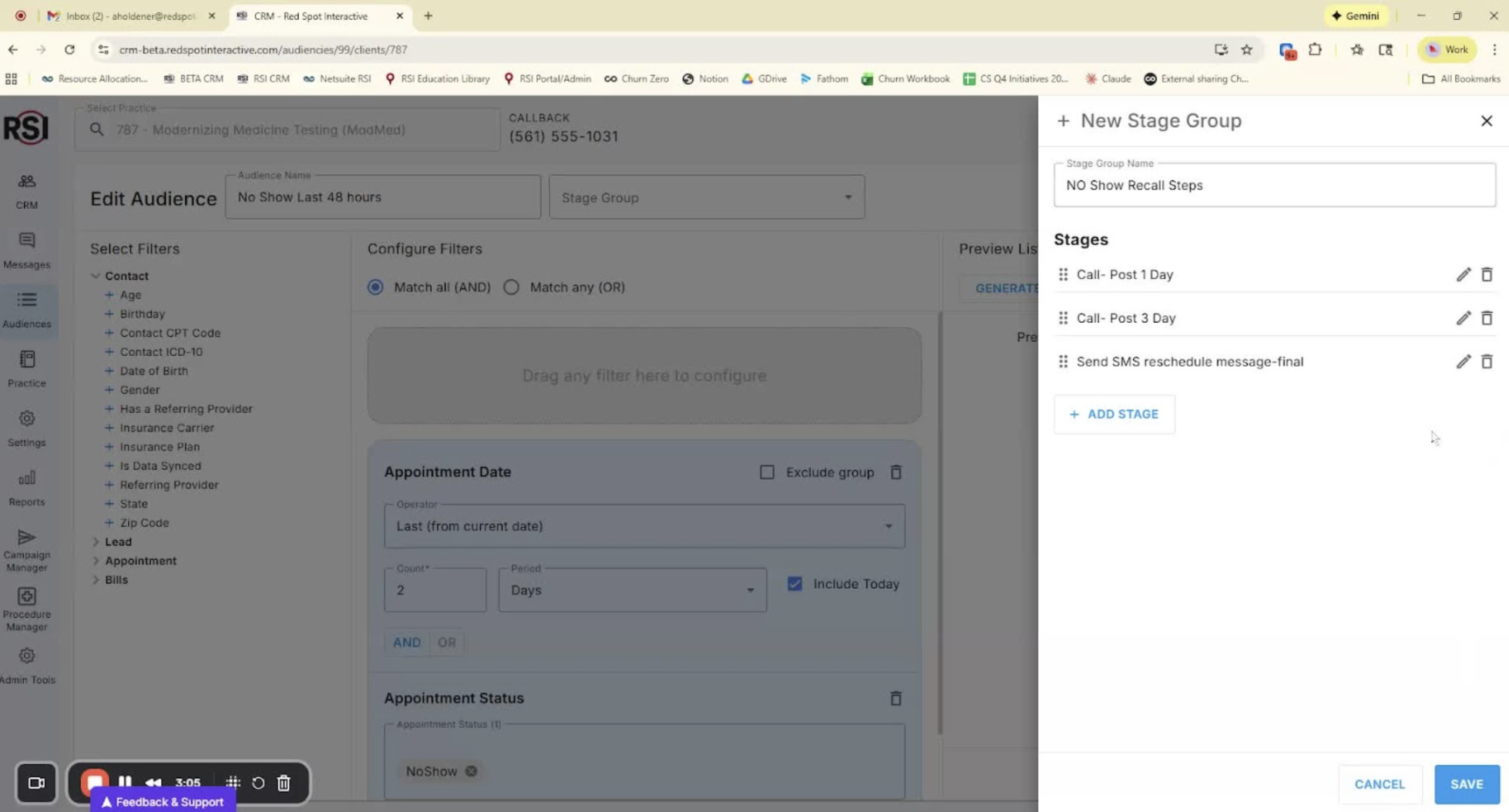
Applying Filters to Build Audiences 3:06
- Use filters for Contact, Lead, Appointment, and Bill.
- Drag and drop filters to customize your audience.
- Example: Filter for no-shows with specific birthdays.
-
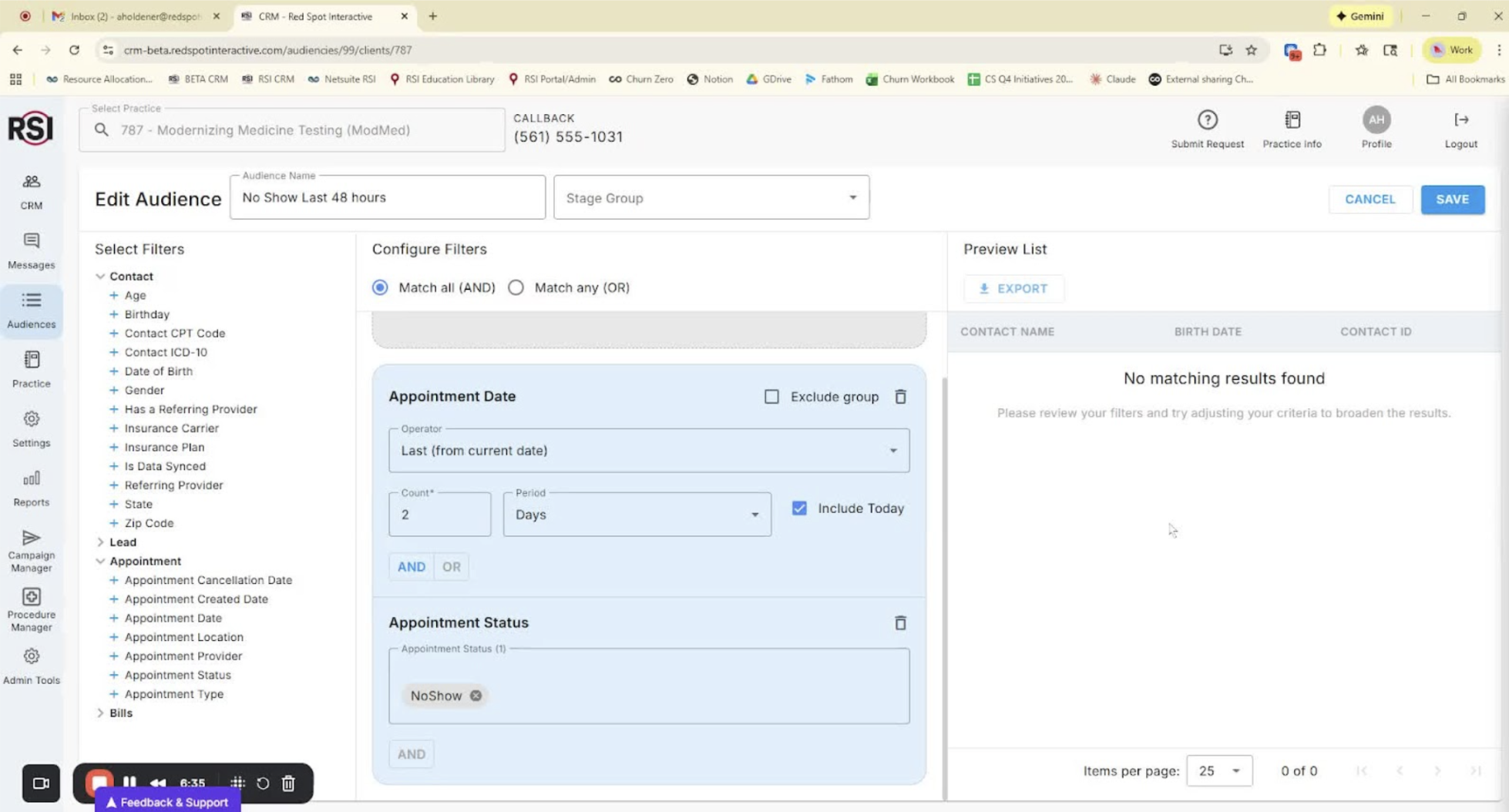
Generating Audience Lists 6:36
- Preview the audience list by clicking ‘Generate’.
- Save the audience if it meets your criteria.
-
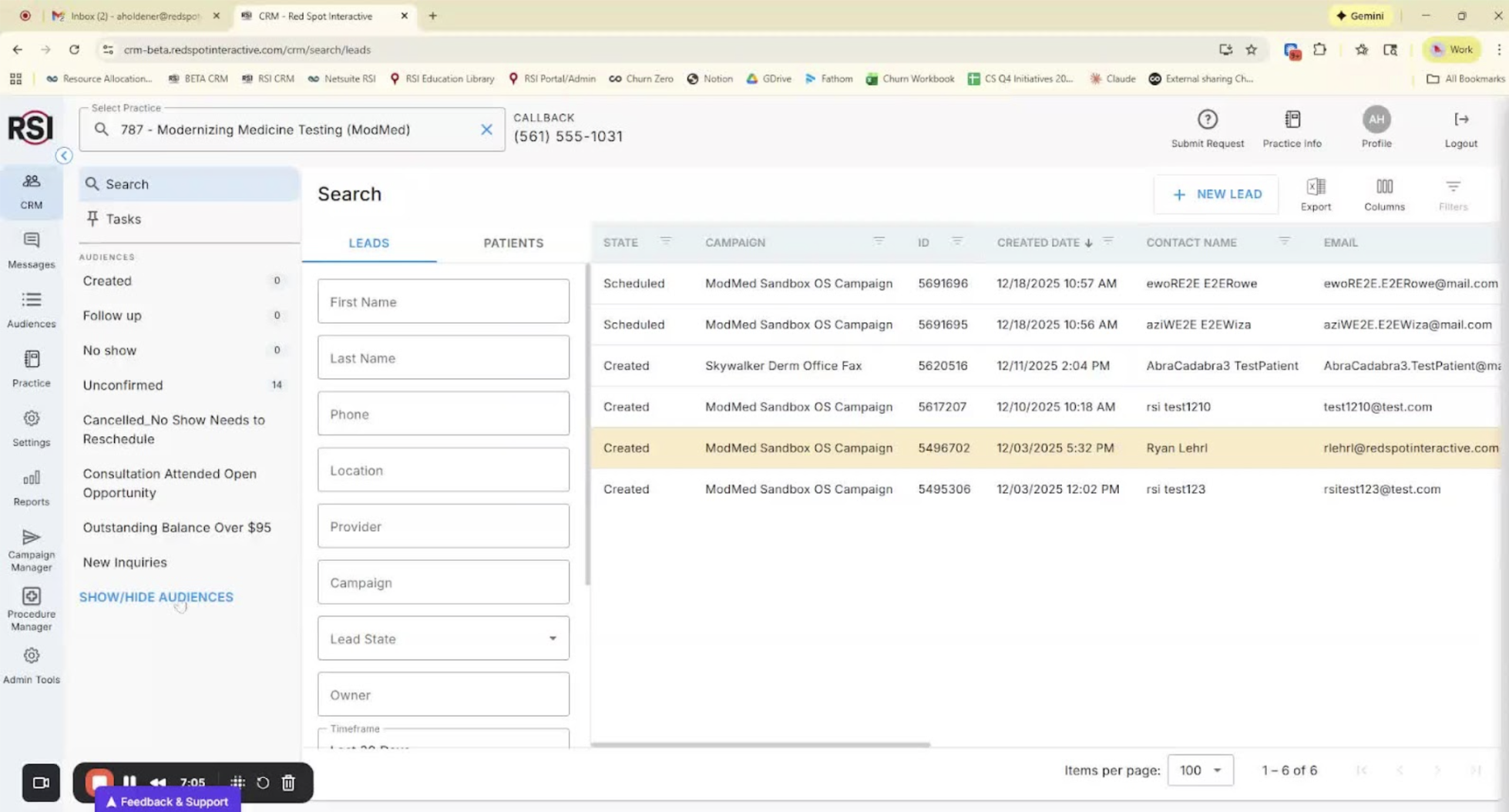
Customizing Audience Views 7:06
- View default and custom audiences in the CRM.
- Use ‘Show or Hide Audiences’ to customize your view.
-
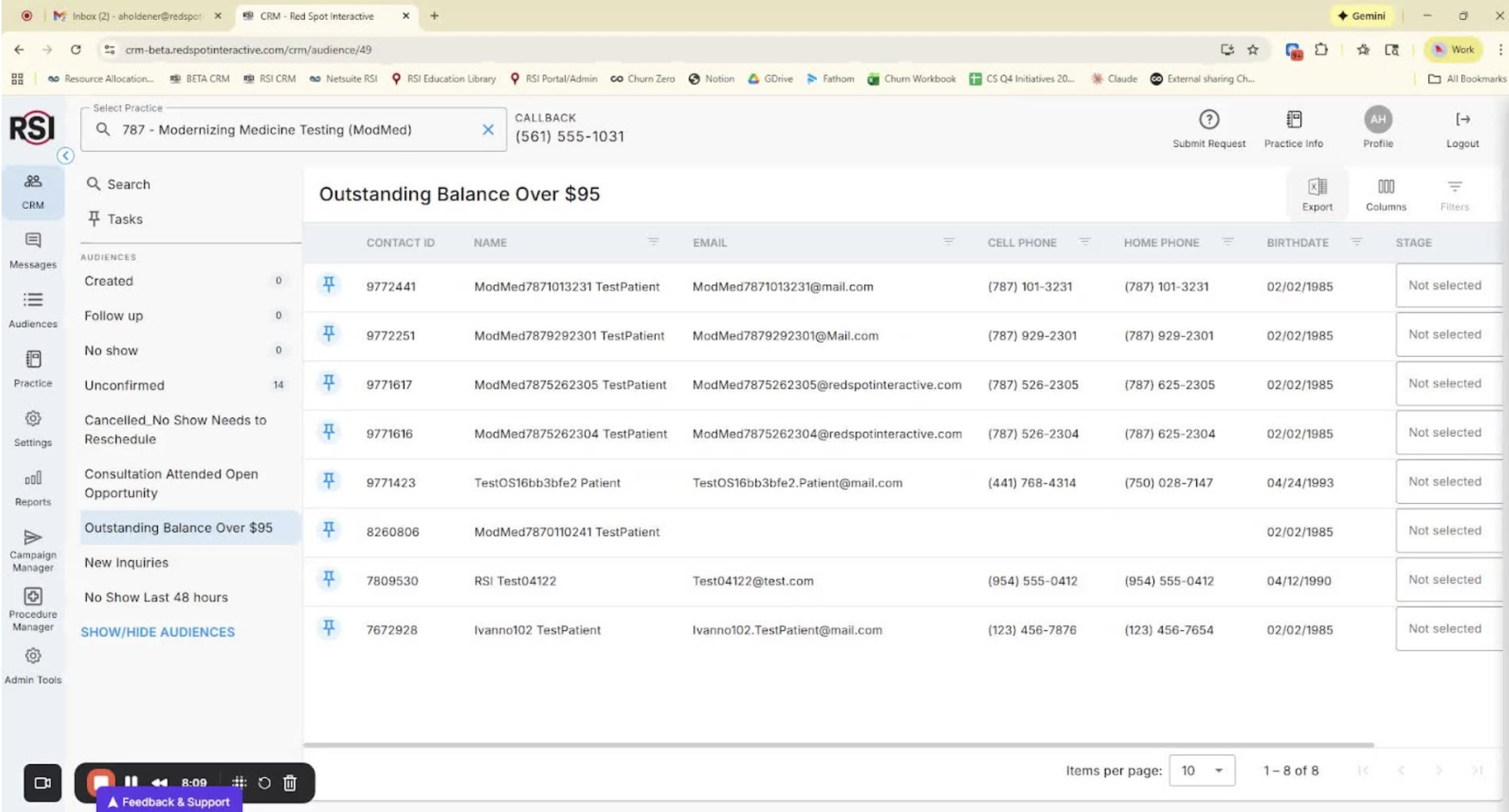
Exporting Audience Data 8:10
- Export audience lists to CSV.
- Arrange columns and apply filters as needed.
-
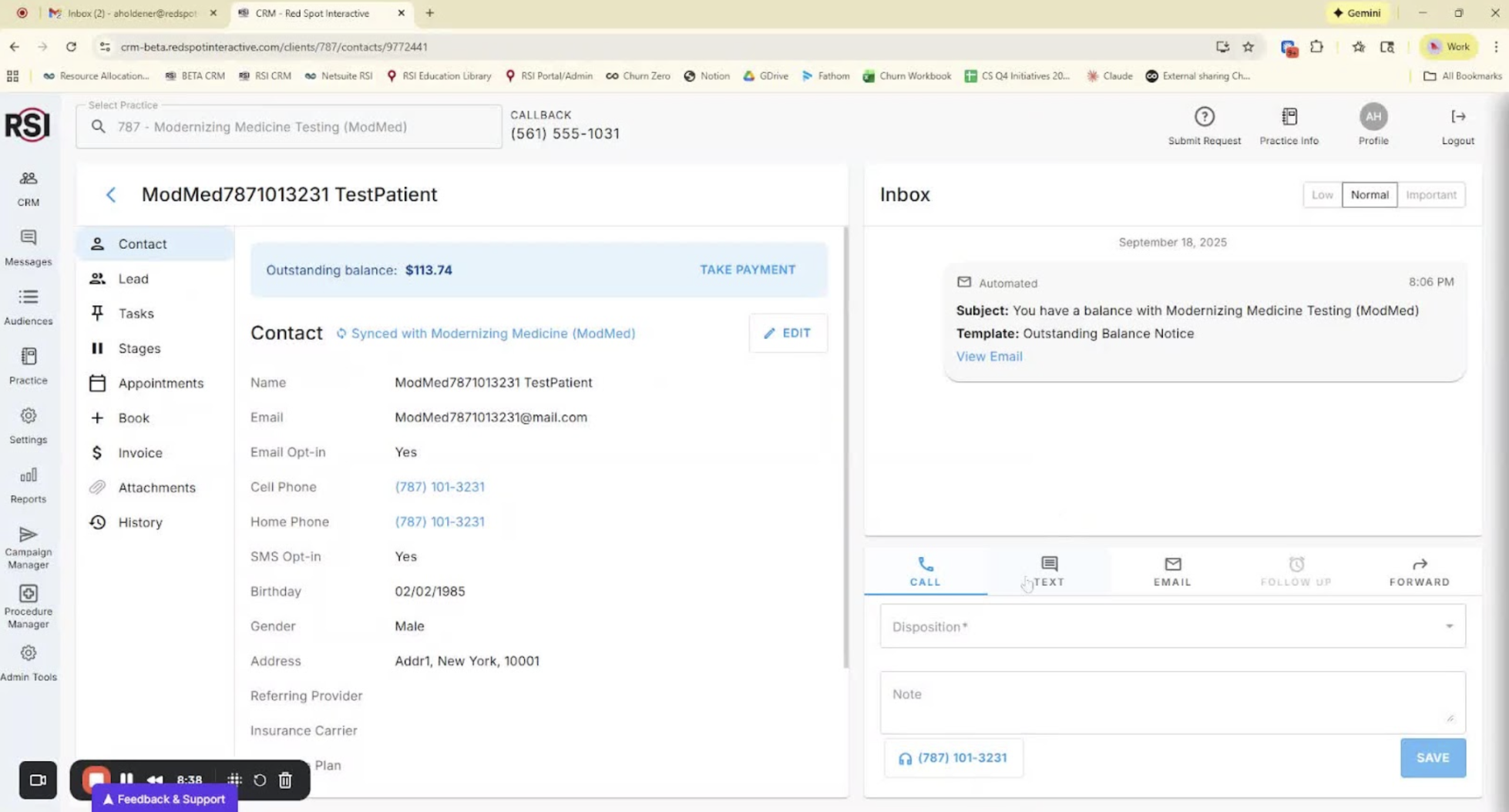
Detailed View of Contacts 8:39
- Click on a contact to view detailed information.
- Access historical communications, upcoming appointments, and more.
-
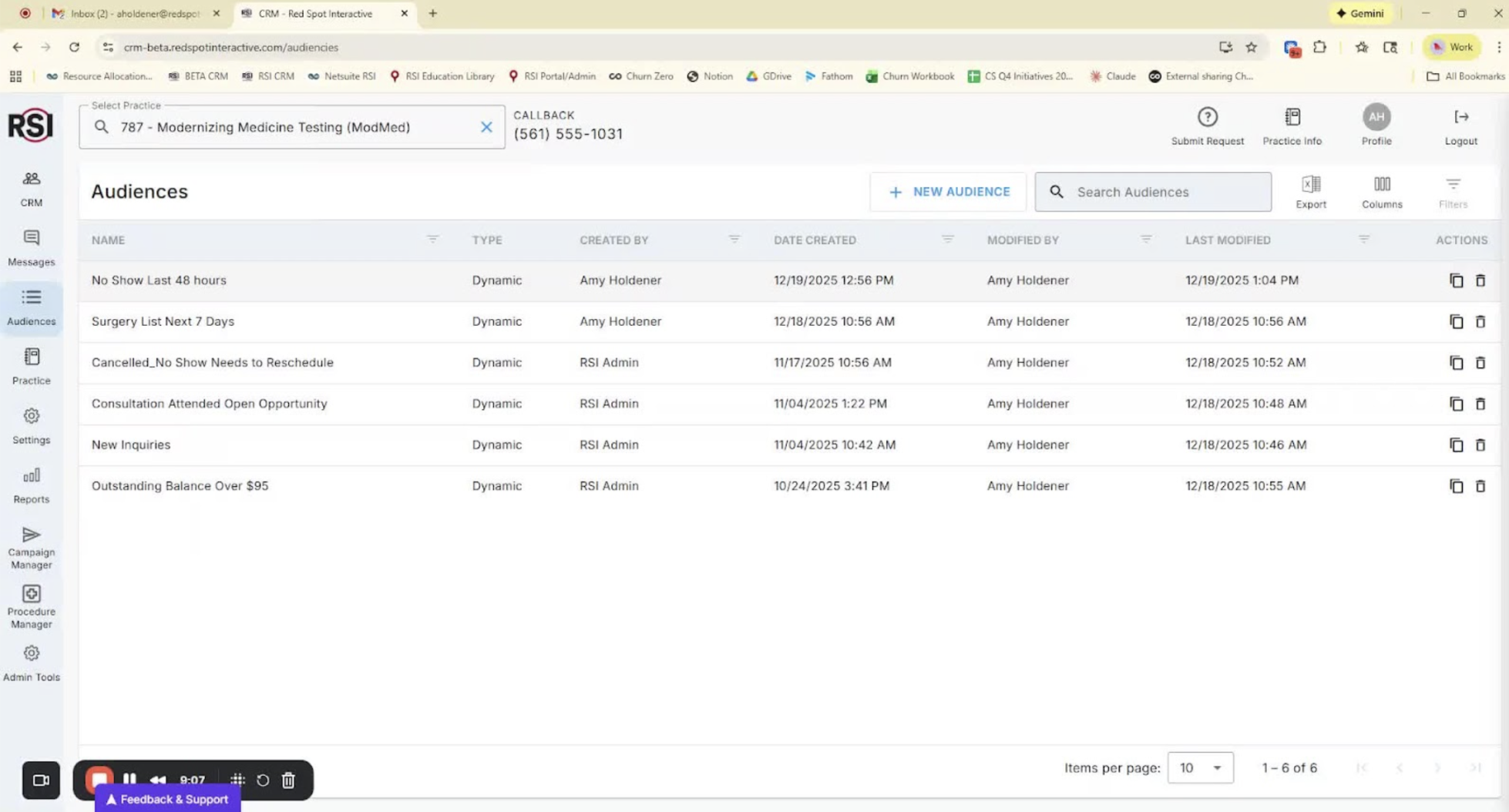
Building More Audiences 9:08
- Create audiences for specific needs (e.g., surgical appointments).
- Use appointment type and provider filters.
-
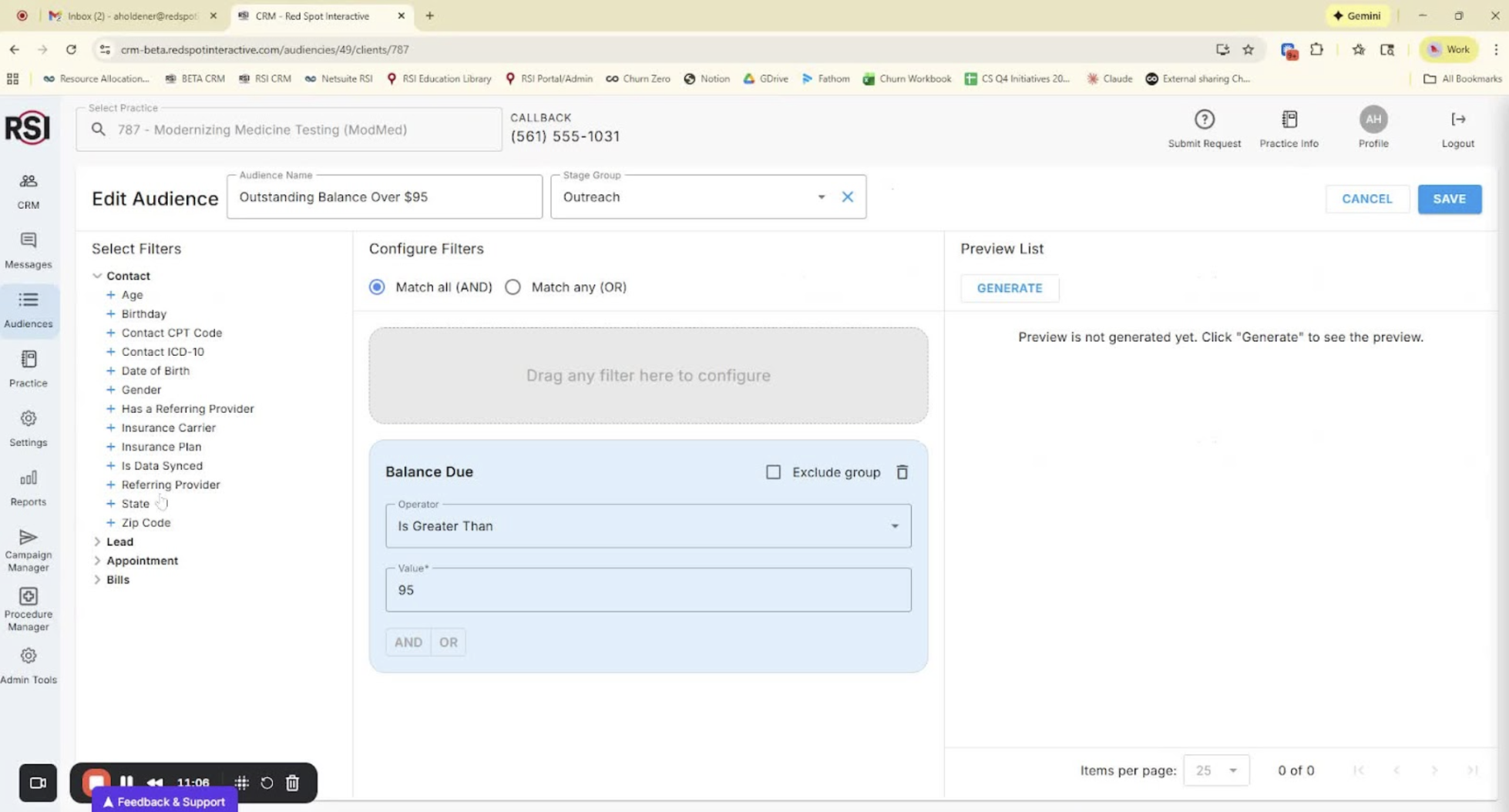
Managing Outstanding Balances 11:07
- Build audiences based on billing criteria (e.g., outstanding balance over $95).
- Use balance due date filters to refine your audience.
-
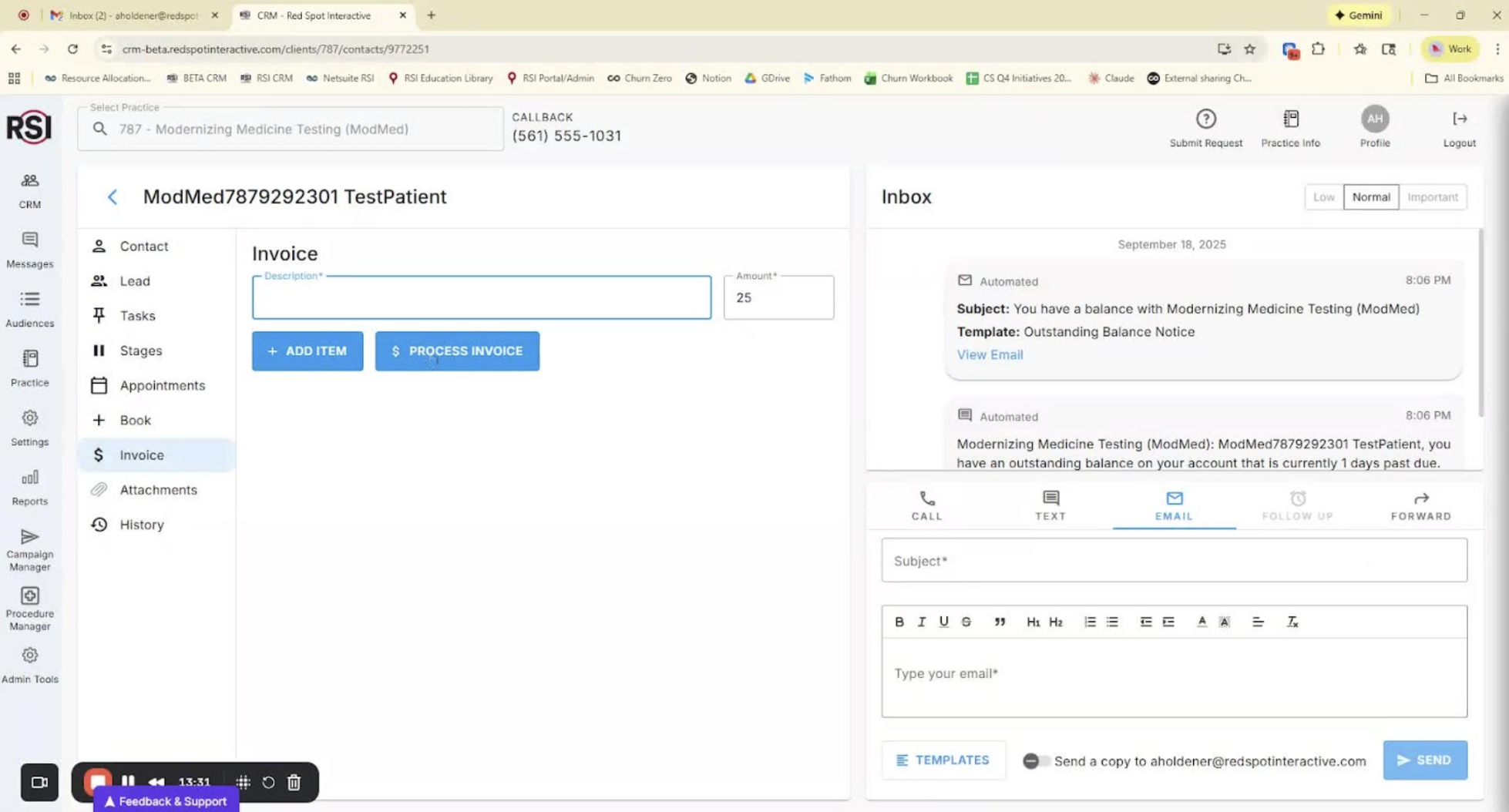
Payment Processing Options 13:32
- Options for contacting individuals regarding payments.
- Secure payment links and phone payment collection.
-
Conclusion and Support 14:23
- Encourage users to explore the Audience Builder.
- Contact customer support for assistance with audience creation.