

Education Library
UTM & Campaign Tracking Link Generation Guide
Overview
This guide explains how to generate unique tracking links in RSI’s Campaign Builder that capture UTM data and associate it with specific campaigns.Prerequisites
Before you can generate a UTM tracking link, ensure the following are completed:- UTM Tracking Code Installation
- Required: UTM tracking JavaScript code snippet must be installed in the header of the website.
- This code enables the website to capture and record UTM parameters from your tracking links.
- If not yet installed: UTM Tracking Installation Guide
- Without this code, UTM parameters will not be tracked even if included in your URLs.
- DNI Tracking Installation (If Applicable)
- Required for phone tracking campaigns: If you plan to track phone calls using Dynamic Number Insertion (DNI), the DNI tracking code must be installed on the website.
- This code dynamically displays different phone numbers based on the traffic source.
- If not yet installed: DNI Tracking Installation Guide
- Skip this step if your campaign does not involve phone call tracking.
- Campaign Must Be Created First
- The campaign must already exist in the Campaign Manager.
- The campaign will automatically be assigned a unique Campaign ID upon creation.
- You will need this Campaign ID to complete your tracking link.
- Domain Must Be Added to Online Presence
- The website domain you want to use must already be listed in the client’s Online Presence section in the RSI Portal.
- If the domain is not already added, contact your Account Manager to have it added before proceeding.
- Without the domain in Online Presence, it will not appear in the drop-down selection.
Accessing the UTM Link Generator
Follow these steps to access the URL generation tool:- Navigate to Campaign Manager in RSI
- Locate the campaign you want to create a tracking link for
- Click the 3 dots (⋮) to the right of the campaign name
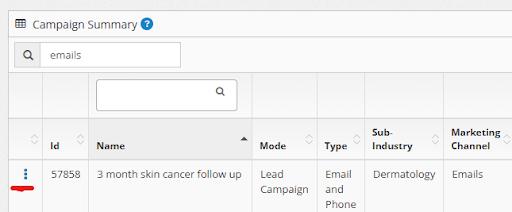
- Select Edit from the menu
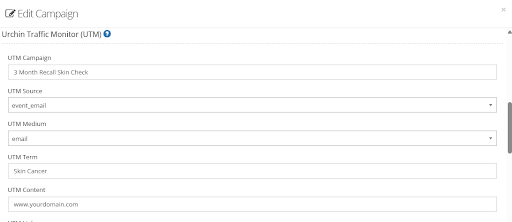
- Scroll down to the section titled “Urchin Traffic Monitor (UTM)”
Complete the Required Fields
Before you can generate a tracking link, you must complete the following fields:1. Website Domain
- Type: Drop-down selection
- Description: Select from a list of domains associated with the client account.
- Important: If the website you need is not listed, it must be added to the client’s Online Presence settings.
- Action Required: Contact your Account Manager for assistance adding new domains.
2. UTM Campaign
-
- Type: Open text field
- Description: Identifies a specific product promotion or strategic campaign
- Example: “Recall Eye Exam”, “Summer Sale 2024”, “New Patient Special”
- Best Practice: Use clear, descriptive names that help you identify the campaign later.
3. UTM Source
-
-
- Type: Drop-down selection
- Description: Identifies where the traffic is coming from
- Options include: Google, Meta (Facebook/Instagram), Email, SMS, Organic website, and more
-
Optional Fields
These fields provide additional tracking granularity but are not required:UTM Medium
-
-
- Type: Drop-down selection
- Options include: PPC (Pay-Per-Click), Social, and more
-
UTM Term
-
-
- Type: Open text field
- Description: Used to track search terms or other identifiers
- Example: “Annual Recall”, “eye exam keywords”
-
Step-by-Step Process
-
-
- Step 1: Fill Out the Form Complete all required fields and any optional fields you want to track.
- Step 2: Generate the Base URL
 Click the “Copy UTM Link” button. The system will generate a URL like this:
https://yourdomainhere.com/?utm_campaign=Recall+Eye+Exam&utm_source=event_email&utm_medium=email&utm_term=Annual+Recall - Step 3: Locate Your Campaign ID Find the Campaign ID for the campaign you’re working with in RSI. The Campaign ID is a unique number assigned to each campaign.
- Step 4: Add the Campaign ID Parameter
Manually add the following to the end of your generated URL:
Replace #### with your actual Campaign ID number.&rsiCampaignId=#### - Final Result Example
https://yourdomainhere.com/?utm_campaign=Recall+Eye+Exam&utm_source=event_email&utm_medium=email&utm_term=Annual+Recall&rsiCampaignId=1234
-
Testing Your Tracking Link
Using the Test Campaign Link Located next to the “Copy UTM Link” button, you’ll find a “Test Campaign” link. Important: Clicking this link will open the page using the full URL WITHOUT the Campaign ID appended to the end. You must manually add the &rsiCampaignId=#### parameter before testing to ensure proper attribution.Testing Methods
Choose the appropriate testing method based on your campaign’s conversion type:Method 1: Testing Web Form Submissions
-
-
- Click the “Test Campaign” link
- Manually add &rsiCampaignId=#### to the end of the URL in your browser
- Submit a test lead using the web form on the page
- Recommended naming convention:
- First Name: Test
- Last Name: Campaign ID #### (replace #### with your actual Campaign ID)
- Example: Test Campaign ID 5678
- Navigate to the CRM and locate your test lead.
- Verify that the lead shows correct campaign attribution.
-
Method 2: Testing Phone Call Tracking
Prerequisites: Campaign must be using either:-
-
- a static dedicated phone number, OR
- DNI (Dynamic Number Insertion) – requires DNI code setup (DNI Education Page Link)
-
-
-
- Click the “Test Campaign” link
- Manually add &rsiCampaignId=#### to the end of the URL in your browser
- Verify that the correct tracking phone number is displayed on the page
- Call the displayed number
- When the agent answers, ask them to:
- Record your call as a new lead
- Confirm the campaign name that is displayed in their system.
- Identify yourself using the naming convention:
- “My name is Test, last name Campaign ID ####”
- Example: “Test Campaign ID 5678”
- Navigate to the CRM and locate your test lead
- Verify correct campaign attribution.
-
Method 3: Testing Online Scheduling
-
-
- Click the “Test Campaign” link
- Manually add &rsiCampaignId=#### to the end of the URL in your browser
- Book a test appointment through the online scheduling feature
- Use the same naming convention:
- First Name: Test
- Last Name: Campaign ID #### (replace #### with your actual Campaign ID)
- Example: Test Campaign ID 5678
- Navigate to the CRM and locate your test appointment
- Verify correct campaign attribution.
-
Why Testing Is Important
Testing ensures that:-
-
- Your UTM parameters are tracking correctly
- The Campaign ID is properly associated with leads
- Phone numbers are displaying correctly (if applicable)
- Online scheduling is attributing correctly (if applicable)
- All conversion points are working as expected
-
Real-World Examples
Example 1: Recall Email Campaign (With Optional Fields)
Campaign Details:-
-
- Website Domain:https://yourdomainhere.com
- UTM Campaign: Annual Eye Exam Recall 2024
- UTM Source: Email
- UTM Medium: Email Marketing
- UTM Term: Annual Recall
- Campaign ID: 5678
-
https://yourdomainhere.com/?utm_campaign=Annual+Eye+Exam+Recall+2024&utm_source=Email&utm_medium=Email+Marketing&utm_term=Annual+Recallhttps://yourdomainhere.com/?utm_campaign=Annual+Eye+Exam+Recall+2024&utm_source=Email&utm_medium=Email+Marketing&utm_term=Annual+Recall&rsiCampaignId=5678Example 2: Recall Email Campaign (Without Optional Fields)
Campaign Details:-
-
- Website Domain: https://assileye.com
- UTM Campaign: Annual Eye Exam Recall 2024
- UTM Source: Email
- UTM Medium: (left blank)
- UTM Term: (left blank)
- Campaign ID: 5678
-
https://assileye.com/?utm_campaign=Annual+Eye+Exam+Recall+2024&utm_source=Emailhttps://assileye.com/?utm_campaign=Annual+Eye+Exam+Recall+2024&utm_source=Email&rsiCampaignId=5678Important Notes
-
-
- The &rsiCampaignId parameter must be added manually after copying the UTM link
- Spaces in your UTM parameters will automatically be converted to + signs in the URL
- Always verify your Campaign ID is correct before using the link
- Keep your UTM naming conventions consistent across campaigns for better reporting
-














