

Education Library
Policies
Guide to Adding and Editing Policy Information in CRM
- Introduction to CRM Training 0:00
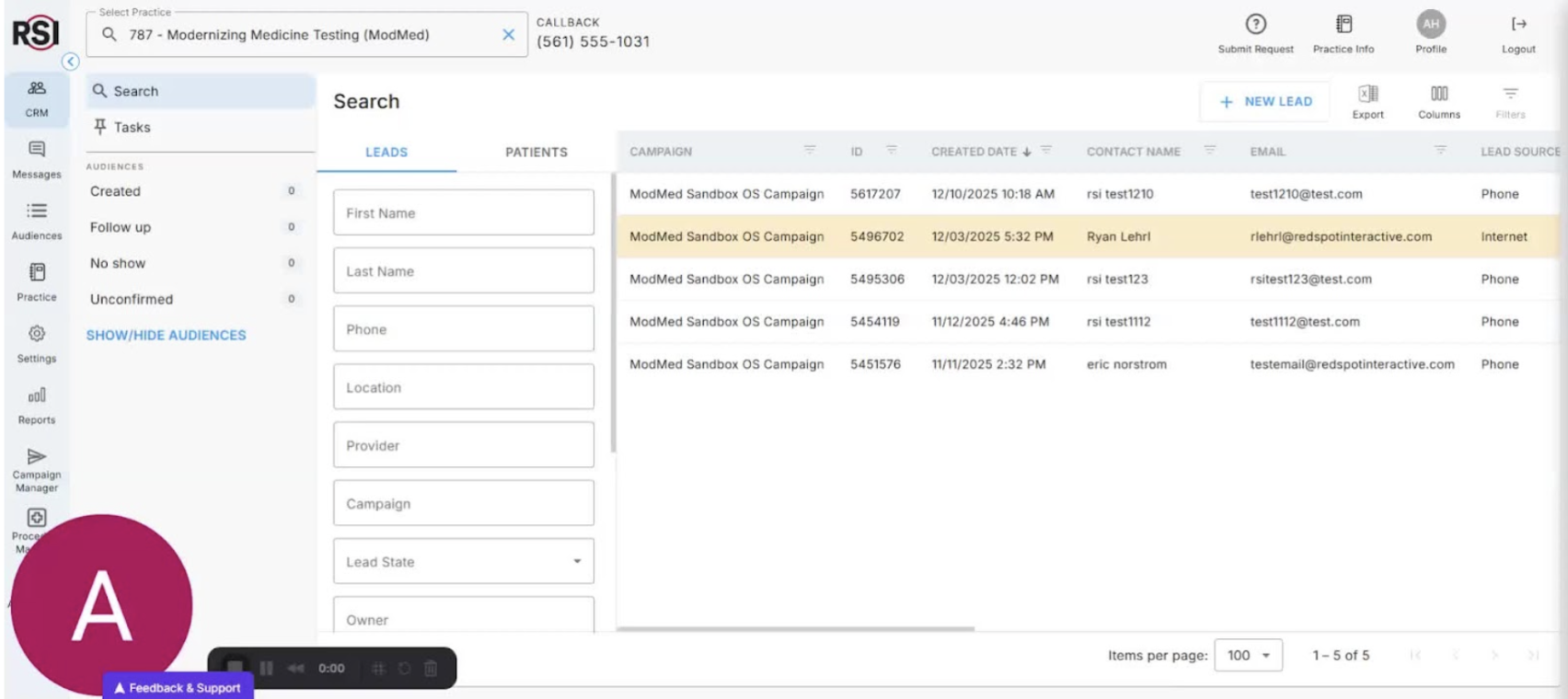
- Welcome to Red Spot Interactive’s CRM training series.
- Purpose: Walkthrough on adding and editing policy information in the practice editor.
- Understanding Practice Info 0:16
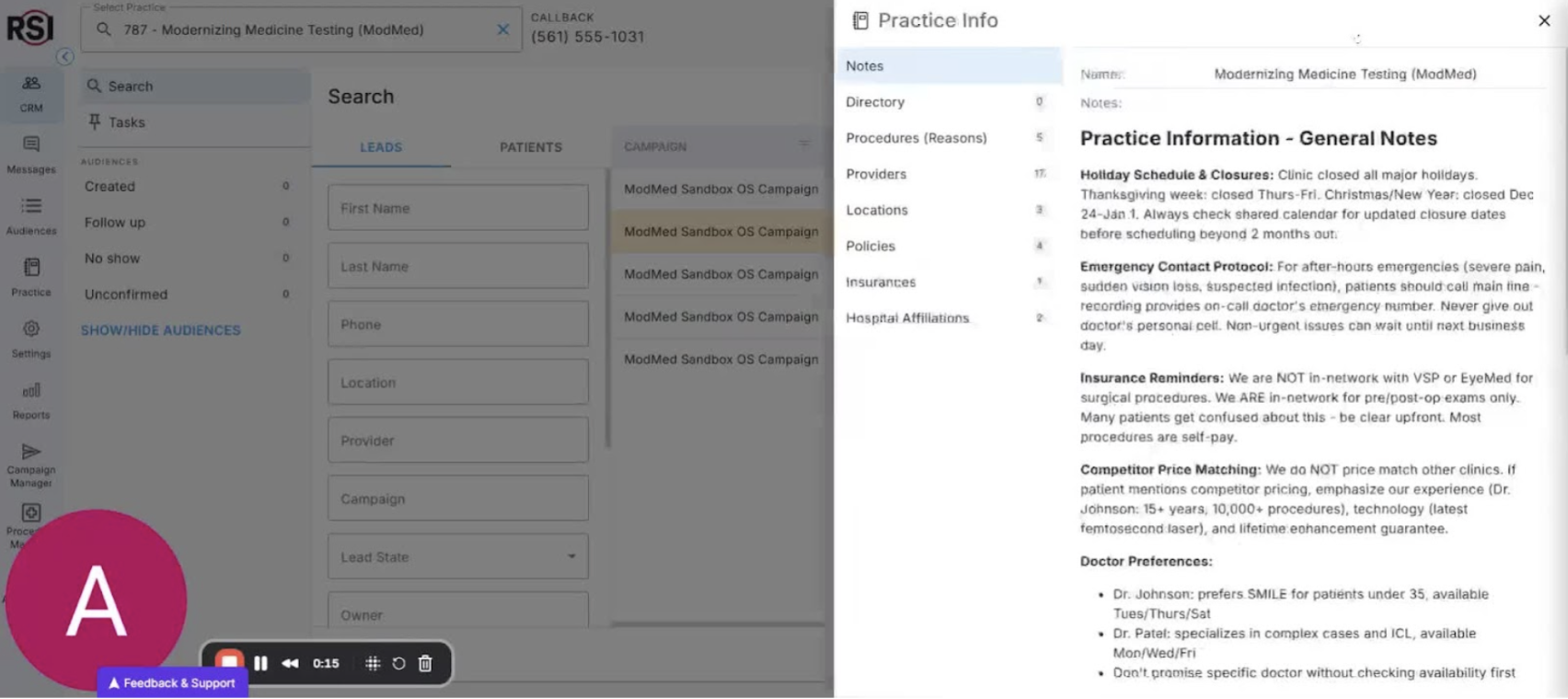
- Practice Info is a digital file in your CRM.
- Contains internal-facing data useful for front desk, call center, and clinical teams.
- Aims to provide consistent and accurate information for team communication with patients.
- Importance of Policy Section 0:44
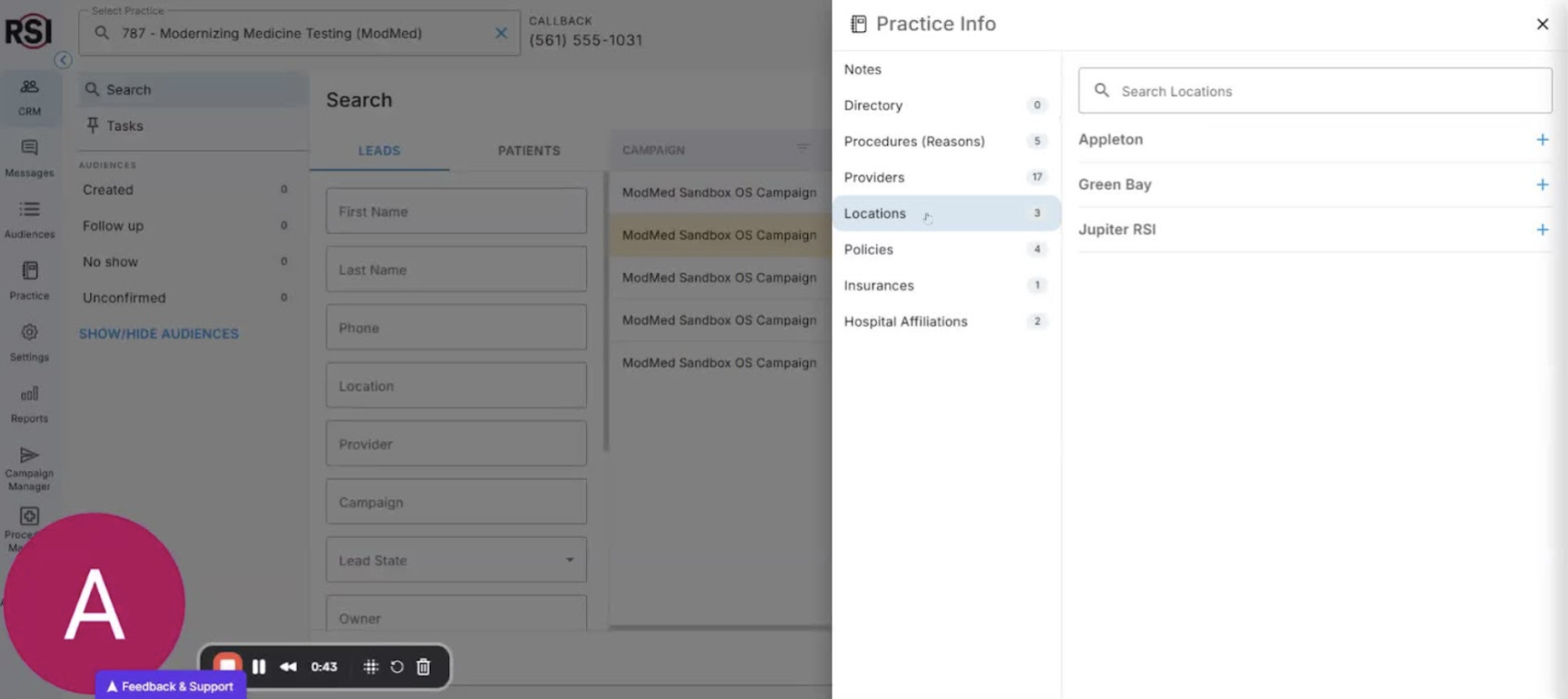
- The policy section helps teams speak intelligently about frequently asked questions.
- Examples of policies include:
- Cancellation, rescheduling, and no-show policies
- Candidacy and preemption
- Pre-screening requirements
- Payment and financing options.
- Detailed Policy Benefits 1:26
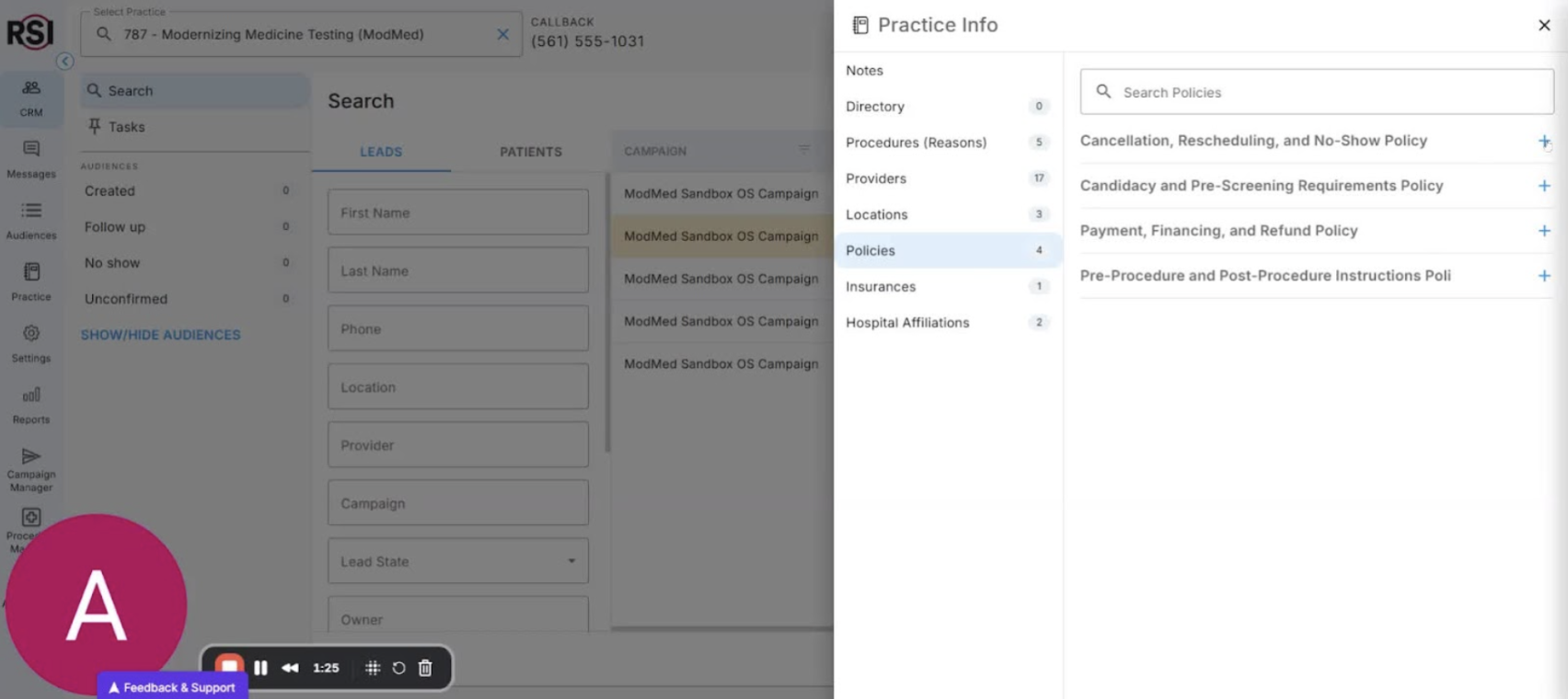
- Detailed policies help educate AI tools for future automation (e.g., AI responses in 2026).
- This section serves as a training ground for AI agents to communicate effectively.
- Accessing Practice Settings 2:17
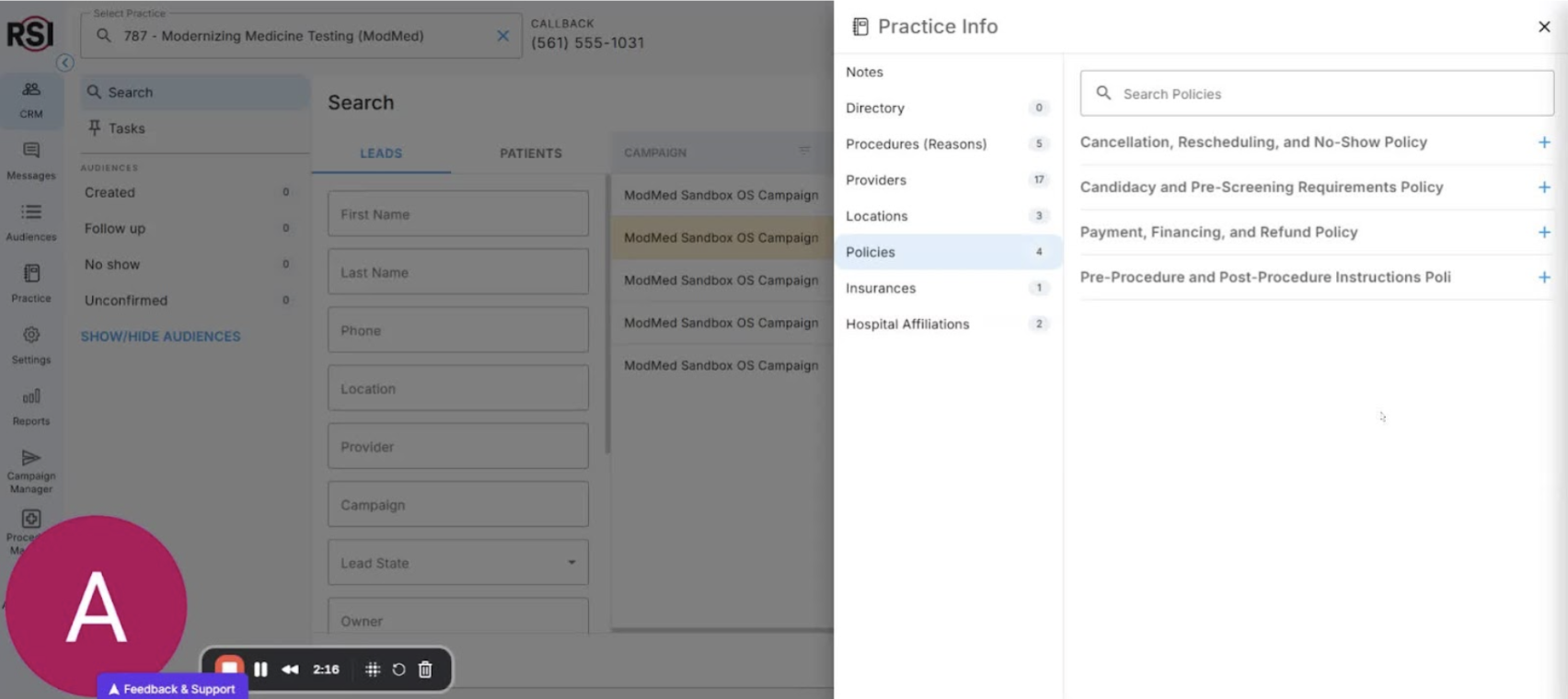
- To build and edit policies, go to the practice settings section.
- Admin privileges are required to access this section.
- Editing Policies 2:28
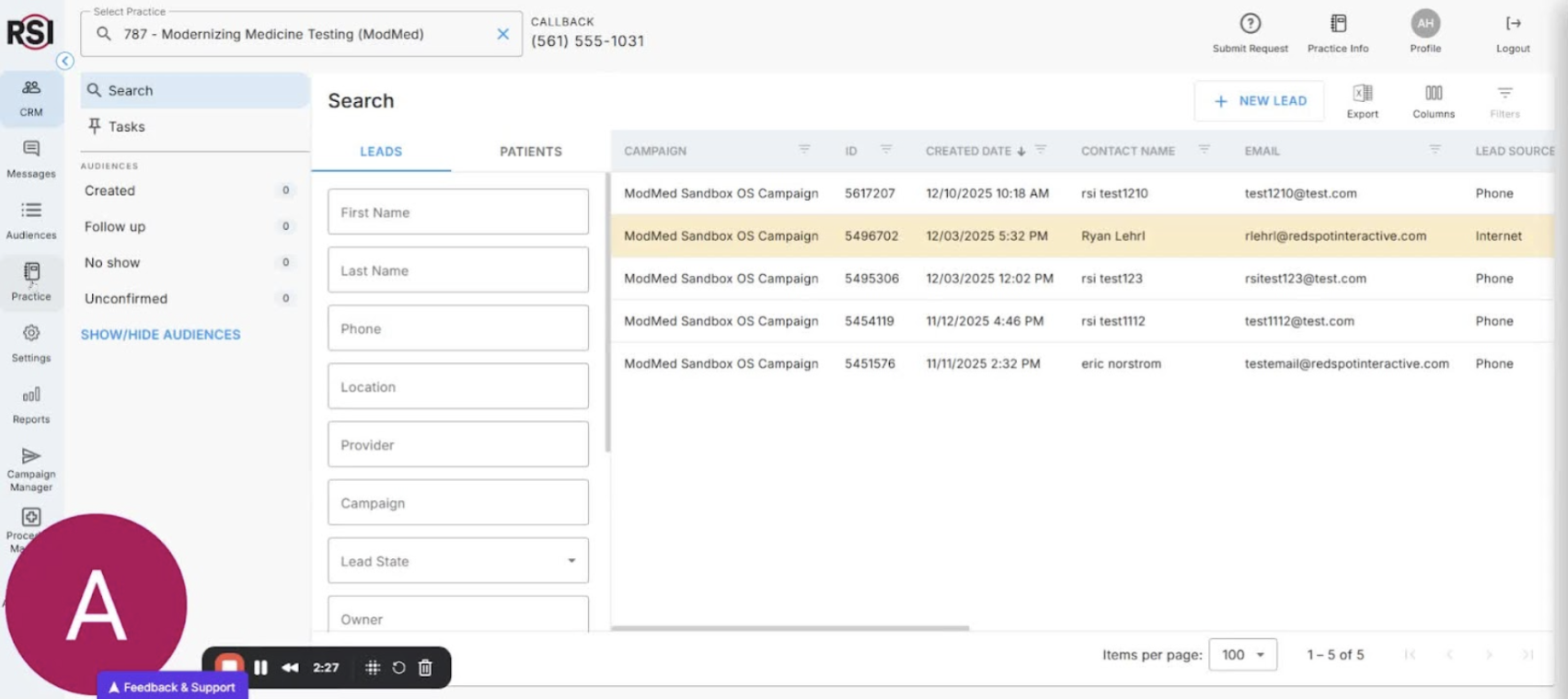
- Click on the practice icon to view various sections.
- Select the ‘policy’ section to view, add, or edit policies.
- Adding and Formatting Policies 2:53
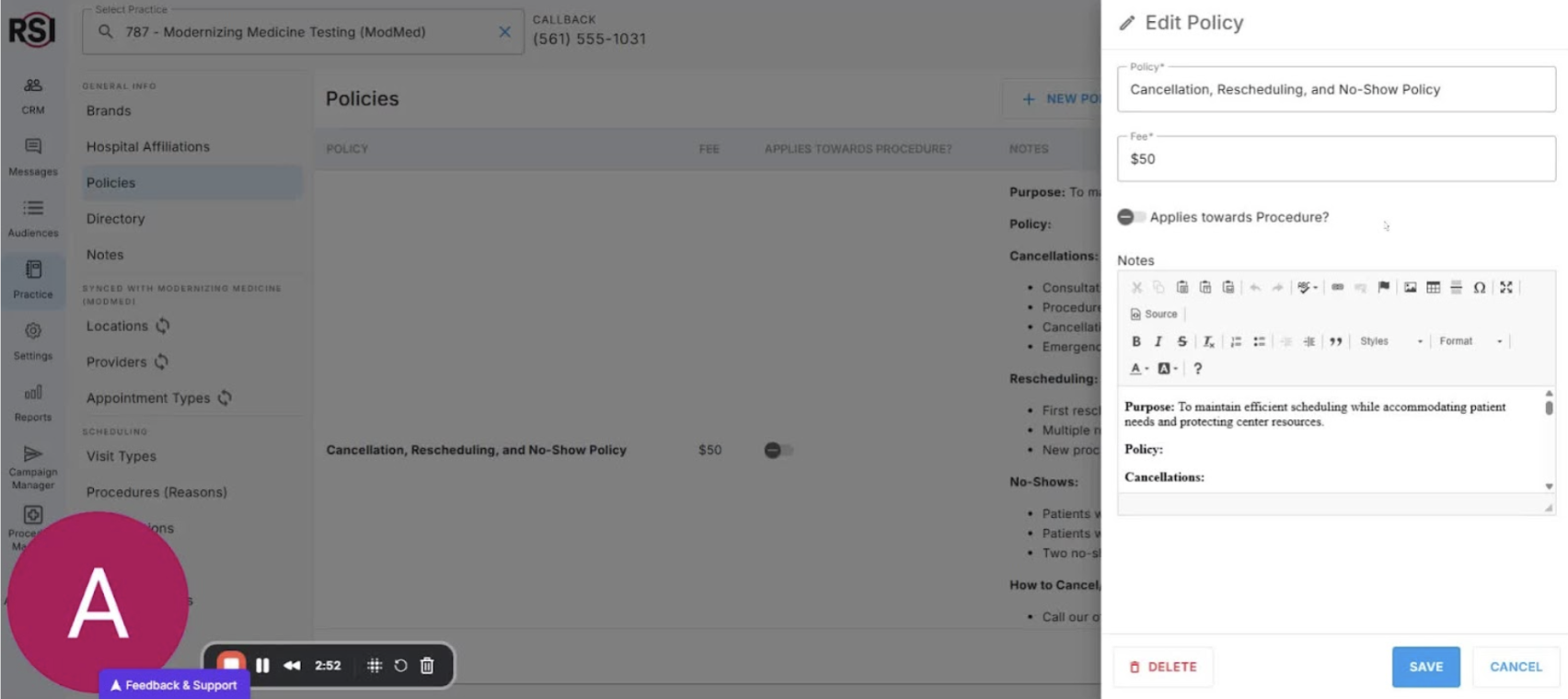
- Click ‘new’ to add a new policy or select an existing one to edit.
- Use drag-and-drop to expand views of policies.
- Format policies with stylized notes, HTML, images, videos, and tables.
- Conclusion 3:22
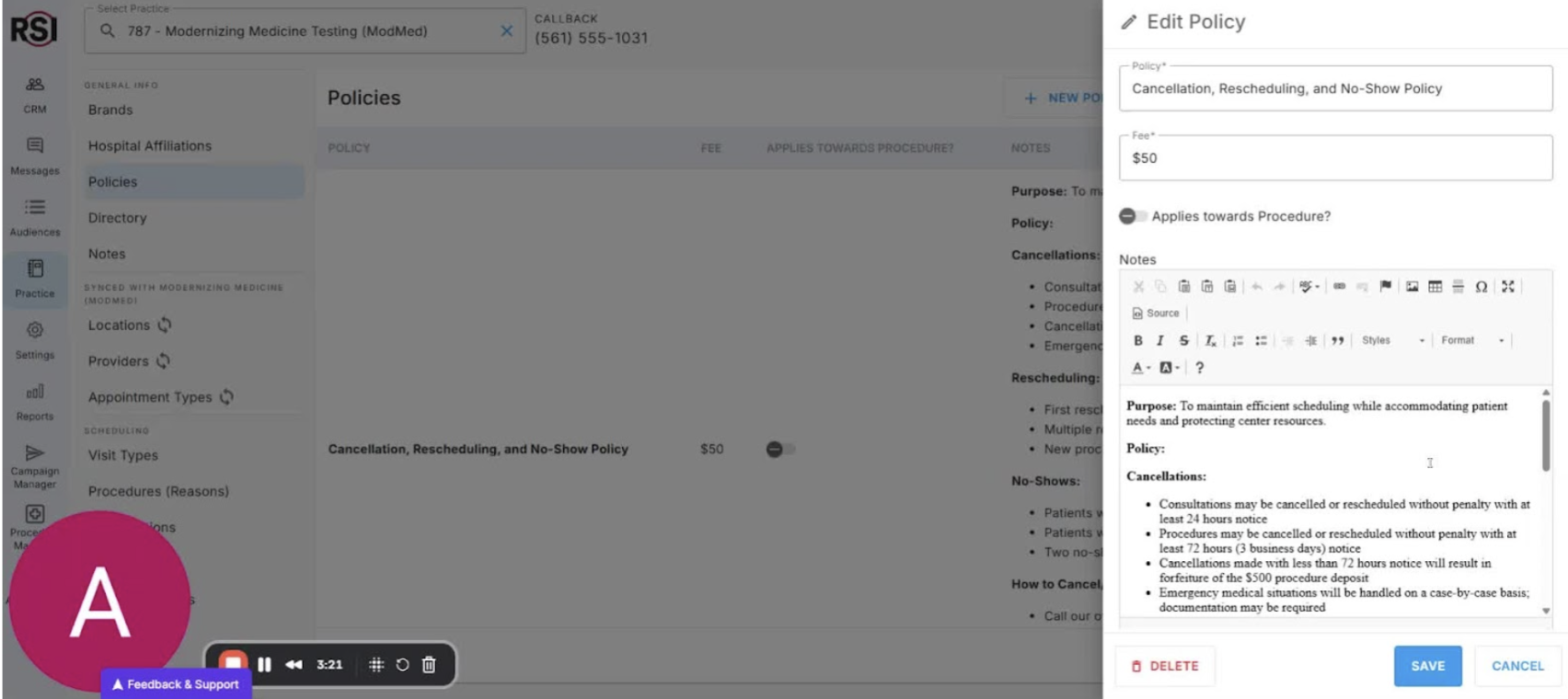
- Emphasize the power of detailed policies for team consistency.
- Thank viewers for participating in the training series.














