

Education Library
Directory
Guide to Adding and Editing the Directory in Red Spot Interactive’s CRM
- Introduction to CRM Training 0:00
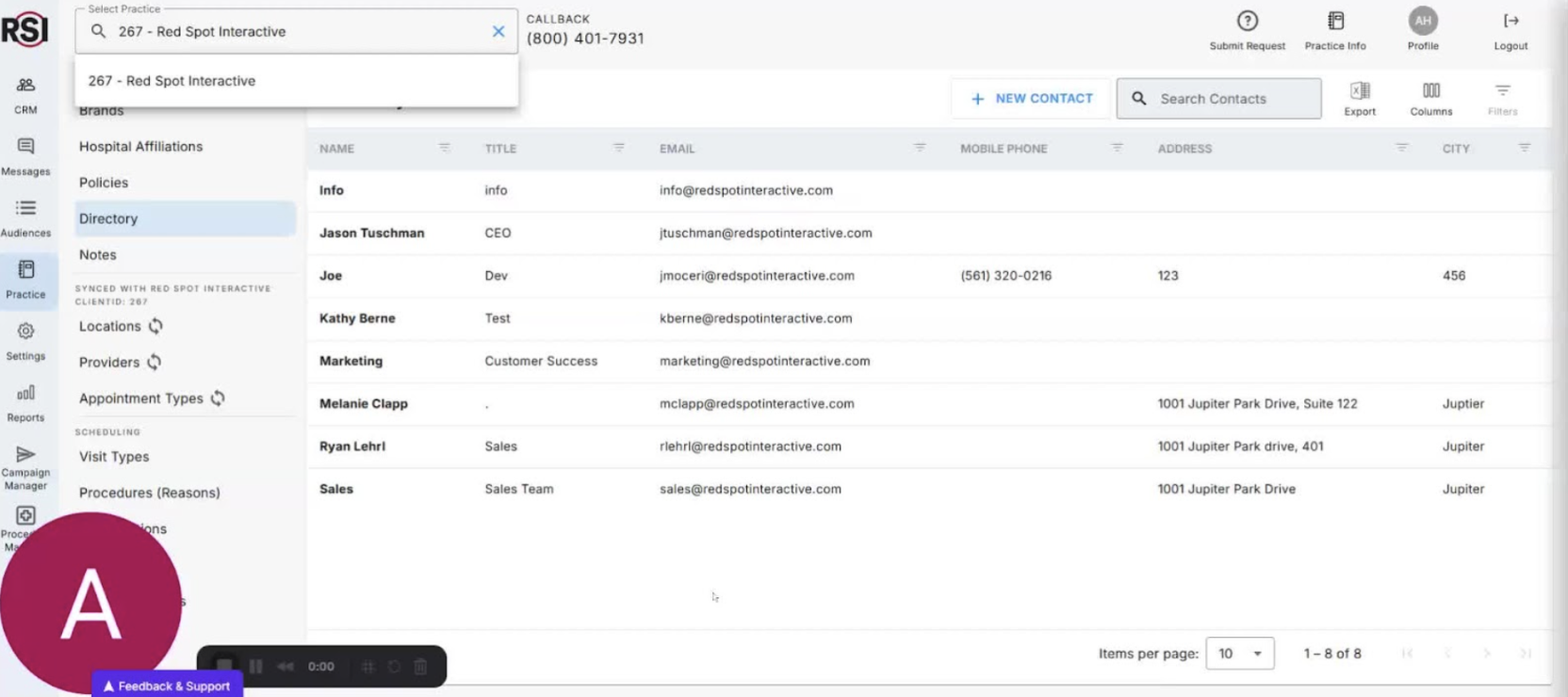
- Welcome to Red Spot Interactive’s CRM training series.
- Today’s focus: Adding and editing the directory in your practice information of the updated CRM.
- Overview of the Updated CRM 0:16
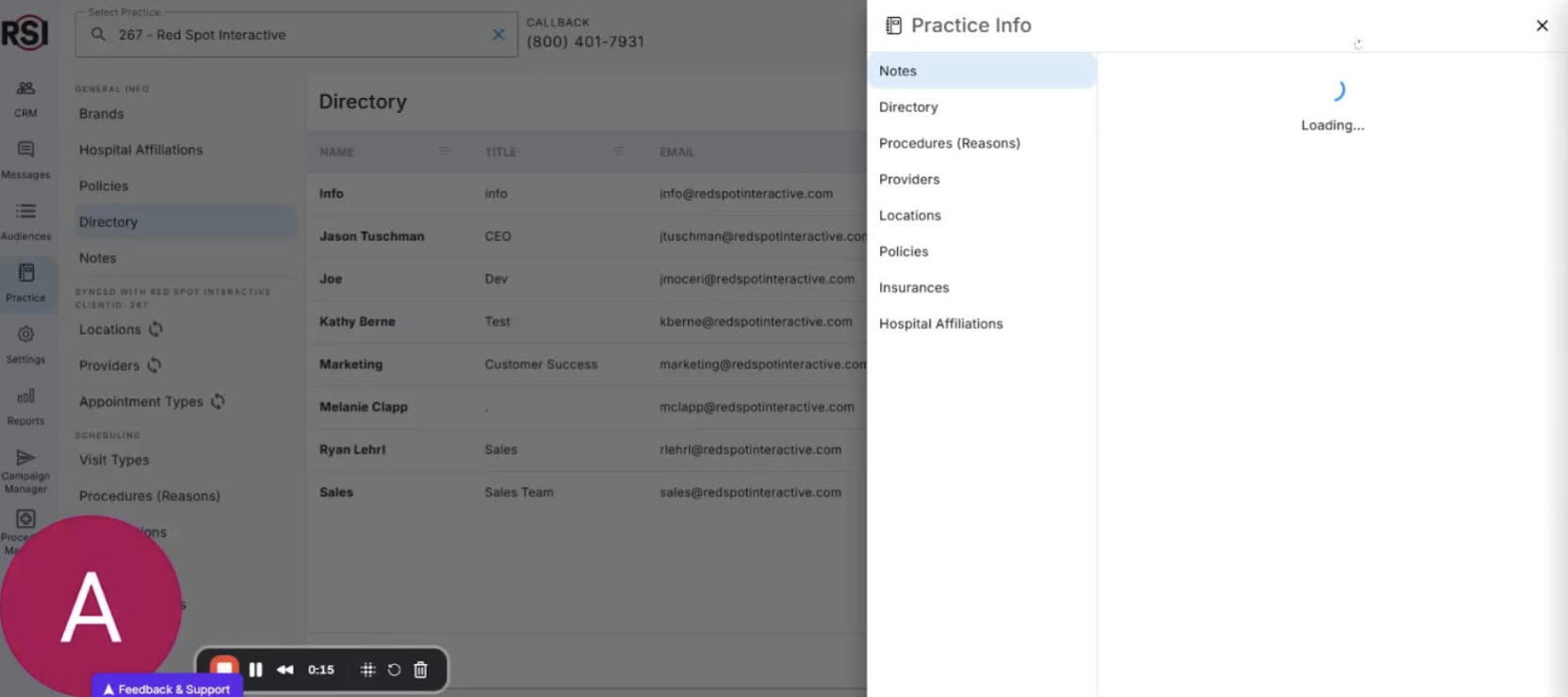
- New user interface and streamlined features for improved workflow.
- Purpose of the practice information system:
- Provides detailed information about your practice.
- Assists team members when communicating with patients or potential patients.
- Purpose of the Directory 0:39
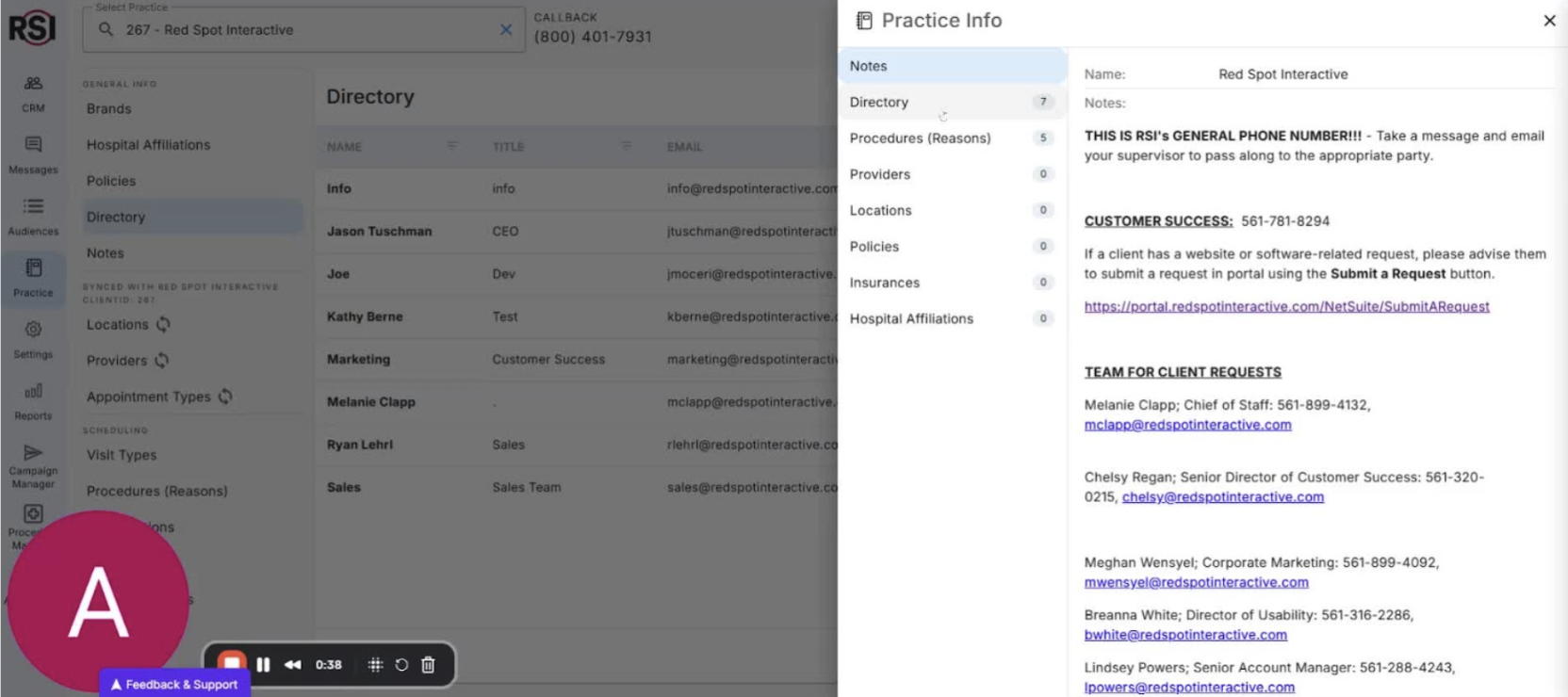
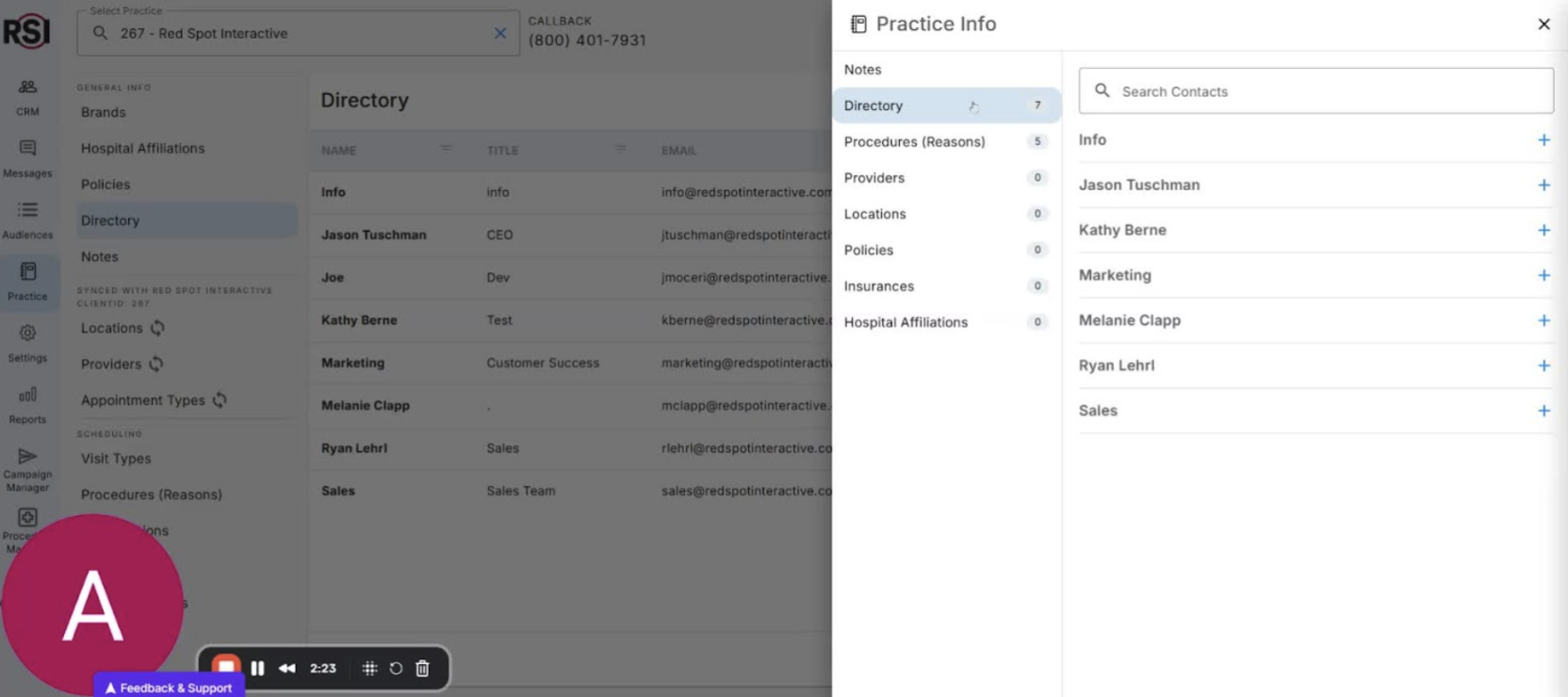
- The directory helps team members access:
- Contact information for staff.
- Procedures offered by the practice.
- Detailed information about providers and locations.
- Accessing the Directory 1:03

- Ensure you have admin privileges.
- Navigate to the left panel and click on ‘Practice Info’.
- Scroll to find ‘Directory’.
- Adding a New Contact 1:11
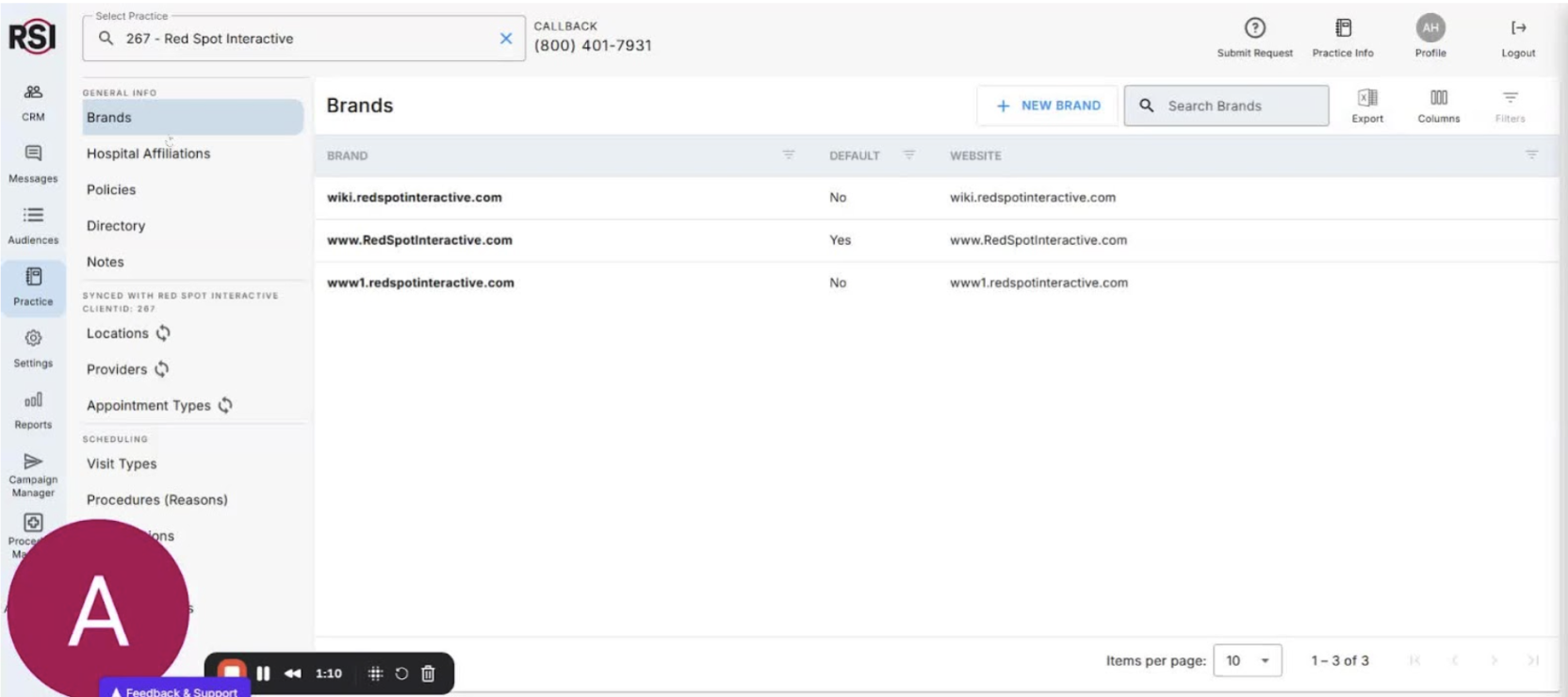
- Click ‘New Contact’ to add a new team member.
- Editing Existing Contacts 1:25
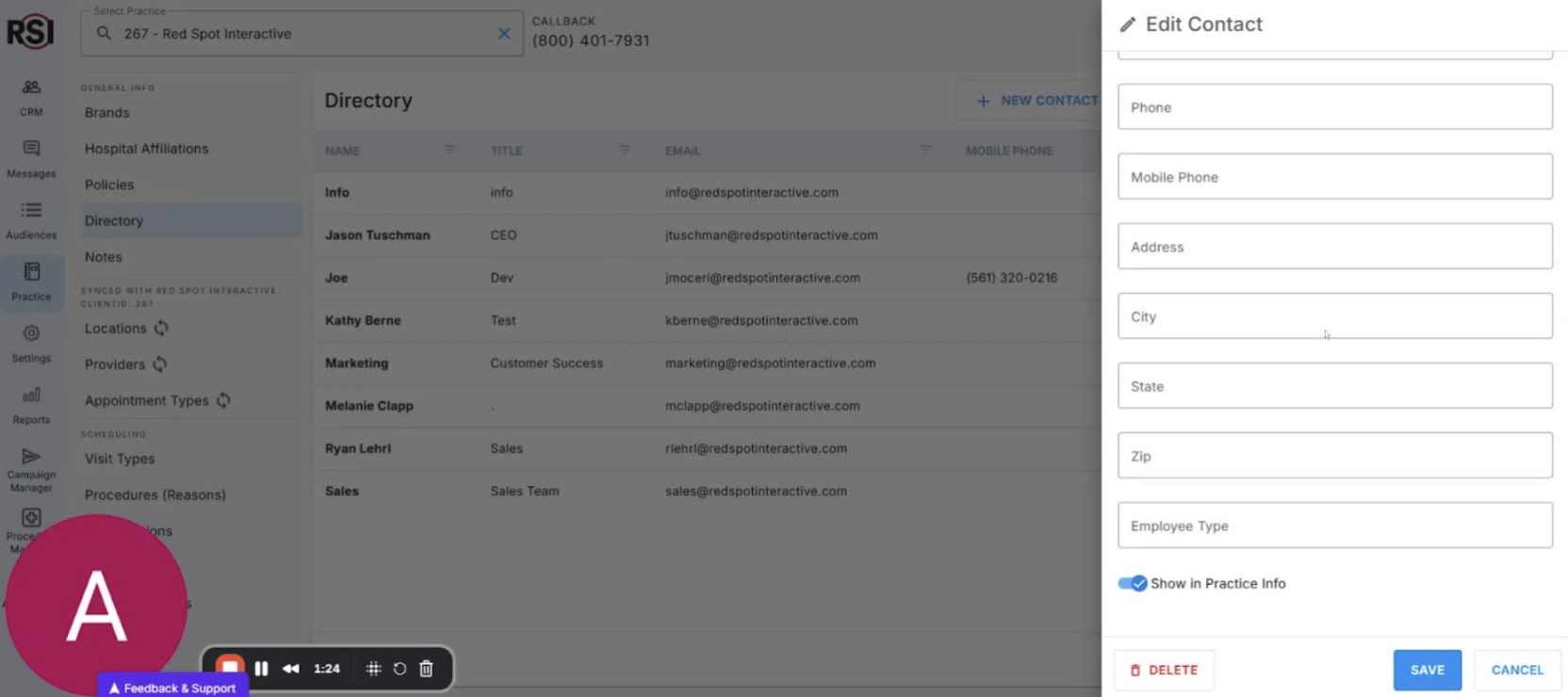
- Click on a name in the directory to edit their information.
- Input general contact information:
- Zip code
- Employee type
- Choose whether to show or hide the contact in the Practice Information tab.
- Managing Visibility of Contacts 1:35
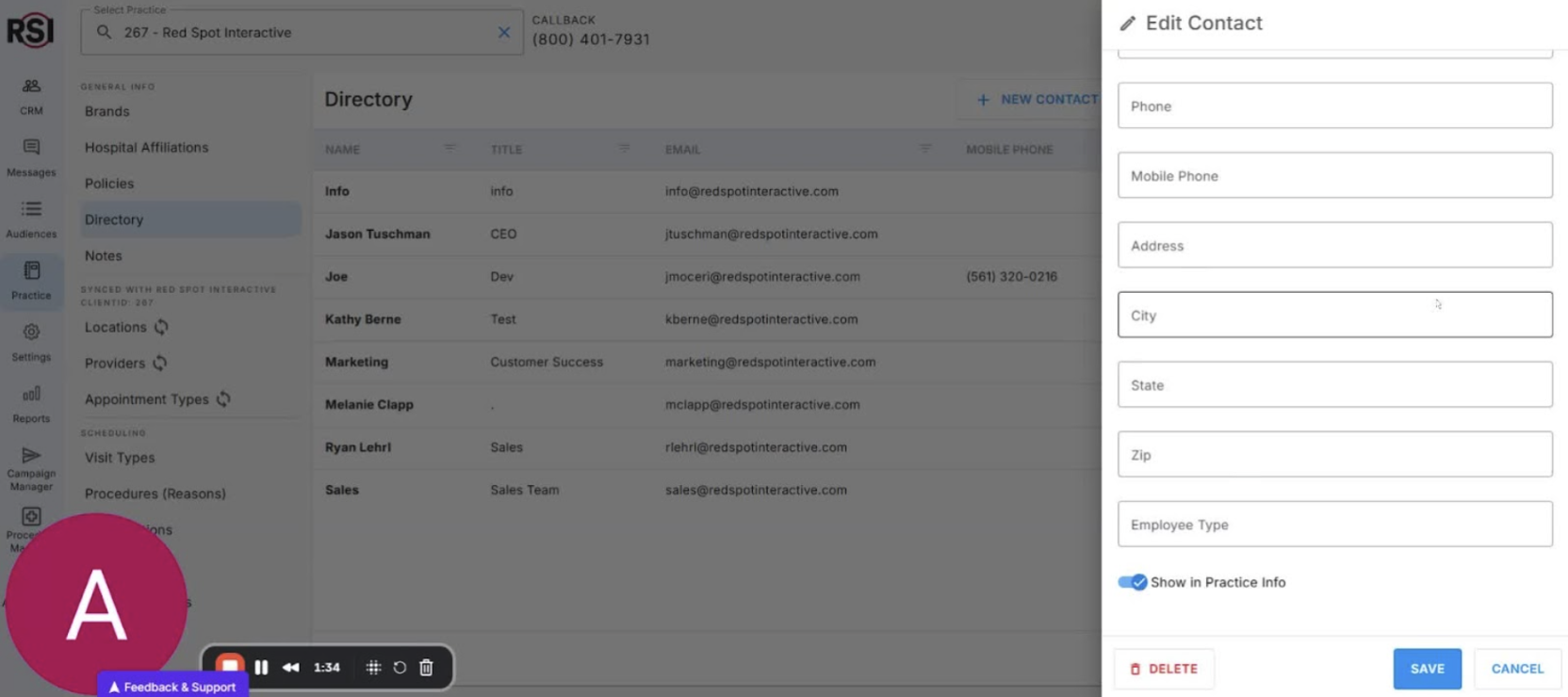
- Flexibility to determine visibility:
- Toggle ‘Show in Practice Info’ on or off.
- Save changes to update the directory.
- Real-Time Updates 1:50
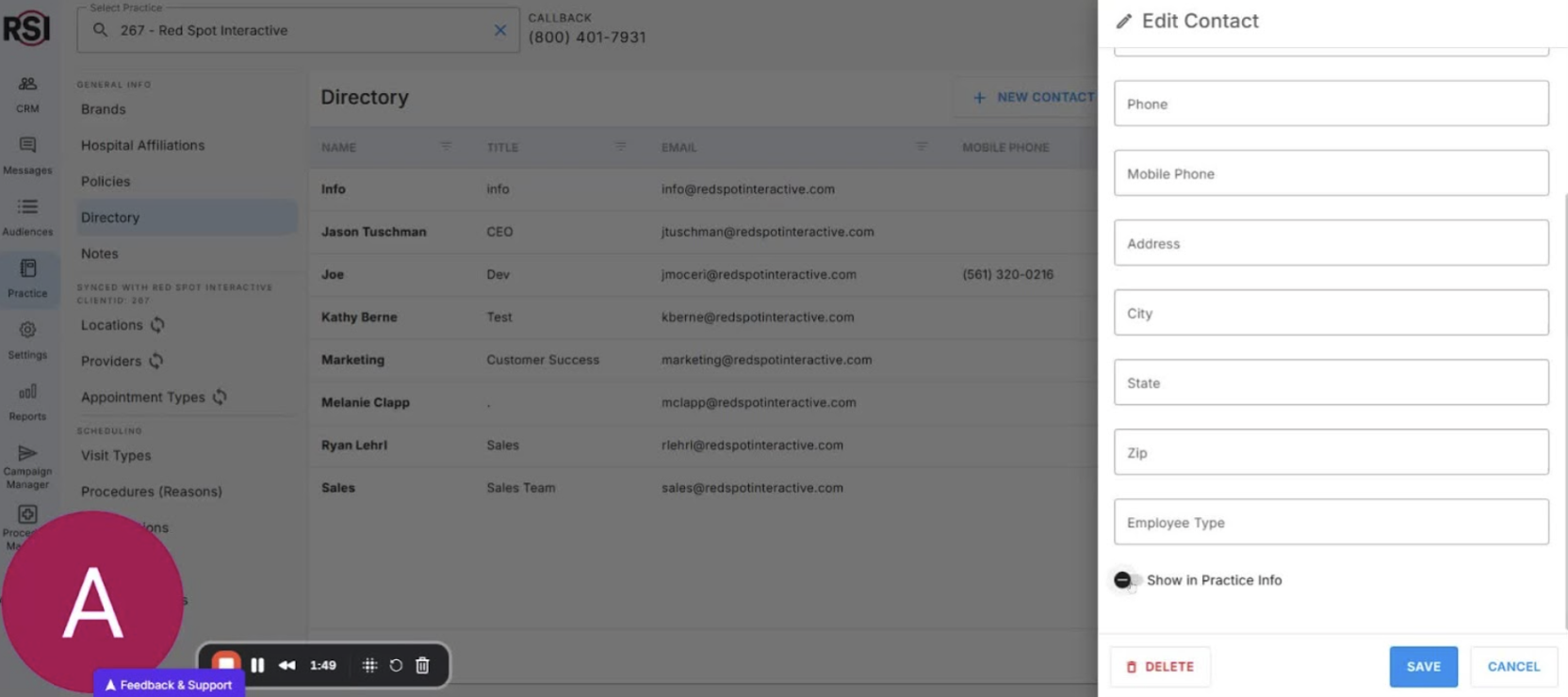
- Demonstration of toggling visibility:
- Turn off visibility and save to see the directory update in real-time.
- Turn visibility back on and save to restore the contact.
- Encouragement for Detailed Profiles 2:12
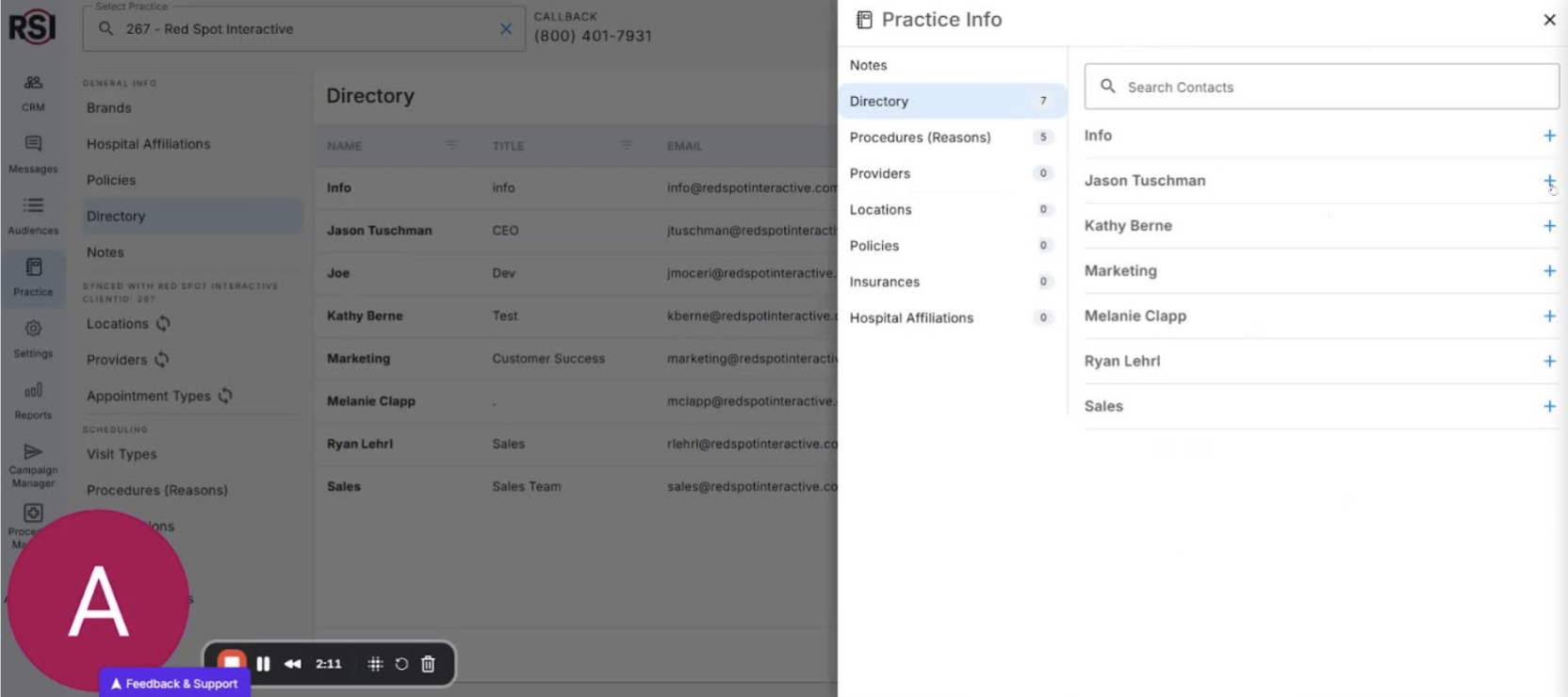
- Expand profiles to show all details for team members.
- Encourage creating a detailed list to assist the team in managing projects.
- Conclusion 2:24
- Thank you for participating in the training.
- Hope the tutorial was useful for managing your CRM effectively.














