

Education Library
Campaign Manager Campaigns, Email Lists, Email Campaigns & Email Status
Campaign Management
Unique campaigns should be created for the purpose of tracking calls to a phone number placed on marketing content and tracking online forms that capture lead information including but not limited to name, email, phone number, and procedure of interest.Workflow and Roles
- A campaign should be created anytime a new marketing effort begins. A marketing effort can be paid ads online, print materials, websites, landing pages, Google My Business profiles, social media profiles/ads, etc.
- Order a Phone Number: Order a phone number from your connected VOIP to be used within the marketing content.
- Setup Online Form: If applicable, set up a Contact Us form on a landing page for online marketing.
- Set up RSI Campaign: Log into RSI Campaign Manager (Campaign Manager > Campaigns) to add a new campaign.
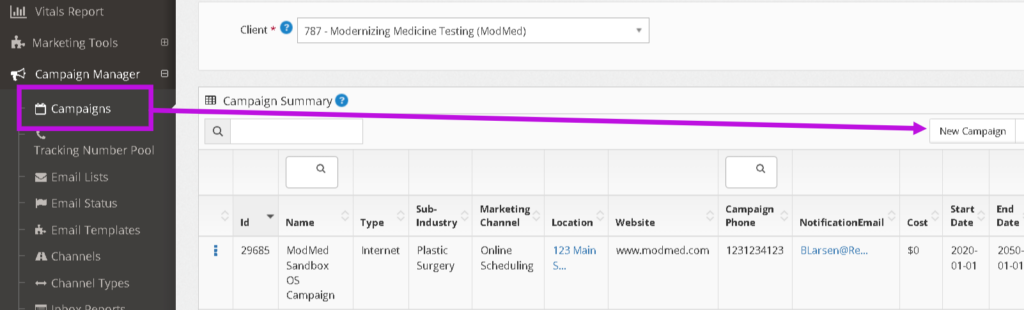
- Click New Campaign and fill out the campaign profile.
- Name This is the name of the campaign you want to track.
- Start & End Date This is the date that your campaign will start running. Ex. The date your ad gets published, email sends out, commercial starts airing, etc.
- Campaign Phone This is the phone number in your phone provider account that is associated with this campaign. When someone dials this phone number their call will be associated with this campaign in your reporting. For accurate reporting, it is recommended that a phone number be associated with only one active campaign at a time.
- Campaign Vanity Phone This is an optional field for you to identify that the Campaign Phone is the actual tracking number but the phone number on the marketing piece is the Vanity Number that the leads are calling (forwards to campaign phone).
- Lead Notification Email These contacts get the RSI Notification “Lead Confirmation to the Client’s Office (Non Lead Managed Clients)“ for all leads from this campaign. You can add new contacts by going to Admin Tools > Client Manager > ⋮ > Admin Onboarding > Contacts.
- Location This is the location you would like associated with your campaign. Locations are used to accurately report on total calls when calls are received before or after office hours. Leads from this campaign will default to this location, but can be changed in the communication center.
- Website Most campaigns will be associated with your practice website domain. This only needs to be altered if you own multiple domains that you run advertising through. This dropdown pulls from your websites listed in Admin Onboarding > Online Presence.
- Urchin Traffic Monitor (UTM) – This information will come in automatically from the Google Ads integration. You only need to fill this out if you have UTM data applied to links outside of Google Ads..
- Channel A channel is a subdivision of channel type – it further specifies the type of source the leads are coming from (ie. Facebook Ads, PPC, Affiliate Websites, etc.). Reporting Dashboards organize leads by Channel.
- Type This is how a lead can respond to this campaign.
- Email and Phone – Patients can call OR fill out an online form
- Phone Only – The patient can only call
- Text – The patient can text a phone number
- Internet – The patient uses Online Scheduling to book an appointment directly.
- Sub-Industry This is the industry of your business. This will pull industry related templates into your email/text builder.
- Fail Alert Recipient This is the person who should get notified if an email or text associated with this campaign fails to send.
- Email This is the email of the person who should receive the failure alert. The email address defaults to the email address associated with your user, but can be changed here.
- Mobile SMS This is the mobile phone number of the person who should receive the failure alert. The phone defaults to the mobile number associated with your user, but can be changed here.
- Cost Enter the total amount you plan to spend between the Start and End Dates. Ex. If you pay $100 a month for a campaign and you plan to run for 1 year, your cost would be $1200. This is used to calculate ROI in your reporting dashboard. Note: You do not need to fill in cost for campaign set up for Google Ad Campaigns. The integration will bring spend into your reports automatically.
- Promo Promos will show up in the communication center when patient coordinators are processing leads. If the campaign is associated with a special discount you can enter that here to remind the coordinator when they are processing a lead from that campaign. Ex. $500 Off expires 1/31/22
- Enabled
- All Campaigns Enabling the campaign allows leads to be associated to it when they are created between the Start and End Date. If you have more than 1 campaign using the same phone number and the Start and End Dates overlap each other, it is recommended that only 1 campaign is enabled at a time.
- Campaigns with Emails or Texts Enabling a campaign will allow the message to be sent when the send schedule is within the Start and End Date. If a campaign is not enabled, the send schedule will be ignored.
- Default If the system cannot associate a lead with an eligible campaign, then the lead will be associated with the default. There can only be one default campaign. It is recommended that the practice website be the default campaign.
- Lifecycle Select True if this campaign supports recurring email or SMS marketing. This is used for organizational purposes only.
- Lead Source Used by RSI patient scheduling team only. This field defines the lead source automatically for leads coming from phone calls vs contact forms. The list is only available if you have patient scheduling services with RSI.
- Referral Source This list pulls from referral sources in your PM system. When a Referral Source is selected, any patients that are tied to this campaign will also be tied to this referral source. Note: Right now this is only available for Nextech customers.
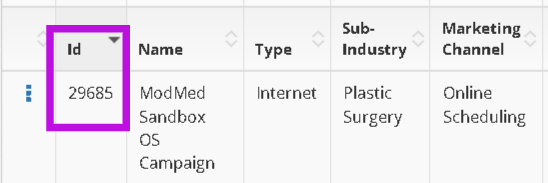
- Once the campaign is saved it will generate a Campaign ID, which will be used to set up lead ingestion to associate form submissions with this campaign.
- Lead insertion options can be found here: https://www.redspotinteractive.com/portal-education/internet-lead-capturing/
- Click New Campaign and fill out the campaign profile.














