

Education Library
Provider Profiles
Guide to Editing Provider Information in Red Spot Interactive’s CRM
1. Introduction to CRM Training 0:00
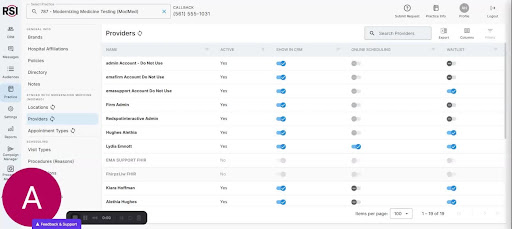
- Welcome to Red Spot Interactive’s CRM training series.
- Presenter: Amy.
- Purpose: Walkthrough on editing and updating provider information in the new CRM.
2. Overview of Practice Information System 0:16

- The practice information system is a digital file for quick access to practice information.
- It helps staff communicate effectively with patients and manage leads.
3. Accessing Provider Information 1:03

- Navigate to the ‘Practice Information’ section in the left toolbar.
- Locate the ‘Providers’ section.
4. Understanding Provider Synchronization 1:38
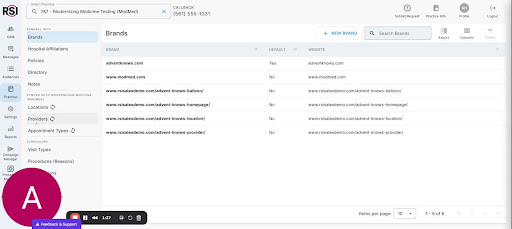
- Note that the provider list is synced with your Practice Management (PM) system (e.g., Modernizing Medicine, Next Tech, Advanced MD).
- Changes to provider status (active/inactive) must be made in the PM system.
5. Editing Provider Information 2:08
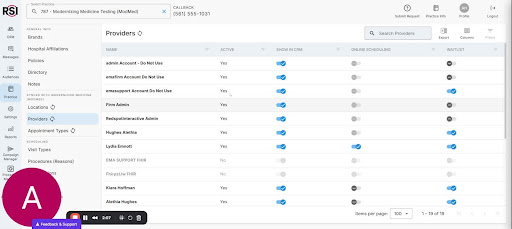
-
Click on a provider to edit their information:
- Add an alias or format their name with medical credentials.
- Upload a photo of the provider.
- Provide details about their medical education and notes.
6. Managing Insurance Information 3:04
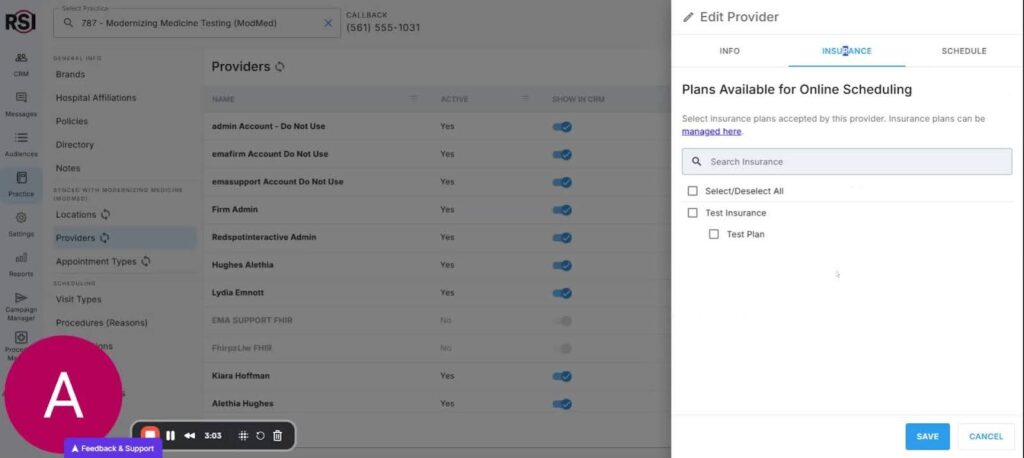
- Check off the insurances that the provider participates in.
- Note: Insurance list management is in a different section.
Updating Provider Schedule 3:20

-
Edit individual settings for online scheduling:
- Set time availability.
- Enable or disable online scheduling.
- Specify active locations and update hours for each location.
8. Saving Changes 4:26
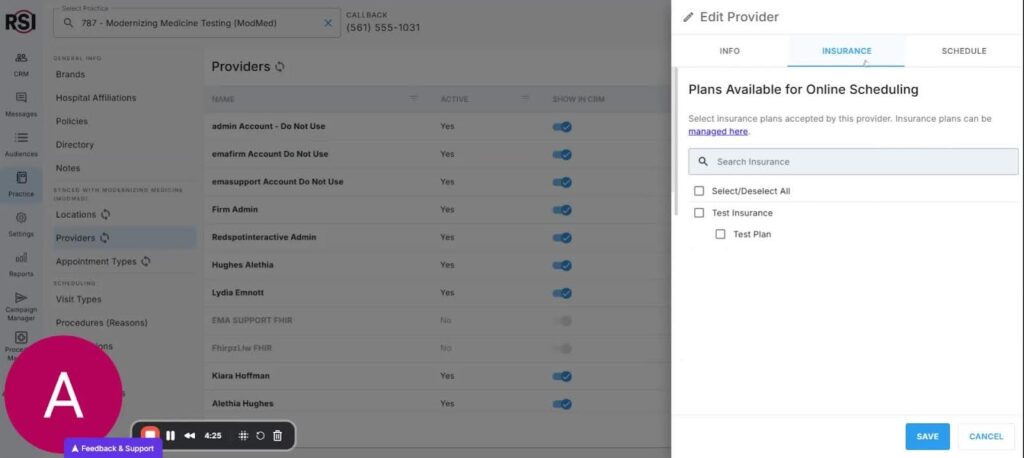
- After making all necessary updates, hit ‘Save’ to apply changes.
9. Conclusion 4:37

- Thank you for participating in the training.
- For more information, refer to the online library section for detailed guidance.














