

Education Library
Procedure Manager
Adding and Editing Procedure Information in your CRM
Procedures (Reasons) – Overview
The Procedures (Reasons) list is a customizable master list that serves three critical functions across your practice management ecosystem:
- Online Scheduling This list provides patient-friendly names for appointment types available through online booking. Each procedure name represents a service offering that patients can easily understand and select (e.g., “Teeth Whitening Consultation” or “Invisalign Assessment”). These procedure names are then mapped to the corresponding appointment types in your practice management system, ensuring seamless scheduling integration.
- Internal Knowledge Base (CRM Practice Info) Your staff can access detailed information about each procedure within the CRM’s Practice Info section. This serves as a centralized digital resource where you can document important details including average costs, expected healing times, scheduling protocols, and procedural notes. This ensures consistent information is accessible to all team members in one convenient location.
- Lead Source Mapping When web forms include dropdown selections for procedures or areas of interest, matching entries from this list will automatically map to incoming leads. This creates structured data that enables accurate tracking and reporting on lead performance by procedure type, helping you understand which services generate the most interest.
Important: Maintaining consistency in procedure names across all three applications ensures proper mapping and data integrity throughout your system.
1. Introduction to CRM Training 0:00

- Welcome to Red Spot Interactive’s CRM training series.
- Focus: Adding and editing practice information specific to procedures in the updated CRM.
2. Overview of the New User Interface 0:16

- The new CRM features a sleek user interface.
- Streamlined features for faster and more intuitive workflow.
3. Understanding Practice Information System 0:26

- Practice info is located on the right side of the CRM.
-
It serves as a digital file for your practice, containing:
- Provider details
- Staff directory
- Location details
- many other areas
4. Definition of Procedures 1:04
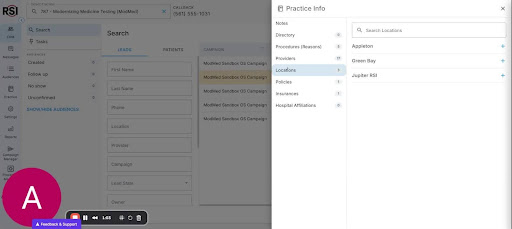
- Procedures differ from appointment types.
- They represent the various services offered by the practice.
5. Goals for Procedures Section 1:15

- Goal 1: Provide detailed, accessible information for team members to communicate effectively with patients.
- Goal 2: Integrate with online appointment scheduling, allowing procedures to be viewable online.
- Goal 3: Prepare for future AI tools that will utilize detailed procedure information.
6. Viewing Procedures 3:09
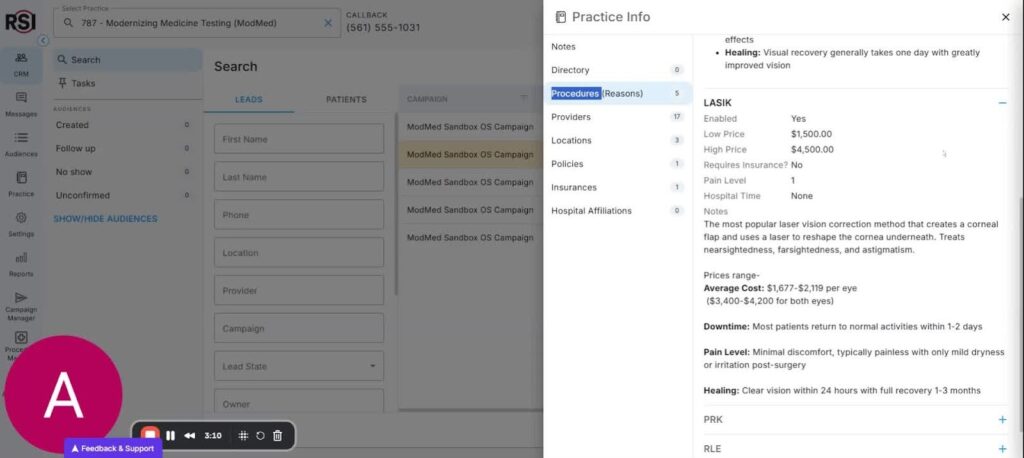
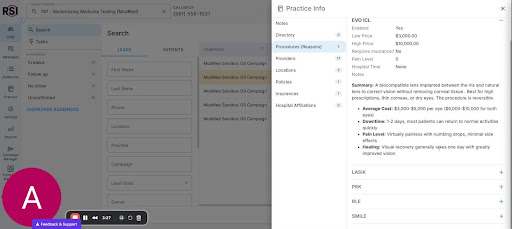
- Procedures can be viewed by clicking the plus sign to see detailed information.
7. Editing Procedure Information 3:26
- Navigate to the left under the practice icon (requires permission).
- Scroll down to ‘scheduling’ and select ‘procedures’ (or ‘reasons’).
- Click ‘new procedure’ to add a new procedure.
8. Flexible Editing Options 3:49

- Editing features are similar to a Word document, allowing for eye-catching formatting.
-
Additional fields include:
- Medical term
- Pain level
- Hospital time
- Recovery time.
9. Understanding Procedure Settings 4:27
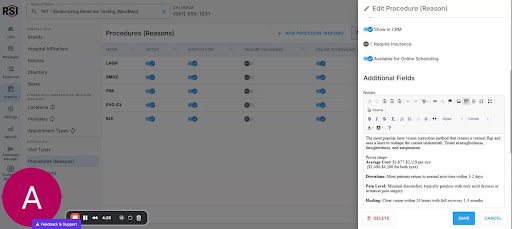
- Active: Determines if the procedure is viewable and editable in the system.
- Show in CRM: Allows team to view the procedure in the CRM.
- Require Insurance: Indicates if insurance information is needed for scheduling.
- Available for Online Scheduling: Controls if the procedure can be scheduled online.
10. Saving and Deleting Procedures 6:00

- After making changes, hit ‘save’ to update.
- If a procedure is no longer offered, hit ‘delete’.
11. Conclusion 6:17

- Thank you for watching the training video.
- Encouragement for both new and existing practices to utilize the latest features.














