

Education Library
Locations
Viewing and Editing Practice Location Information in Red Spot Interactive’s CRM
- Introduction to CRM Training 0:00

- Welcome to Red Spot Interactive’s CRM training series.
- Purpose: Walk through viewing and editing practice location information in the new CRM environment.
- Overview of Practice Information System 0:29

- Definition: A comprehensive digital file for each practice.
- Access: Manage provider details, location information, procedures, and services.
- Accessing Practice Information 0:52

- Navigate to the ‘Practice Info’ tab in the CRM.
- Click on ‘Locations’ to view a list of practice locations in alphabetical order.
- Viewing Location Details 1:13
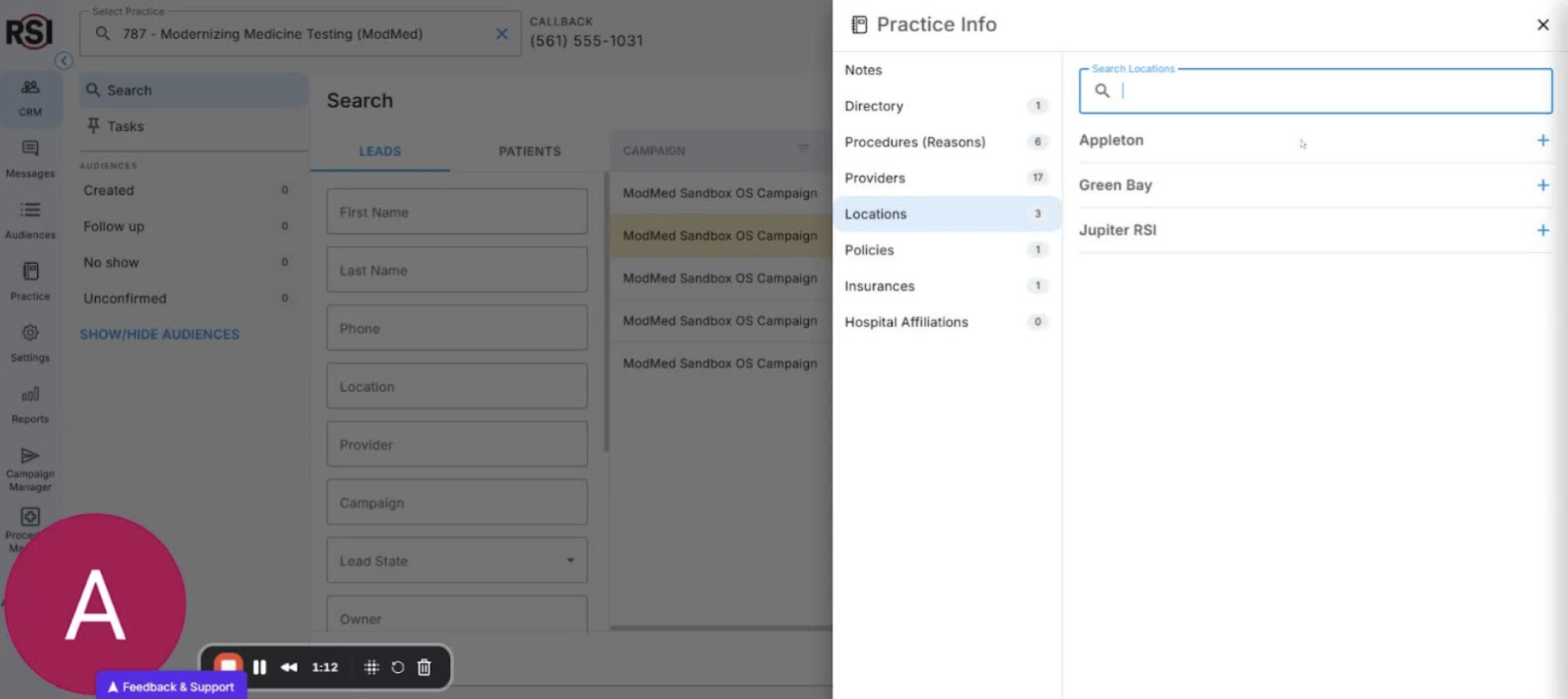
- Click to expand a location for:
- Address
- Contact information
- Detailed satellite map of the location.
- Editing Location Information 1:27

- Navigate to ‘Practice Settings’ and click on ‘Location’.
- Note: Information is synced from the practice management system (indicated by two arrows in a circle).
- Modifying Location Name and Settings 2:00
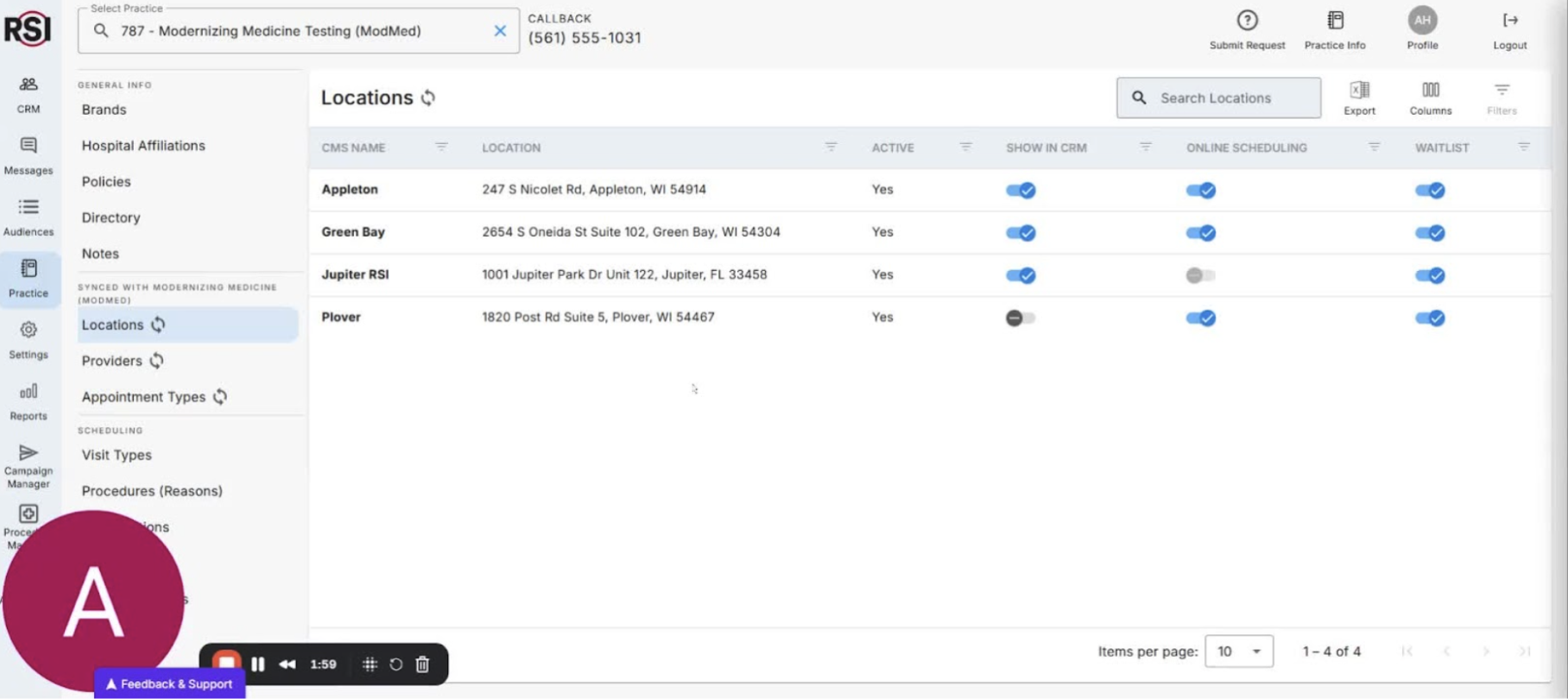
- Click on a location to view details.
- Edit the alias for client-facing names in online scheduling.
- Set a default location for lead management.
- Show/Hide Location in CRM 2:40

- Toggle ‘Show in CRM’ on or off for each location.
- Example: Toggle off for Appleton location and save to see instant updates.
- Entering Payment Location ID 3:20

- For locations taking payments, enter the merchant ID specific to each location.
- Updating Contact Information and Hours 3:42

- Update contact information for the practice.
- Set hours for online scheduling by toggling on and editing hours.
- Conclusion 4:10

- Thank you for participating in the training.
- Encouragement to explore more resources in the online library.














